Edit Explore liveboards
You can organize and style the information in your Explore liveboard using filters, tabs, groups, colors, and more.
Edit or copy liveboards
To edit a liveboard, open it, then select More  > Edit. Then use any of the settings below.
If you don't have permission to edit a liveboard, you can make your own copy that you
can edit. Select More > Make a copy.
Overall liveboard settings
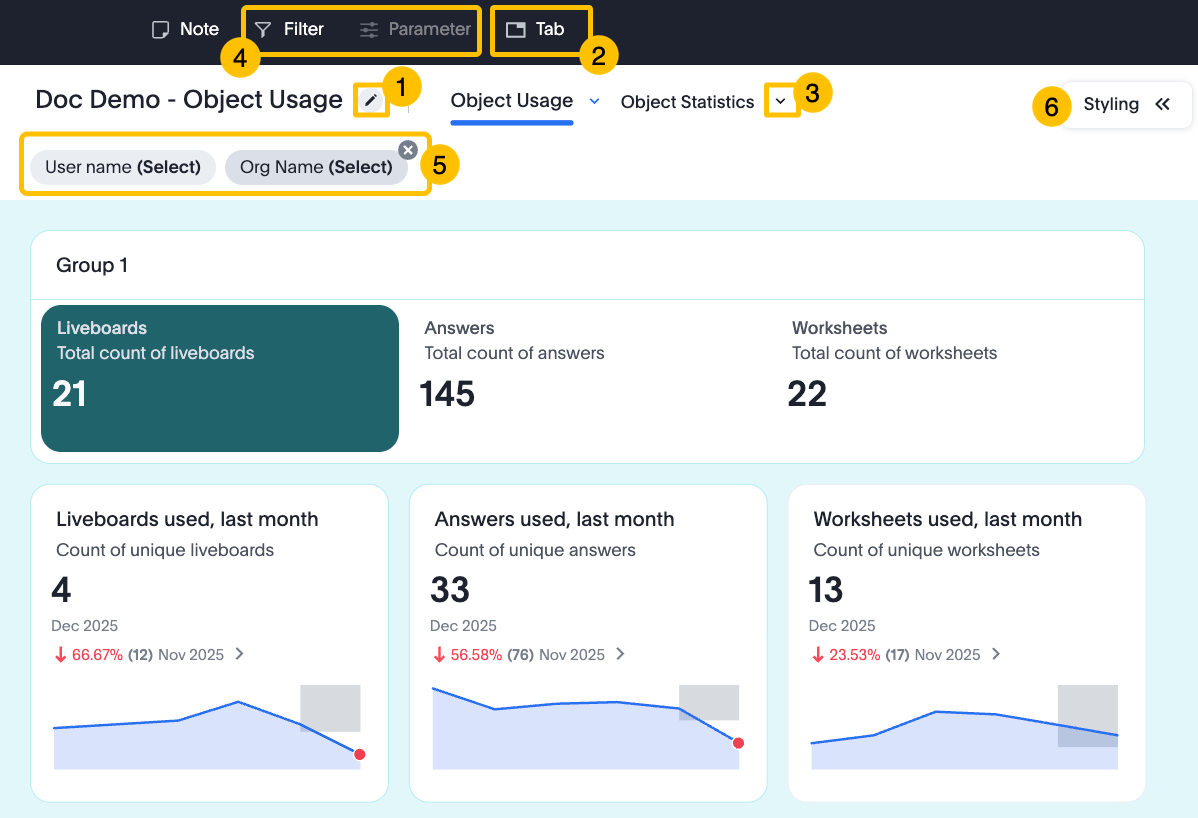
- 1. Rename and describe the liveboard
- Write a title and description for your liveboard to help others understand when and how to use it.
- 2. Add tabs
- Use tabs to group related tiles on different pages.
- 3. Edit tabs
- Select the tab down arrow to rename or delete it. Click and drag tabs to reorder them.
- 4. Add filters and parameters
- Add filters and parameters based on data in the liveboard. When other people view the liveboard, they can use the filters and parameters to narrow or personalize the data. You can configure the settings. For example, you can create a filter with default selected values, apply the filter only to certain visualizations, and make it mandatory.
- 5. Edit filters and parameters
- Select a filter or parameter to edit it. Select the X to delete it.
- 6. Liveboard styling settings
- Select Styling for settings that apply to the entire liveboard. For example, add a background color.
Tile settings
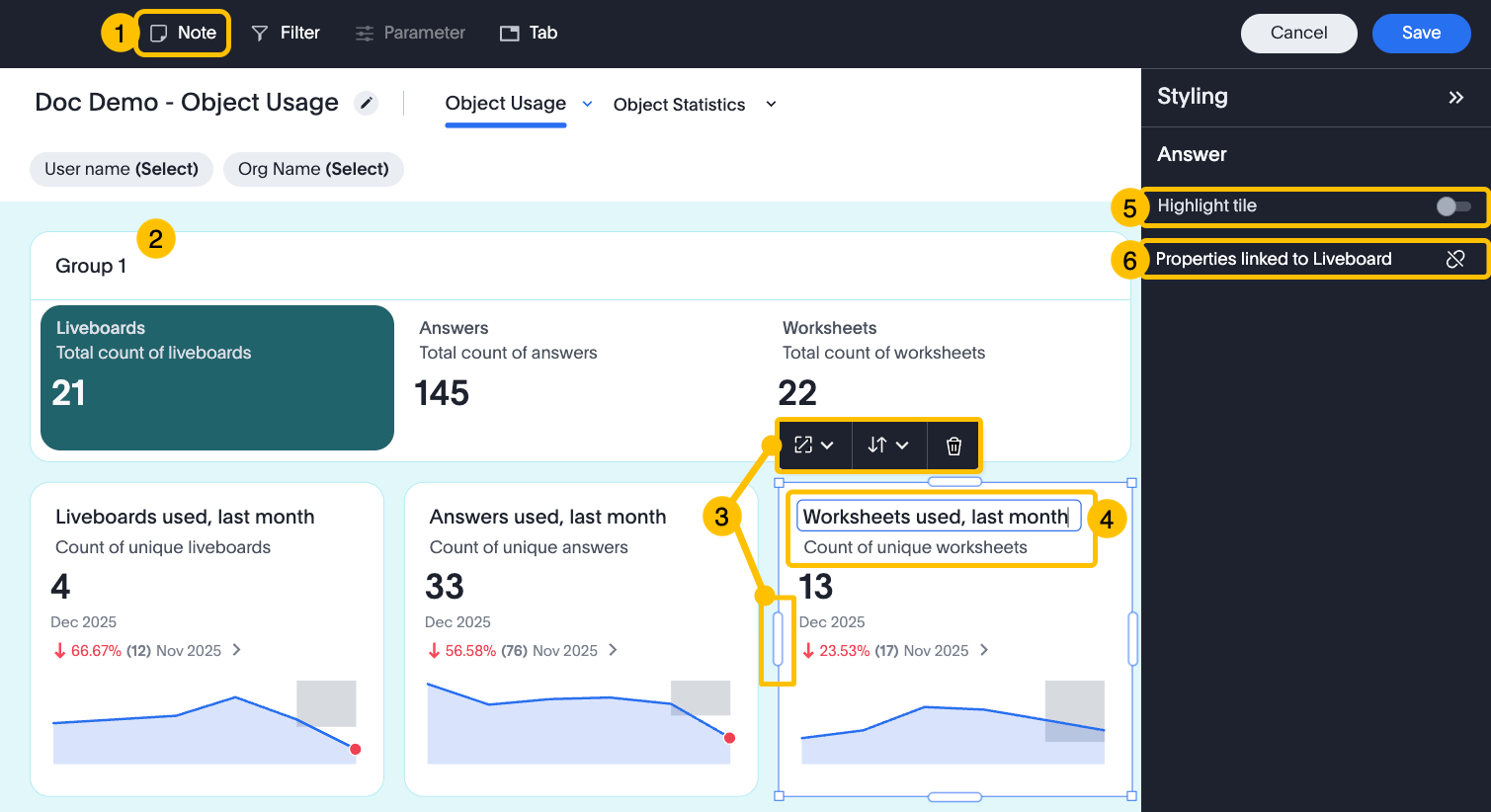
- 1. Add notes
- In the blank note tile you can add text, images, or embed content, such as a video or PDF. For embedded content, use an iframe or URL.
- 2. Group tiles
- Group related tiles and give the group a title and description. Press and hold Shift, select multiple tiles, then select Group.
- 3. Rearrange tiles
- Rearrange and resize tiles on your liveboard to meet your display
requirements. You can:
- Move: Click and drag.
- Move to another tab: Select the tile, then select Move to.
- Resize: Select the tile, then select Tile size. For more granular size options, you can click and drag the handles on the edge of the tile.
- Delete: Select the tile, then select Delete.
- 4. Rename and describe tiles
- Write a title and description to help other people understand the visualization.
- 5. Highlight tiles
- Make important tiles stand out with a dark, colored background. Select a tile or a group, then select .
- 6. More tile styling settings
- Tiles inherit most style settings, such as color, from the overall liveboard. You can customize a specific tile or group by unlinking it. Select the tile or group, then select Properties linked to Liveboard.