Create Explore liveboards
Create an Explore liveboard to bring together multiple answers into a single, unified dashboard. Add answers by pinning them from existing or new searches, then enrich the liveboard with notes, images, or embedded content.
Procedure
-
Select liveboards in the Insights
 workspace to open the liveboard page. Select Create
liveboard.
workspace to open the liveboard page. Select Create
liveboard.
-
Add a name and description for the liveboard, then select
Create.
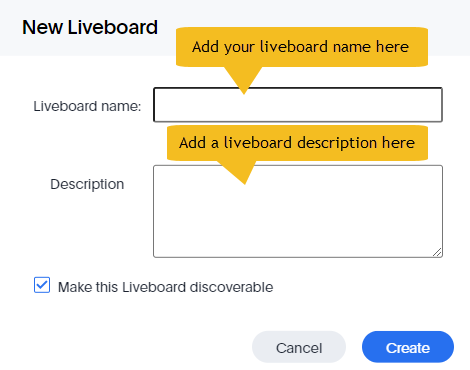
Your new liveboard is added to the liveboard list.
Add an answer to a liveboard
-
Choose from the following methods to add answers to your new liveboard:
- Open an existing answer. Select Pin
and choose the liveboard you just created from the list.
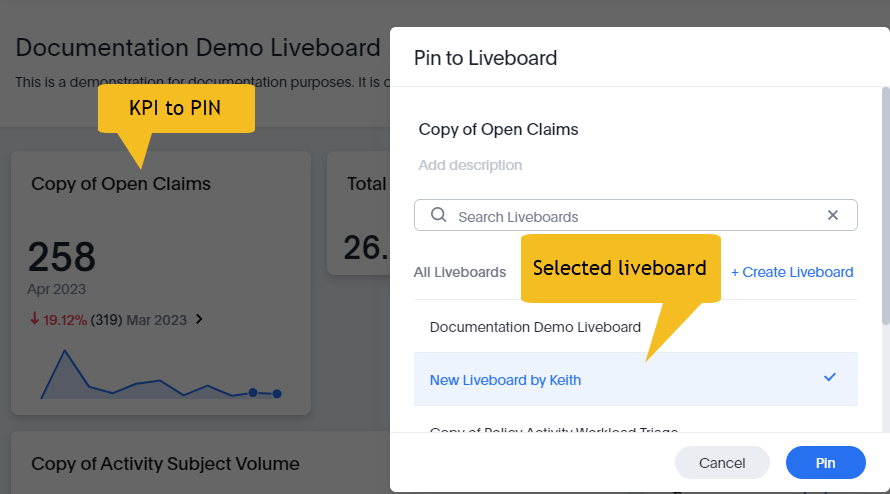
- Create a new answer using Search data. Then select Pin.
When you choose the Pin option for an answer as in the example above, you also have the option +Create liveboard. This option allows you to create an entirely new liveboard for your pinned answer. - Open an existing answer. Select Pin
and choose the liveboard you just created from the list.
Add text, images, or embedded content
-
On the liveboard, select More
 > Edit > Note. In the blank note tile you can add text, images,
or embed content, such as a video or PDF. For embedded content, use an iframe or
URL.
> Edit > Note. In the blank note tile you can add text, images,
or embed content, such as a video or PDF. For embedded content, use an iframe or
URL.
What to do next
- Organize and style the liveboard using more editing options.
- Share the liveboard with other people.
- Add tags to the liveboard.