Explore App Release Notes
Release notes for Explore application features.
October 19, 2026
What's new
Configure the query timeout threshold
To manage long-running queries or cost, you can now define how many seconds queries run before automatically timing out. See Customize query timeout in Explore.
Improvements and known issues
- Liveboard viewers can now configure filters and parameters all at once. When they select a filter, one window opens with all filter and parameter options.
- Enhanced the following chart types with features such as multi-panel trellis and
faceting modes, multivariate axis configuration logic, and expanded customization
options:
- Pareto charts: Axis formatting
- Waterfall charts: Independent color controls for increment and decrement bars
- Heatmaps charts: Gradient and label positioning
- When a data model column that a liveboard depends on is deleted, the liveboard error message now shows exactly what’s broken instead of displaying a generic error.
- Users restricted by column security now have access to liveboards that uses those columns in filters. They can't edit the liveboard.
- Scheduled liveboards now honor column security rules. Each user gets their own report based on their column security rule assignments.
- Enhanced the Data workspace filters so that it's easier to search for and manage multiple types of objects at once.
- Removed the liveboard schedules manager from the Utilities section of the Data workspace. The existing Liveboard schedules section inside Insights tab is now the primary place to manage you schedules.
September 15, 2026
Improvements and known issues
- Improved efficiency and performance of data searches by canceling in-progress queries when they are no longer needed. Previously, queries ran to completion even if you changed the search keywords or navigated to a different page while the query results loaded. Now, queries automatically cancel or you can manually cancel by selecting X in the search bar.
- You can now represent continuous measures as a color gradient in the following charts: Bar, line-column, scatter, bubble, and donut. To try it, select the Column tab in the chart editor, then select Enable gradient legend.
- Pivot tables now have a horizontal scroll bar to prevent label truncation.
- You can now favorite and filter collections, just like with liveboards and answers.
- The admin workspace has the following navigation improvements:
- Navigation state is preserved if you refresh or navigate backwards and forwards.
- Pages within the admin workspace are searchable from the top navigation bar for quick navigation.
- If you've created an aggregate model that's associated with a detailed model, data searches now automatically switch between those models depending on what level of detail is needed for a query. This feature improves query latency. To learn more, see the ThoughtSpot documentation: Aggregate-aware query execution.
August 18, 2026
What's new
Style liveboards and group tiles
- Group multiple related visualizations into one tile and give it a group name and description.
- Choose background colors for the liveboard or individual tiles. Colors help you brand your liveboards or draw attention to certain visualizations.
- Show or hide tile descriptions.
Create meaningful groups for columns
Data managers can now group model columns into meaningful groups and alphabetize them to help users find columns during a search. When they Search data and select a model, columns are then organized into the custom groups in the data panel, rather than the default groups (Measures, Attributes, and Dates).
Data managers define the custom groups in a model's TML. See Custom groups for model columns.
Improvements and resolved issues
- Made the liveboard header more compact to increase the space for charts.
- When you download or schedule liveboard PDFs, you can now choose to:
- Exclude cover and filter pages
- Create a continuous PDF without page breaks
- Liveboard tabs now only display relevant filters and parameters for that tab.
- You can now link identical parameters in liveboards to combine them into a single parameter. For example, if you have a liveboard that sources from two models, and each model contains a "currency" parameter, liveboard users had to set two identical "currency" parameters at the top of the liveboard. Now, you can link those parameters so that users only have to set the currency once.
- In a liveboard, you can now view, update, and apply multiple filters at once, rather than interacting with each filter individually. This change makes it more efficient to interact with liveboards that have many filters.
Removed features
- Removed the Make this liveboard discoverable and Make this answer discoverable options due to governance concerns. Liveboards and answers are now only accessible to users who have explicit view or edit permissions. To give all Explore users access to an answer or liveboard, share it with the Users Group and grant them the Can View permission.
- Removed the Every N minutes liveboard scheduling frequency. Automatically updated existing sub-hourly schedules to every 1 hour.
August 11, 2026
New known issue
Added a known issue to the documentation: Can't create custom calendars
June 28, 2026
Improvements and resolved issues
- You can now share a liveboard by email in a one-time delivery, rather than only a recurring schedule. To try it, select , then select Send now at the bottom of the scheduling window.
- When editing a connection, you can now save your changes and exit, then return later to finish the process.
- When creating a date filter on an answer or liveboard, you can now include the current period in the date range. For example, "the last two months, including this month."
- A new charting library replaces the classic library for 12 chart types: Column, Stacked Column, Line, Bar, Stacked Bar, Line Column, Area, Stacked Area, Line Stacked Column, Pie/Donut, Scatter, and Bubble. These chart types are enhanced with more sophisticated configurations and advanced capabilities. The new library is the default for newly created charts. Nothing changes for your existing charts. Migration of existing charts to the new library is planned for a future release, and will be communicated in advance. For more information, see the ThoughtSpot documentation: New charts library.
June 5, 2026
What's new
Organize content into collections
You can now organize models, answers, and liveboards into collections so that you can find them more easily and curate sharing and collaboration. Collections are containers that logically group Explore objects. An object can belong to more than one collection without duplication. You can nest collections to create hierarchies. To learn more, see Organize with collections in Explore.
Improvements and resolved issues
- KPI charts have the following updates:
- Set different colors for anomalies that are above or below the expected value.
- Display nulls as 0 or No data found.
- Downloaded Liveboard PDFs no longer split charts across page breaks.
- If you use a Snowflake connection for external (non-Guidewire) data, Explore now supports importing external semantic model definitions from Snowflake Semantic Views. The definitions are converted into native Explore models, eliminating the need to manually recreate models.
April 8, 2026
Improvements and resolved issues
- Updated email notifications with Guidewire Explore branding.
- Added advanced settings for KPI charts:
- Display missing dates as gaps, 0, or ignore them.
- Show or hide the current date, previous date, and previous value.
- Abbreviate previous month (PM) or previous quarter (PQ).
- Specify whether the measure’s increase or decrease is positive or negative.
- You can now link identical parameters in liveboards to combine them into a single parameter. For example, if you have a liveboard that sources from two models, and each model contains a "currency" parameter, liveboard users had to set two identical "currency" parameters at the top of the liveboard. Now, you can link those parameters so that users only have to set the currency once.
- Models now support table aliases for dimensions in chasm trap models and for fact tables.
March 11, 2026
Improvements and resolved issues
- For users with access to the Admin workspace, it's now a tab in the left navigation panel. Now, you can switch between all three workspaces in fewer clicks.
- You can now use parameters in answer titles, descriptions, column names, and axis names. The text changes dynamically based on the parameter value used in the chart. To try it, edit an answer title, type @, then select from the list of parameters available for that answer.
- Improved how Explore analyzes the data and automatically selects a chart type when you create or edit a search.
- You can now migrate content from non-production to production environments without
having to manually change the system-generated GUID of an object. You can add an
object ID in the TML of a table, model, answer, or liveboard, then use the
obj_idas the primary method of import. To learn more, see the ThoughtSpot documentation: Object ID in TML files
February 20, 2026
What's new
Spotter availability
Spotter has been disabled for broad customer availability but is available to customers upon request. Reach out to Guidewire for more information if you have interest in evaluating Spotter.
February 10, 2026
What's new
Enhanced chart settings
When editing charts, the settings panel now has a more intuitive layout that makes it easier to find specific settings. New advanced settings also give you more control over your charts. For example, data label sizes, colors fonts, grid lines, and tooltips.
Create custom charts with the Muze charting library
Developers can now create custom charts in Explore using the Muze charting library. They can code directly in the chart editor, access documentation, and resolve issues with real-time validation. Muze charts only apply to the answer where they're created. To reuse a custom chart, other users can make a copy of the answer and modify it. To learn more, see the ThoughtSpot developer documentation: Muze Studio.
Style liveboards and group tiles
- Group multiple related visualizations into one tile and give it a group name and description.
- Choose background colors for the liveboard or individual tiles. Colors help you brand your liveboards or draw attention to certain visualizations.
- Show or hide tile descriptions.
Set the default date bucket for a model column
A new model column property is available: Default date bucket sets the date interval, such as daily, weekly, monthly, or quarterly. Then, whenever someone uses that column in a chart, it uses the default date bucket. For example, if "monthly" is the most commonly used date interval for a column, users don't have to specify "monthly" in every search. To try it, open the model editor and scroll horizontally to the last column property.
Improvements and resolved issues
- Navigation has the following improvements:
- You can now switch between the Insights and Data workspaces in fewer clicks. They're now tabs in the left navigation panel. The Admin workspace is now under your profile image, then Admin settings. To learn more, see Navigating Explore.
- Added quick access to perform some actions in the left navigation panel:
- Start creating an answer or liveboard: Select +.
- Open Spotter: Select Spotter.
- View your favorites: When you favorite an answer or liveboard, it now appears in the left navigation panel for quick access.
- Liveboards have the following improvements:
- You can now filter a liveboard even if you don't have access to some of its underlying models. The filters and parameters that are based on the inaccessible model are read-only. Those based on accessible models are useable.
- When searching data, you can now create a copy of an existing formula, parameter, or set. Try it by hovering over it the object you want to copy and selecting . This option saves time creating similar formulas, parameters, and sets.
- The old version of the pivot table, called Pivot Table (Classic), has been removed. The new pivot table has performance improvements, additional customization options, and improved design.
- Explore now auto-translates written text on answers and liveboards, with the exception of column names and filters. For example, liveboard titles and descriptions are translated. Translations match the language set in your profile. This feature only works if Spotter is enabled.
- Improved query speed for large, partitioned datasets with date-based analytics.
November 20, 2025
What's new
Bulk migration from worksheets to models
To complete the ongoing transition to models, all worksheets are automatically migrated to models in this release. Models are the new name for worksheets. Model creation is more visual and intuitive. The interface includes a drag-and-drop builder, a visual diagram of joins, and more intuitive editing. Otherwise, models function exactly like worksheets did.
Create a reusable group of values
When creating an answer, you can now create a set. Sets are defined groups of values that you can reuse across many Answers. For example, you can create a set to categorize products, group a range of numbers, or define a seasonal time period. Once you share an Answer with a set, other people can use the set in their own Answers. To learn more, see Sets.
Custom sorting for Answer attributes
- In the Answer editor, select Edit chart configuration
 .
. - Select one of the blue attribute columns.
- Under Sort order, select Custom.
- Select Edit custom order.
Improvements and resolved issues
- Spotter has the following improvements:
- You can now give users permission to coach Spotter for individual models, without allowing them to edit the models.
- When coaching Spotter, you can now add a natural language explanation for your changes. This context helps Spotter apply the same logic to future Answers.
- You can now directly add business terms to coach Spotter, from the Spotter - Business terms page. Previously, you could only add business terms after coaching with a reference question, from the Spotter - Reference questions page.
- Monitor alerts have the following improvements:
- Monitor alert emails now display a visualization, the change from the previous time bucket, and the threshold condition.
- You can now subscribe an entire user group to a Monitor alert, instead of adding one user at a time.
- Formulas have the following improvements:
- For the formula aggregation function
query_groups, you can now use a new syntax to define an optional include list:query_groups(column1, column2, column3). This syntax specifies a list of grouping columns that are included if they're present in the search query. Previously, you could only specify an exclude list or specify a fixed include list of columns that must be present in the search query. To learn more, see the ThoughtSpot documentation: Query groups - New formula functions are now available:
Last_value_in_periodandfirst_value_in_period. These functions are useful for semi-additive measures, which typically return a single value per time period rather than being additive across time. To learn more, see the ThoughtSpot documentation: Last_value_in_period and first_value_in_period functions
- For the formula aggregation function
- Liveboards have the following improvements:
- When you download a Liveboard as a PDF, you can now choose to exclude the cover and filter pages from the PDF.
- Any defined row-level security rules now apply when you use the Explore button in a Liveboard, then apply a filter to the chart.
- The Liveboards and Answers list pages
have the following improvements:
- There's a new column for the number of views.
- You can now sort by name, author, and views.
- If you select the Yours tab to view only answers and liveboards that you created, Explore now remembers that preference the next time you open the page.
- Previously, any filter created on a model applied to every query based on that model.
Now, you can use the
apply_on_tablesproperty in the model TML to define which table a filter applies to. Then the filter only applies to queries that include columns from that specific table. To learn more, see the ThoughtSpot documentation: TML for Models - Updated the abbreviations for large number formatting in Japanese. The new format uses 千 for thousands, 百万 for millions, 十億 for billions, and 兆 for trillions.
- Explore now supports OAuth Client Credentials authentication for Snowflake.
August 11, 2025
Disabled the worksheet editor
The worksheet creator and editor have been disabled as part of the ongoing transition to models. All worksheets that you or Guidewire created will soon be migrated to models automatically in a future release. For new content, you can only create models, not worksheets. If you need to edit one of your existing worksheets before the bulk migration, you can convert the worksheet to a model.
Models are the new name for worksheets. Model creation is more visual and intuitive. The interface includes a drag-and-drop builder, a visual diagram of joins, and more intuitive editing. Otherwise, models function exactly like worksheets did.
July 31, 2025
What's new
Analyze changes in a Liveboard with AI Highlights
Spotter conversational search
Sage natural language search was re-branded as Spotter and enhanced with a conversational search experience. Just like Sage, you can ask Spotter a business question using natural language and it generates an Answer with AI. Now, you can continue the conversation by asking follow up questions about that Answer. Users with permission can coach Spotter to improve its accuracy.
You can also dig deeper into Liveboards with Spotter. In the top right corner of an Answer, select Spotter to ask questions about the data and generate new Answers. This feature does not replace the Explore button, which is a similar but more manual experience that gives you complete control over what you change in the chart or table.
Improvements and resolved issues
- You can now add KPIs to your watchlist directly from a Liveboard or Answer. On the
KPI, select More
 > Add to watchlist.
 - When creating a Monitor alert, you can now select a specific time zone instead of using the default UTC time zone.
- You can now create Monitor alerts for specific attributes. They can be threshold-based or scheudled. To try it, select one of these alert types: Values of an attribute crosses a set limit or Regular updates on values of an attribute.
- To bulk edit a model's column properties, you can now export a CSV file, edit it, and import the changes. To learn more, see Bulk edit Explore model column properties.
- You can now reorder parameters on Liveboards or Answers. Previously, you could only reorder filters. Click and drag a parameter to move it.
- When creating Answers in the Search Data screen, you can create
a new formula based on an existing formula. Next to the formula name, select More > Make a copy, then edit the new formula.
June 2, 2025
Improvements and resolved issues
- For Answers with parameters, the chart's labels (axis names, column names, and legends) now reflect the parameter value. For example, if you change a parameter value from Open date to Close date, the corresponding chart axis name changes to Date: Close date.
- Blended axes are a new way to add multiple measures to pivot table
charts. It's possible to have more configurations of charts and compare multiple
measures together. When editing a pivot table, select Edit chart
configuration
. At the bottom of the list of rows, values, and columns, you'll see a new
chip called Values under Not
visualized. This is a system-defined chip that groups the values
(measures) so that you can control them as an attribute. You can drag the
Values chip into the Column section
or Row section to change how the measures display in the
pivot table.
- When your system language is set to Japanese, you can now enter keywords in either English or Japanese while using the Search Data feature. Keywords are phrases such that help define your search, such as last month, average, and contains. For a list of keywords, see the ThoughtSpot documentation: Keyword reference.
- You can now change the cardinality of a join (1:1, 1:Many, Many:1) without needing to delete and recreate the join.
May 29, 2025
What's new
Coming soon: Navigation and homepage enhancements
- The Data and Admin tabs are in the
workspace selector
 in the top navigation bar. When you switch to one of those workspaces, you
leave the Insights workspace. Insights is the
new name for the main area of Explore where you view and create visualizations.
in the top navigation bar. When you switch to one of those workspaces, you
leave the Insights workspace. Insights is the
new name for the main area of Explore where you view and create visualizations. - The other tabs that were in the top navigation bar, such as Search Data, are on the left side of the screen when you open the Insights workspace.
- The search bar for existing Liveboards and Answers is in the top navigation bar. Select the search icon to open it. Sage search is a separate search bar on the Insights home screen.
The home screen also has a new look. You can customize the order of elements on the page, or remove them. Scroll to the bottom of the page and select Customize homepage.
To learn more, see Navigating Explore.
May 12, 2025
What's new
Coming soon: Migration from Worksheets to Models
All Worksheets that you or Guidewire created will soon be migrated to models. Models are the new name for Worksheets. Model creation is more visual and intuitive. The interface includes a drag-and-drop builder, a visual diagram of joins, and more intuitive editing. Otherwise, models function exactly like Worksheets did. Guidewire will help you migrate to models over the next few months. You can create models now, even before you migrate. For new content, Guidewire recommends creating models instead of Worksheets.
The documentation now includes more information about tables and models. See Work with models in Explore.
February 24, 2025
Improvements and resolved issues
- From the Answers and Liveboards library, you can now:
- Sort by Last Modified
- Filter by All or Yours
- Export an Answer or Liveboard as TML without opening it. Select the checkbox next
to its name, then select Export TML.Note: . These new options are available from Answers and Liveboards pages as well as the Library section on the home page. To use them, you must have enabled the new navigation and home page experience.
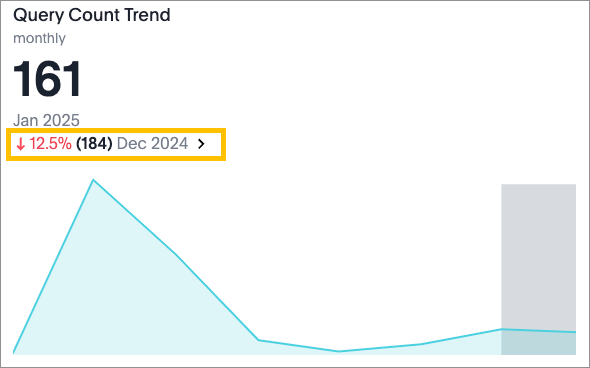
- When creating a KPI with a percent change comparison to another point in the past, you
can now choose a custom point in time. For example, for a "Weekly open claims" KPI you
can choose to compare this week's count to "7 weeks ago."
- When adding conditional formatting to a chart or table, you can now:
- Use Column-based conditional formatting to compare a column’s measures to another column. For example, if you search for claims this year compared to claims last year, you can highlight where there were fewer this year.
- Create multicolor gradients for conditional formatting in the following charts: Geo heatmap, geo area, heatmap, and treemap charts.
- You can now run change analysis on queries that contain group aggregate expressions.
- If you use the ThoughtSpot Connected Slides add-on for Google Slides, you can now:
- Schedule daily, weekly or monthly updates of all visualizations in your Google Slides presentation
- Create personalized views and tabs
- See a timestamp that shows when a slide was last updated
January 30, 2025
What's new
Get alerts for anomalies in KPIs
You can now get KPI Monitor alerts when data is outside of a predicted value range. Predictions are made by ML models trained on the data. You specify when and how often Explore checks for an anomaly. If there's a temporary anomaly outside of the time you specify, you won't get an alert. To set one up, see Get KPI alerts.
Navigation and homepage enhancements
- Select your profile image in the top-right corner of the screen, then select Profile.
- Under Experience, select Edit, then select the New experience for Navigation and Homepage.
- The Data and Admin tabs are now in
the workspace selector in the top navigation bar. When you switch to one of those workspaces, you
leave the Insights workspace. Insights is the
new name for the main area of Explore where you view and create visualizations.
- The other tabs that were in the top navigation bar, such as Search Data, are now on the left side of the screen when you open the Insights workspace.
- The search bar for existing Liveboards and Answers is now in the top navigation bar. Select the search icon to open it. Sage search is now a separate search bar on the Insights home screen.
The home screen has a new look. You can customize the order of elements on the page, or remove them. Scroll to the bottom of the page and select Customize homepage.
Coming soon: Migration from Worksheets to Models
- In the Data workspace, the tab for Worksheets is now called Models.
- The window where you create Worksheet joins has a different layout with the same functionality.
Improvements and resolved issues
- If you have the Tag Administration role, you can now delete and rename tags. Select the Answers or Liveboards page, then select Manage tags. Manage tags is also a convenient new place to create new tags and manage all tags in your environment.
- Fixed an issue where the KPI alert subscription failed to send alerts for changes in KPIs with single data points.
- Made the following Liveboard improvements:
- Hover over legend items to highlight the corresponding data.
- Hover over truncated legend items to see the full label name.
- If charts are very small because of the size of the browser window, x- and y-axis labels are omitted because they were not readable. Now, hover over data points to see their values.
- Updated Liveboard breakpoints so that charts are more readable no matter the width of your browser window.
- Made the Liveboard header narrower, leaving more space on the screen for the data.
- When you download a custom calendar to use as a template, you can now download it without actually creating the calendar in Explore. In the calendar creation window, fill out the calendar settings, then select Download as CSV instead of Create. After it downloads, select Cancel.
- If you use the ThoughtSpot Connected Sheets add-on for Google Sheets, you can now update a sheet with the latest data without having to enter the search query again. Select the Get data button.
September 5, 2024
Improvements and resolved issues
This release note update is an addition to the August 27, 2024 release notes.
- Updated the user interface for tag creation. See the new instructions here: Create, delete, and rename tags.
- After creating a tag, you can no longer delete it from Explore, edit its name, or edit its color. All tags are now the same color.
August 27, 2024
Improvements and resolved issues
- It's now easier for Sage feedback reviewers to find a specific piece of feedback. You can sort and filter columns in the list, or search by Worksheet, Feedback provider, or Edited by. Try it by going to or Sage Feedback - Fragments.
- Added the keywords of and percentage of. Use these keywords to ask questions related to mix, contribution, share of, percentage, and total ratios. To learn more, see the ThoughtSpot documentation: Keywords “of”, “percentage of”
- Added the formula functions
first_valueandlast_value, and support using them with semi-additive measures. Use these functions to return the first or last value from a defined partition. To learn more, see the ThoughtSpot documentation: Semi-additive measures withfirst_valueandlast_valuefunctions
August 7, 2024
What's new
Sage natural language search
Sage natural language search is an optional AI-powered feature that enhances the search bar on the home screen, which is used to search existing Answers and Liveboards. With Sage enabled, you can ask business questions using natural language and get an AI-generated Answer in the search results.
Sage is disabled by default so that your organization can opt in. It uses GPT by Open AI, with the large language models (LLM) of Microsoft Azure OpenAI Service.
Manage groups and roles
Admins can now manage what users are allowed to do in Explore. In a previous release, Guidewire created two default user groups: Admins and Users. Now, you can edit those groups, create new groups, and assign roles (privileges). To learn more, see Manage users, groups, and privileges in Explore.
Create tags
Admins can now create custom tags so that users can apply them to Liveboards and Answers. In previous releases, the only tags available were created by Guidewire. To learn more, see Tag objects in Explore.
Create custom calendars
Admins can now create custom calendars for data that doesn't line up with a typical calendar, such as a fiscal year that starts in August.
June 25, 2024
What's new
App usage and performance Liveboards
Explore now includes Liveboards with metrics about the application’s usage and performance. For example, how often users interact with Liveboards, which Liveboards are unused, and the average latency of data requests. To learn more, see App usage and performance liveboards in Explore.
June 20, 2024
Improvements and resolved issues
- You can drill down on specific columns in a contextual change analysis. Right-click on an attribute value in the change analysis, then select Analyze "<value>".
- For note tiles in Liveboards, you can now format text and change the background color.
- Images within note tiles are now responsive to screen size.
May 29, 2024
Improvements and resolved issues
- You can now see which data sources are used in a Liveboard. Open the Liveboard, then
select More > Show Liveboard details.
- When a user with edit permissions for a Liveboard runs a change analysis and customizes its attributes, the customization now saves for every user. After that, everyone who runs a change analysis on the Liveboard sees the custom attributes by default. They can still change the attributes. To try it, run a change analysis on a Liveboard that you have permission to edit, then .
- When you share a Liveboard by email on a regular schedule, you can now choose Microsoft Excel (XLSX) format in addition to the existing PDF and CSV options.
- The Sync feature now supports Microsoft Excel.
- When you create a pipeline using the Sync feature, you can now select a preview link to preview the results in a new tab.
- Fixed an issue where users without edit permissions for a Liveboard couldn't use its filters if the Liveboard had a hidden column.
April 23, 2024
What's new
Data masking for groups
In Answer and Worksheet formulas, you can now use the ts_groups system
variable. Try it for data masking, which hides the value of a column from certain
groups. To learn how, see Data masking. Use the group names from the Explore security
groups.
Improvements and resolved issues
- Added the keywords of and percentage of. Use these keywords to ask questions related to mix, contribution, share of, percentage, and total ratios. See the ThoughtSpot documentation: Keywords “of”, “percentage of”
- You can now customize the tooltip that appears when you hover over a data point on a chart. Select , then select which fields to include in the tooltip. For example, you can help users focus on the most important information by removing some fields from a complex tooltip.
- You can now push data from an Answer without saving the answer first.
- The Sync feature now supports Google BigQuery. You can push data from Explore to your Google BigQuery cloud data warehouse.
- When an error prevents data from loading in a search or in an Answer, you can now select Copy error details to download a file with more information about the error. Send the file to your administrators to get help.
- In the data panel on the Search data page, you can now quickly open the Column information window by selecting a column.
March 25, 2024
What's new
Push data to external business applications
Use the Sync feature to push data directly to other apps, such as Slack and Microsoft Teams. Users in the Admin Group can set up the Sync feature in the Data tab. To learn more, see Sync Explore data to external applications.
New privileges for the Admin Group
- Can verify liveboards.
- Can administer and bypass row-level security (RLS).
- Can manage the Sync feature.
To learn more about all groups and their privileges, see Manage users, groups, and privileges in Explore.
Improvements and resolved issues
- Verified liveboards are now marked on the Home screen and Liveboards list, so that it's easier to filter and find them.
- You can drill down on specific columns in a contextual change analysis. Right-click on an attribute value in the change analysis, then select Analyze "<value>".
- When there is a null or missing value in a line chart, you can choose to represent it
as a line break or average of the closest values, rather than as zero. Select
Edit chart configuration
, then select the axis you want to edit. Under Line display format
for missing dates, select a display option.
- When you rename a table column in an Answer, the new name now appears on tooltips, legends, and chart configuration menus. The new name doesn't affect the underlying Worksheet.
- If you filter a KPI before creating a Monitor alert for it, the filter is applied to the Monitor alert. You no longer need to save the filter to the Liveboard.
- Changed the location of the formula and parameter editors on the Search data screen. At the top of the data panel, select the Category or A to Z view, then select + Add.
January 23, 2024
What's new
Personalized views for Liveboards
You can apply filters to a Liveboard so that it only displays information that's relevant to you, then save that filtered version as a personalized view. The personalized view is synced with the original Liveboard, meaning that any changes made to the original Liveboard appear in the personalized view. This feature eliminates the need to save a separate copy of a filtered Liveboard, which might fall out of sync with the original. You can make your personalized views available to other users. To learn how, see Save a personalized view of a filtered liveboard.
Automatic alerts for the KPI watchlist
When you add a KPI to your watchlist on the home screen, Explore automatically creates an alert for it. An alert sends you regularly scheduled emails with updates about the KPI. You can see the schedule and edit all of your alerts from the Monitor tab. To learn more, see Monitor KPIs in Explore.
Improvements and resolved issues
- When you run a change analysis, Explore provides more than one insight, if possible. In previous releases, it provided only one insight. Look for More insights below the chart.
- The pie chart is now called the donut chart.
- The ability to add footer text and a logo to Liveboard PDF exports has been removed. This change resolved an issue with misaligned footers.
December 15, 2023
What's new
Allow some users to manage data and worksheets
Guidewire created a new tenant administrator group. You can add users to the group to give them the Can manage data privilege. Then they can do tasks such as editing connections, creating worksheets, and sharing worksheets. These tasks are an important part of the workflow to set up Data Studio datasets in Explore. To learn more, see Add datasets from Data Studio to use in Explore.
November 30, 2023
What's new
Embed interactive content in Liveboard note tiles
Notes are blank tiles on a Liveboard where you can add text or images. Now, you can also embed interactive content, such as a video or PDF, using an iframe or URL. To learn how to add a note, see Create Liveboards.
Request access to create a filter
To create a filter on an answer or Liveboard, you must have access to the underlying data source. If you don't have access, you can now request it from the filter creation screen.
New data panel experience is enabled by default
The new data panel experience is now the default setting for all users. To disable it, turn on the "classic" Answer data panel experience in your profile settings.
October 12, 2023
Hide columns in tables
You can hide a column from a table, while keeping it in the search. You can still use the hidden column to sort the data. To learn how, see Table settings.
Verify Liveboards
Liveboard creators and editors can get their Liveboards reviewed to make sure the content is correct. Verifiers, who are assigned by admins, review the Liveboards and mark them with a "verified" tag.
When you request verification, you can see which underlying data sources will be shared with the verifier. If you edit answers on a verified Liveboard, a warning banner lets you and other viewers know that it might need to be verified again. To learn more, see Verify Explore liveboards.
New data panel experience
The data panel, which you use when searching data or editing answers, has been redesigned.
- The data source selector includes more information about sources.
- You can browse columns by popularity, category, or alphabetically.
- You can see more information about a column when you select it.
September 15, 2023
Export large Liveboards
You can now export a Liveboard that has more than 40 visualizations divided across multiple tabs. Note that if a single tab has more than 40 visualizations, you can't export the Liveboard. To learn how to add a tab, see Edit Explore liveboards.
Enhanced Liveboard filters
- Edit the display name for the filter.
- Choose whether the values in the filter are single-select or multi-select. For example, you might want users to see data for only one value at a time.
New date filters in search
ON OR BEFORE (<=)NOT BETWEENON LASTON NEXT
In-app notifications for Monitor alerts
You now automatically receive in-app notifications for threshold and anomaly alerts.
Enhanced charts
Bar and column charts that slice by color now have grid lines, making the charts easier to read. You can remove the grid lines by selecting
- In downloaded Microsoft Excel (XLSX) files:
- The measure values display as numbers.
- Row and column labels display in separate cells.
- In heatmap mode, conditional formatting is no longer supported.
- In the chart and chart configuration drop-down, labeling of subtotals and grand totals is consistent.
- You can add a hyperlink to a pivot table chart by using a formula within the search. To learn how, see the ThoughtSpot documentation: Add a hyperlink to a search
- When configuring a pivot table chart, you can show or hide summaries and subtotals for rows and columns. You can also choose if they display at the top or bottom of the pivot table.
August 2, 2023
Notification center
You now receive in-app notifications when items are shared with you, or when other users request access to an Answer or Liveboard. To view notifications, select the user profile icon.
Contextual change analysis
You can now identify the key change drivers for changes in your metrics in a KPI chart. Select the percent change label or select any two data points on the KPI sparkline to view change analysis on your top 5 columns by Usage-Based Ranking (UBR) and identify the reason behind the observed change. You can view changes in other columns by selecting Customize attributes and selecting the column(s).
Responsive Liveboards
Liveboards now respond to resizing windows between 1024 and 500 pixels wide. For windows narrower than 500 pixels, a horizontal scroll bar appears on the Liveboard.
May 31, 2023
Transition to ThoughtSpot
- Search results as visualizations: Search your data and see the results as visualizations. Search results are referred to as Answers. Additionally, get guidance while you create your search query through the Search Assist feature.
- Interactive dashboards: Use Liveboards, which are powerful dashboards. Liveboards have features such as alerts, data drill-down, and AI powered analysis.
- Simplified user experience: Save Liveboards, visualizations, and online slide presentations with a single click. Explore provides a simplified way to create, save, share, and interact with visualizations and key performance indicators (KPIs).
- Expanded chart types: Access a broader range of visualization options with 25 new chart types, including geo maps, heat maps, and tree maps.
- Foster collaboration: Use trending Liveboards and Answers to work together with your colleagues and uncover valuable insights from your data.
- Provision a new Explore instance on your production environments. This instance runs in parallel with your existing versions.
- Assist you in creating new Explore IdP security groups - You create the groups and assign Explore users to the groups.
- Assist you in creating content - You recreate your custom visualizations and dashboards from the old Explore to the new Explore and validate your content.
- Enable you to use the new Explore instance and decommission your old Explore instance.
Documentation changes
- As you transition from the old Explore to the new version, you can access both
versions of the Explore Application Guides:
- The old version: Application Guide for Kibana-based Explore.
- The new version: Application Guide for ThoughtSpot-based Explore.
- Explore Data Dictionaries have been updated to match the slightly-modified curated datasets that Guidewire provides, such as loss financials datasets.
March 18, 2022
Projects filter
In this release, Explore can now support one or more instances of the same InsuranceSuite applications like ClaimCenter and PolicyCenter. A new project selector is enabled if your organization has more than one instance of InsuranceSuite that feeds content to Explore. A project in Explore refers to the combination of the InsuranceSuite applications that feed your Explore instance and the related Explore indexes, dashboards, categories, and visualizations. If you have multiple InsuranceSuite applications feeding your Explore instance, you can see multiple projects in the project selector. The project selector lists each project that you have permission to access, allowing you to quickly toggle between your projects and view your project-specific content.
Dashboard categories filter
The Dashboard menu for this release of Explore includes a new categories filter adjacent to the Search box. The categories filter allows you to quickly display only the dashboards grouped within your selected category.
May 14, 2021
Kibana upgrade
- A simplified way to create visualizations using Lens. The Lens user interface simplifies the creation of visualizations by providing drag and drop configuration. Using a single action, you can create a basic visualization — You can drag and drop a field into the chart area, and Lens automatically provides a visualization that suits the field. Lens supports basic visualization types.
- The look and feel of the time range picker has slightly changed. A calendar icon provides Quick select options where you can choose from commonly and recently used ranges.
- Options to set the refresh interval are now available under the Quick select icon in the time range picker.
- Additional visualization types such as vega, pie, and treemap are now available.
- The Discover page has new filtering options such as filtering by data type.
- The default query language is now Kibana Query Language (KQL). Queries and saved searches that use Lucene continue to work, however you might consider updating the syntax to KQL.
- The look and feel of filters has changed, and the filtering options differ slightly from previous versions.
Infrastructure updates
In this release of Explore, the infrastructure components for user interface and experience have been updated.
Expanded set of source indexes
Explore now includes the Loss Financial Curated Dataset index. This dataset contains an opinionated view of transaction line items from Guidewire ClaimCenter, and derives several transactional amounts that represent different types of gross and net loss and expense. You can use this new index as the source for new visualizations. Explore documentation includes business definitions of the fields in this index.
November 13, 2020
Updated look and feel
The Explore user interface and user experience have been updated.
Video Help and Documentation links
The Video Help menu link in the sidebar links to a gallery of brief how-to videos on using Explore features.
The Documentation menu link in the sidebar opens the current product documentation for Explore in a new browser tab.
May 29, 2020
Business insight
Explore is a cloud-native data analytics and visualization application that represents transactional data from Guidewire InsuranceSuite applications in visualizations such as charts, graphs, tables, gauges, and maps. You can place visualizations that provide business intelligence on a specific use case, such as claim life cycle analysis, on a Explore dashboard. Explore contains several pre-built dashboards that provide business insight and intelligence for common use cases in the Property and Casualty (P&C) insurance industry.
Near real time streaming
Explore is hosted on the Guidewire Data Platform (GWDP), and receives streaming data from an InsuranceSuite application database in near real time. GWDP contains components and services that capture historical data in the InsuranceSuite application database through an initial bulk load. After the initial load completes, GWDP components automatically switch to incremental change data capture mode to capture all changes in transactional data as they occur in the source application database.
Business-focused content
Explore uses business-focused content to help solve specific and targeted business problems. Explore receives this content through the Guidewire Data Platform. After ingesting raw data from an InsuranceSuite application database, GWDP curates this data to build domain-specific datasets such as the Claim Inventory dataset. Curated datasets include raw data as well as attribute transformations, aggregations, derived metrics, and Key Performance Indicators (KPI). Explore then applies intelligent visualizations and dashboards to these curated datasets to help uncover trends or answer questions relative the business questions at hand.
- Submission Processing and Conversion
- Underwriting Issues
- Activity Workload Processing
- Claim Inventory
- Exposure Inventory
- Activity Workload Processing
Customizations
Explore supports self-service reporting and analytics — You can modify the visualizations and dashboards that Explore provides to match your specific business requirements. You can also create new visualizations and dashboards based on the data that Explore receives. You can configure dashboards to be private or public; a private dashboard is accessible only to user who created the dashboard whereas a public dashboard is accessible to all users in your company.
Powerful filtering
Explore provides several one-click filtering tools that enable you to discover trends in your data in several ways. You can query a specific subset of records within a time period of interest. You can filter records for a specific field to be within a range or have specific values and create a filter or a visualization just from a single click.
Data Dictionaries
Explore provides an Explore for Claims Data Dictionary and an Explore for Policy Data Dictionary. Each Data Dictionary contains a description of every field in the datasets that Explore receives. You can use the Data Dictionary to understand what the fields in an Explore dataset represent.