Monitor the impact of Predict models in Explore liveboards
If you use Guidewire Predict, you can create Explore liveboards to visualize and monitor how your predictive models impact business key performance indicators (KPIs). These business impact monitoring (BIM) liveboards can help you prove the value of the models or discover where they need improvement.
Explore has some base configuration BIM liveboards, but you can also create your own. For example, to quantify the value of a claims Predict model, you could create a liveboard to monitor the average number of claims paid before and after the model was implemented.
Required applications and services
- Predict, with at least one model deployed and sending scores to Analytics Manager.
- Analytics Manager, with a solution enabled to mediate between Predict and an InsuranceSuite core application.
- An InsuranceSuite core application, such as ClaimCenter, with feature flags enabled to interact with Analytics Manager. (See the ClaimCenter Configuration Guide.)
- Data Studio
- Explore
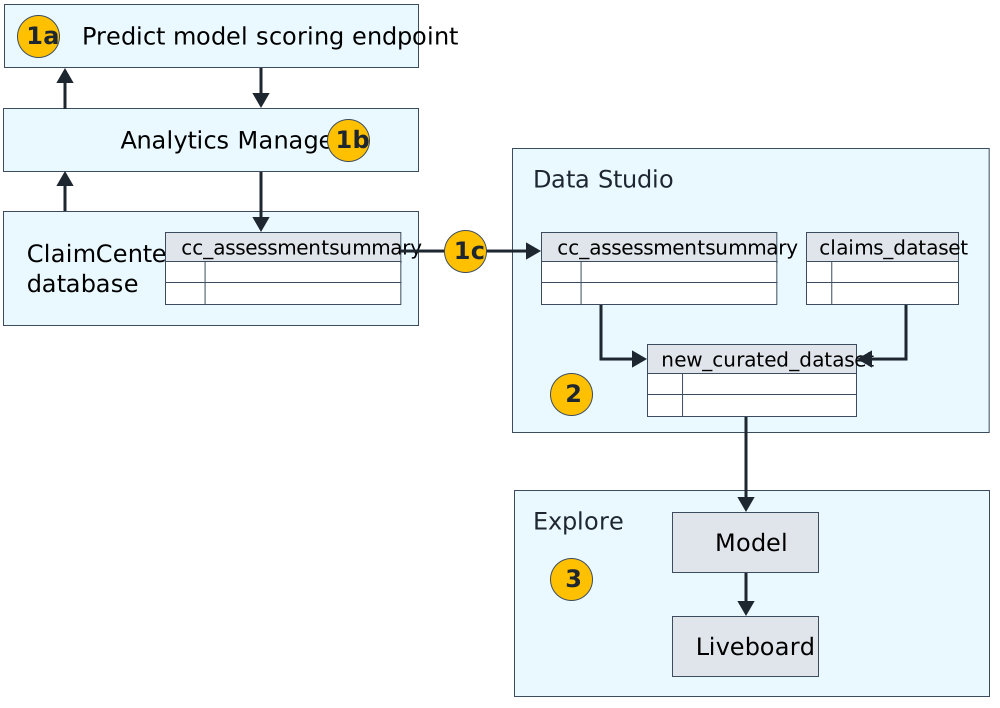
How data flows from Predict to Explore
- Collect scores and assessments:
- One or more Predict models process ClaimCenter data and return scores to Analytics Manager.
- Analytics Manager writes the scores to ClaimCenter’s assessment summary table. Depending on its configuration, Analytics Manager also assigns meaning to the scores, such as risk-level assessments and recommended actions. This information is also added to the assessment summary table.
- The assessment summary table flows into Data Studio along with other data from InsuranceSuite databases.
- Create a data source: In Data Studio, you join the assessment summary table to a claims dataset, creating a new curated dataset.
- Visualize the data: You publish the new curated dataset to Explore, create a model, and use the model to create a liveboard.
Create a Predict impact monitoring liveboard
Before you begin
- You must have at least one Predict model deployed and sending scores to Analytics Manager.
- Note the date that the Predict model was deployed.
- Become familiar with the purpose of the model and which KPIs it impacts.
Procedure
Best practices for Predict BIM liveboards
Creating a useful BIM data source
Creating a useful data source in Data Studio is the key to an effective BIM liveboard. The Predict model scores and assessments, on their own, are not useful in Explore; You must join them with InsuranceSuite data in order to visualize their impact.
In Data Studio, you’ll find the Predict model scores in the assessment summary table.
You must choose a dataset to join to the assessment summary table. The dataset must
relate to the model’s content and contain data for KPIs that you want to monitor.
For example, the efc_claim_code dataset is useful with claim-level
models because it contains cycle time, count, and payment data. You could join the
efc_claim_decode dataset to the
cc_assessmentsummary table and name the resulting new dataset
bim_claim_activities_model_results.
-
If multiple models are related, join them all into a single new dataset. For example, if three activity-level models are related to the
efc_activities_decode dataset, you can join them all into a newbim_claim_activities_model_results dataset. Then, in the Explore liveboard, create a filter so that users can choose between the three models.Important: You must create the liveboard filter because users will see duplicated data when multiple models are included in the source dataset. -
If models are unrelated, create a separate data source for a separate BIM liveboard. For example, if you also have an exposure-level model, join the assessment summary table to
efc_exposure_decodeto createbim_exposure_model_results.
Creating useful liveboard visualizations
- Before and after
- Show the impact of a model by comparing data from before and after it was deployed. Create two answers, one with data from before and one from after. For example, “Average claim paid before model” and “Average claim paid after model.” Use the model’s deployment date to set time frames for the answers. If you don’t know the date, you can find it by looking for the latest row in the dataset that doesn’t have a Predict score.
- Alerts
- Create a KPI chart for a metric that you want to monitor, then set up an alert. For example, say a segmentation model is supposed to reduce the average days to close a claim by segmenting claims more efficiently. You want to be alerted if the average goes over 20 days because that means the model isn’t working well. So, in the liveboard, you create an “Average days to close” KPI and set up an alert to be notified if it goes over the threshold of 20 days.
- Business-friendly assessments
- Use the business-friendly assessment columns, such as recommended actions and risk level. For example, say you expect claims to close quickly if they are recommended for segmentation to a high severity team. To prove that the recommendation works as expected, create a graph showing the average days to close by recommended action.