Work with models in Explore
Models are a user-friendly data source optimized for Explore search and visualization. After bringing Data Studio datasets into Explore, you transform them into Explore models that users will use as the data source for their visualizations.
How data flows from Data Studio to Explore
Datasets flow from Data Studio to Explore as shown in the following diagram:
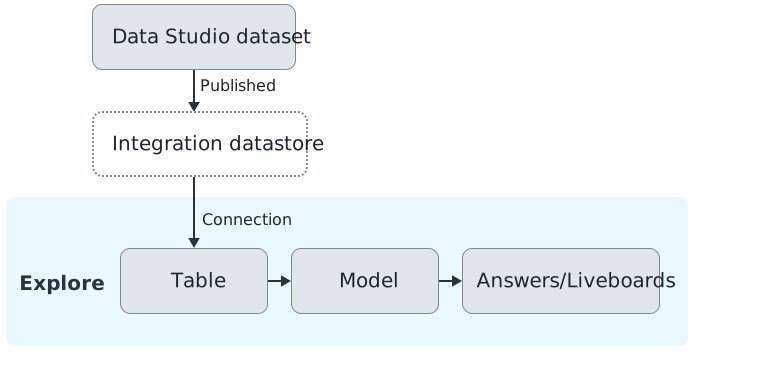
- Published datasets live in an integration datastore and are made available to Explore using a connection. Each time you publish a dataset from Data Studio, you must update the connection to include the new dataset.
- The dataset arrives in Explore as a table, which is what Explore calls the raw dataset. You can join tables so that Explore knows how they're related.
- Create a model from one or more tables. Models optimize and curate the data for search and visualization in Explore. For example, in a model you can make column names business-friendly, exclude unnecessary columns, and add formulas, filters, and parameters. Models are similar to the standard concept of a data source view.
- After you share the model with other users, they can use it as a data source in their searches and visualizations.
How users interact with models
Tables and models are both considered data sources in Explore. When users search or visualize data, they select which tables or models to use. However, models are preferred because tables are just the raw data. Models have business-friendly column names and have been curated by the model creator to specifically include useful data for a business use case. Note that when users create answers, they can pull from multiple data sources.
Structuring tables and models in Explore
Your data in Data Studio might be structured as fact and dimension datasets, or simply as a single dataset. This affects how you prepare the tables and models in Explore.
Single dataset
You can create a single dataset in Data Studio that includes everything you need for a business reporting solution. If you bring a single dataset into Explore, it arrives as a table, and you don't need to join other tables to it. Then, you can create a model from that single table.

Star schema (facts and dimensions)
A star schema with fact and dimension tables is a more flexible structure. It allows you to build your final reporting solution data source directly in Explore instead of Data Studio. For example, the Insurance Data Model datasets and Explore Financial Insights solutions are structured in a star schema.
In Data Studio, you create fact and dimension datasets and bring them all into Explore as tables. In Explore, you join the tables so that Explore understands how they're related. Then, when you create models, you can use and reuse any of the tables without replicating data.
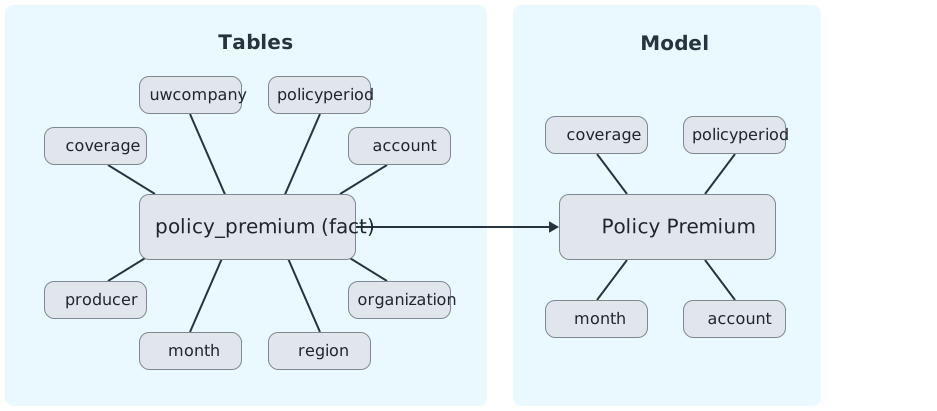
It's best to create a model for each fact table, since facts usually contain useful data for reporting on a specific business use case. You choose which dimension tables and columns to include in the model; You can leave out entire dimensions even if they were originally joined on the table level, and you can leave out individual columns. Think of a model as the final curation. You only want to include useful data for the end user so that it's easier to find what they need.
Another benefit of the star schema is consistency across your organization. By creating joins on the table level, you only have to create them once; Any Explore models that you or others create will inherit those joins, so they're always accurate. You can also check the column properties in the table and adjust if needed. Again, any models created from the table will inherit the column properties.
Working with base configuration content
- Your InsuranceSuite extension fields and tables
- Other InsuranceSuite base configuration fields and tables that are specific to your use case
For example, the following diagram shows the elements that make up an example Explore for Policy Financial Insights solution. Only the yellow-highlighted datasets include extension columns from PolicyCenter, because they are dynamically generated or replicated from PolicyCenter. The rest are part of the manually-created solution by Guidewire.
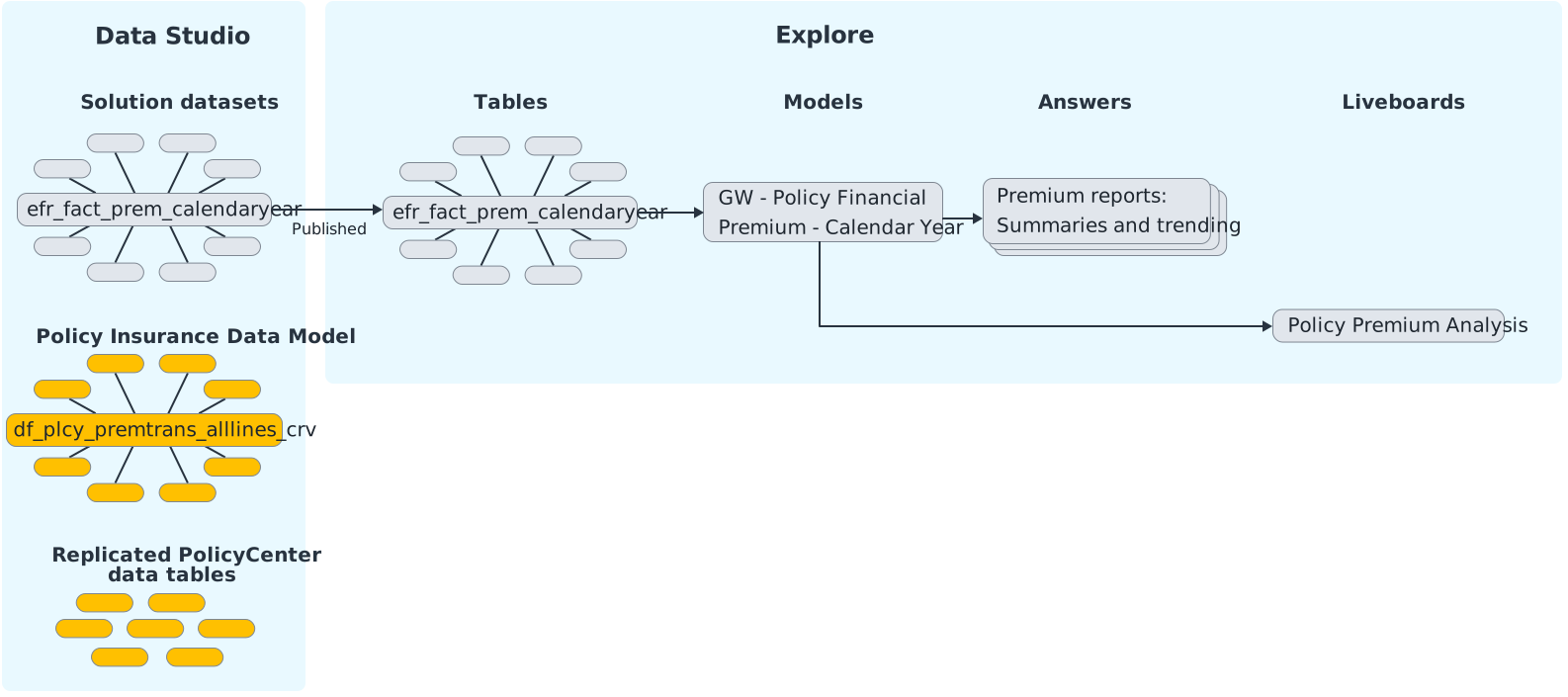
- In Data Studio, create new versions of the
efr_solution datasets. Extend them with columns from the Policy Insurance Data Model datasets. - Publish the new versions to Explore.
- In Explore, join the new tables so that Explore understands how they're related.
- In Explore, create a new version of the model with the extended tables.