Tutorial: Practice searching data to create answers
Follow this step-by-step tutorial to practice visualizing data using one of the base configuration models. You will search data, edit the chart visualization, and save it as an answer.
- Select a Data Source for your search.
- Select Search data in the Insights
 workspace.
 - To open the data source selector, select the source name next to the search bar.
- Select the model: GW - EfC Activity Workload Processing. A blue check mark appears next to it.
- Select the Select button.
- Select Search data in the Insights
- Type your search in the search panel. Use the following example:
- Type:
Activity Create Time weekly. As you type each search term, click on the assisted suggestion for Activity Create Time weekly. - Type:
count id. - Type:
by Activity Subject. Use the assisted suggestion as you type. - Click the Go button to create your search. Your search looks similar to
the following example.
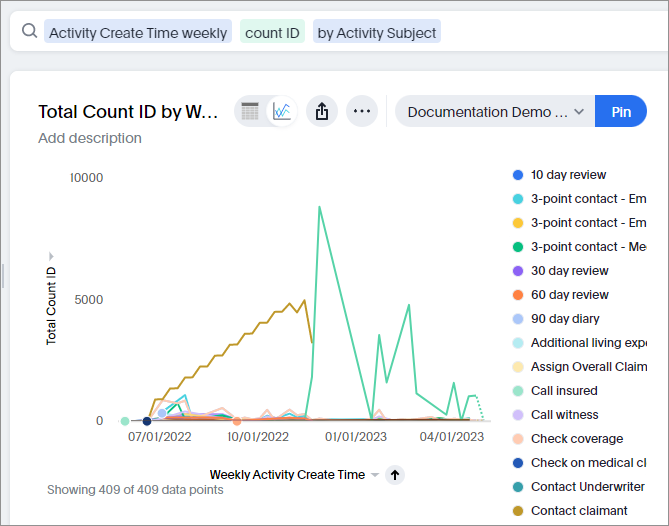
- Type:
- Change your chart visualization:
- Click Type
 in the right hand controls column.
 - Click the icon for the Stacked column chart in the chart selection panel.
- Your chart now looks similar to the following example. Note that your
search returned 409 data points.
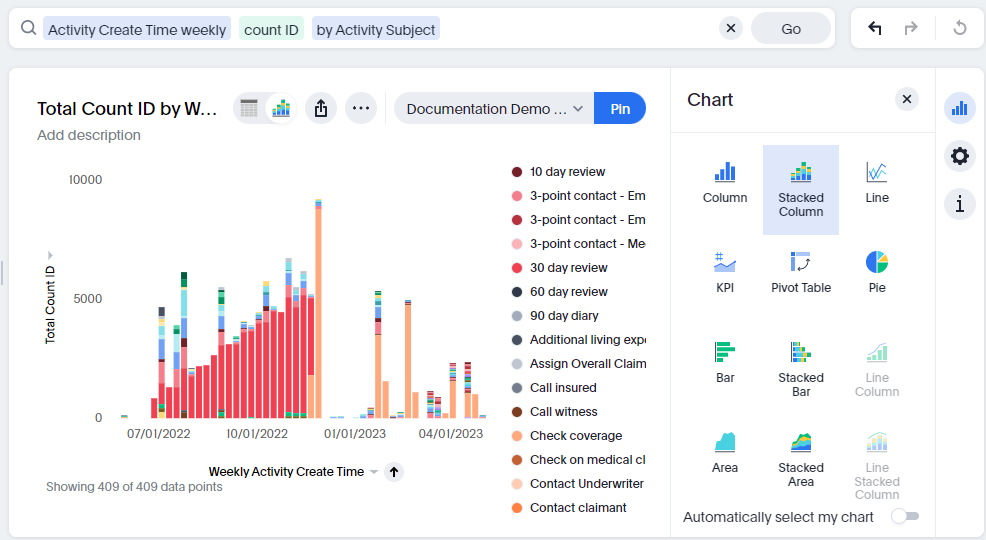
- Click Type
- Add a filter to your visualization:
- Set the maximum date range for your search as 12/31/2022. Add the following filter condition in the search panel: Activity Create Time <= 12/31/2022 and click the Go button.
- Your chart now looks similar to the following example. Note that your
filtered search returned 241 results.

Save the search
When you save a search, it is called an answer. To save your search, following these
steps:
- Click the More ellipsis in the upper right of your search results panel. Choose the Save option from the selection list.
- Add a name and description for your answer.
- Click the Save answer button to save your answer.
Confirm that your answer has been saved. Click on the answers link in the menu panel and find your answer in the list. Click on your answer to view it.
What to do next
- Share or pin the answer to give other people access to it.
- Add tags to your answer.