Usage and availability notes in mind map in Advanced Product Designer
In the XMind mind map, usage and availability notes document attribute constraints during the conceptualization phase. These informational notes serve as a guide when you implement usage and availability properties in Advanced Product Designer.
During the conceptualization phase in XMind, you can identify usage and availability properties for attributes, and describe these properties in notes in the mind map. Usage properties can apply to any attribute. Availability properties apply to clauses and drop-down list items.
To easily identify these properties, you can add the words Usage and Availability at the top of the Note before adding your description.
Refer to the this note when you implement the usage or availability property in the visualized product.
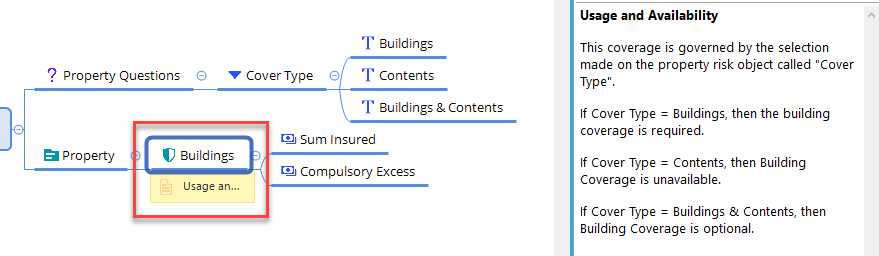
Usage and Availability
This coverage is governed by the selection made on the property risk object called Cover Type.

If Cover Type is Buildings, then Building Coverage is required.
If Cover Type is Contents, then Building Coverage is unavailable.
If Cover Type is Buildings & Contents, then Building Coverage is optional.
Extract usage and availability notes from mind map in APD
Export usage and availability notes from an XMind mind map to HTML to preserve data rules for reference in Advanced Product Designer. Use the exported HTML file when implementing usage and availability properties in the product.