When you assign a user to a role, the user
inherits all permissions associated with the role. You can individually override a user’s
permissions, either revoking permissions granted by the role, or granting permissions not
normally granted by the role.
About this task
When creating overrides for authority attributes present in
each stacked role, enter the override separately in each stacked role to avoid conflicts. This
ensures that the system behaves as expected and prevents any issues that might arise from
conflicting settings. For more information, see Role stacking for combined permissions.
Procedure
-
Select .
The User Management page opens.
-
Look up a user to find the
user whose authority attributes you want to override.
-
Scroll down to the User Roles List panel.
This panel lists the roles to which the user is already assigned.
-
In the Actions column corresponding to the role to override,
select Override.
The
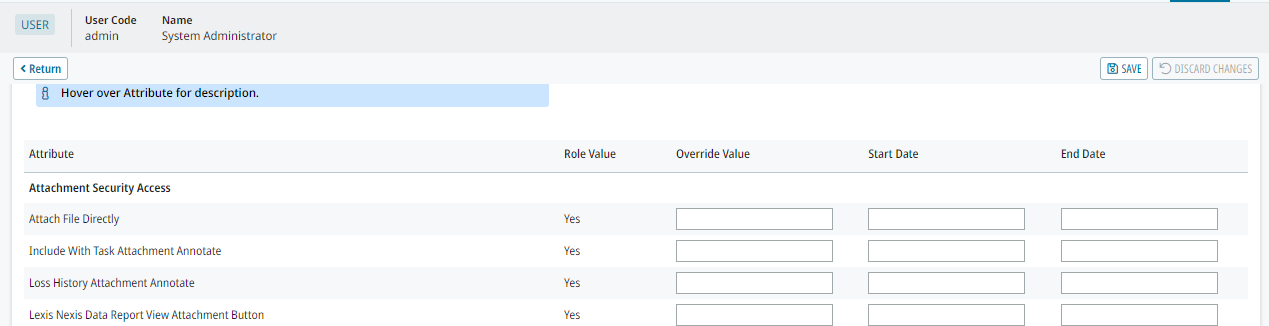
User Role Overrides panel opens.
-
Locate the Attribute whose value you want to override.
Some user roles have many attributes. If necessary, scroll to find the attribute to
override.
-
In the Override Value field, enter an appropriate override
value.
The override value must match the type of authority attribute you are overriding. Most
values are Yes/No, while some are string values or numeric values. Use the Role
Value field for the attribute as a guide.
- Optional:
Assign a Start Date and an End Date for
the override.
-
Click Save.
-
Repeat steps 5–8 to override additional authority attributes, as needed.
-
Save your changes.