Run historical PolicyCenter batch jobs for Canvas
You can submit and monitor a job to create an initial set of database records that result in the display of policy premiums and total insured value alongside Canvas graphics. The job likely will take hours and is described in Export PolicyCenter data to Canvas.
Procedure
-
Ensure that Secrets Manager on Guidewire Cloud Platform contains a
canvas.userkey that represents a valid PolicyCenter user.
-
At the Batch Process Info screen in PolicyCenter, run the Canvas Historical Record batch job.

-
To monitor the progress of the Canvas Historical Record batch job, monitor the corresponding CanvasHistoricalRecord_Ext work queue on the Work Queue Info page.
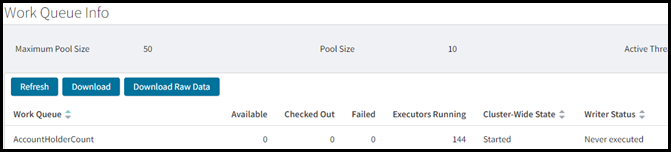
 Specifically:
- Monitor the Failed column to ensure that all records process successfully.
- Watch for the Available and Checked Out column values to drop to 0.
-
After the Canvas Historical Record batch job completes, return to the Batch Process Info page and run the Canvas Outbound File batch job.

The effect is to write out the historical records to a single extract file on AWS S3. The writing takes only a few seconds.