Merge automation
The Merge automation tab allows you to streamline pull request workflows in your repositories by:
- Enabling automatic branch deletion to keep your repository clean by removing source branches after they successfully merge.
- Configuring auto-merge to complete pull requests automatically as soon as all required checks pass.
Branch deletion after merging
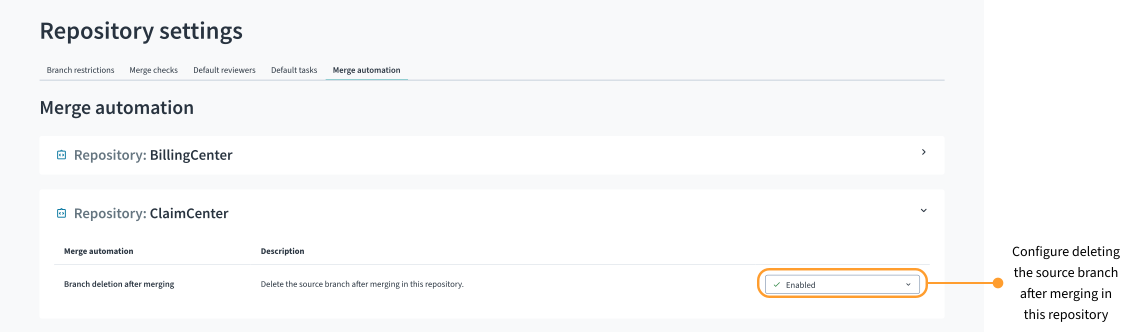
You can configure automatic branch deletion to automatically delete the source branch after merging pull requests into the base branch in the selected repository. You can also configure automatic branch deletion with the Repository Settings API.
Enable automatic branch deletion
By default, source branch deletion after merge is disabled. To enable automatic branch deletion:
-
Select a star system.
-
From Apps
 , select Repository Settings or select it from your pinned apps.
 -
Select the Merge automation tab.
-
Select the repository for which you want to configure automatic source branch deletion.
-
For Branch deletion after merging, select Enabled.
Disable automatic branch deletion
To disable automatic branch deletion:
-
Select a star system.
-
From Apps
, select Repository Settings or select it from your pinned apps. -
Select the Merge automation tab.
-
Select the repository for which you want to disable automatic source branch deletion.
-
For Branch deletion after merging, select Disabled.
Auto-merge
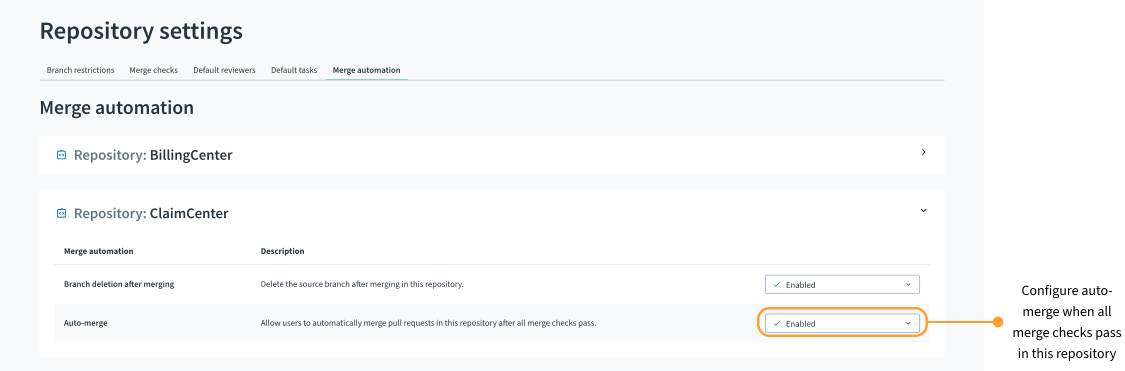
Auto-merge allows you to automatically merge pull requests in the selected repository as soon as all required merge checks pass. When enabled, the standard merge option changes to a Merge when ready  button. When you select this merge option, Bitbucket merges that specific pull request automatically after it meets every requirement, such as minimum approvals or successful builds.
You can also configure automatic merging for pull requests using the Repository Settings API.
Enable auto-merge
By default, auto-merge is disabled. To enable auto-merge:
-
Select a star system.
-
From Apps
, select Repository Settings or select it from your pinned apps. -
Select the Merge automation tab.
-
Select the repository for which you want to enable auto-merge.
-
For Auto-merge, select Enabled.
Disable auto-merge
To disable auto-merge:
-
Select a star system.
-
From Apps
, select Repository Settings or select it from your pinned apps. -
Select the Merge automation tab.
-
Select the repository for which you want to disable auto-merge.
-
For Auto-merge, select Disabled.