Branch restrictions
With branch restrictions, you can control who can perform the following actions:
-
Introduce changes to a branch.
A user with this permission can create a branch and commit changes to it.
-
Delete a branch.
A user with this permission can delete only certain branches.
-
Rewrite a branch history.
A user with this permission can rebase a branch, force push changes, or squash commits.
-
Push and merge directly into a branch. A user with this permission can commit changes directly without the need of creating a pull request.
You can configure branch restrictions on a repository level. You can also define users or user groups to whom the selected restriction doesn't apply.
Access to this application can be managed by:
-
Guidewire Hub
For details, see Access Cloud Platform apps and services.
-
Access Management
For details, see Guidewire Cloud Platform (GWCP) roles and permissions.
Prerequisites
The following limitations apply:
-
You can't modify the
Delete branchrestriction for themasteranddevelopbranches. -
You can't modify any restrictions for any branch whose name starts with
gw-. -
You can't modify restrictions configured on a star system level.
These restrictions are marked as set in Project.
-
Branch restrictions don't apply to Guidewire.
-
You can configure up to 100 branch restrictions for a repository.
Each restriction type that you select for a branch or branch pattern, such as Introduce changes or Delete branch, counts separately toward this limit. For details, see Branch restrictions limit.
Supported roles
Guidewire supports the following roles for performing tasks related to source code:
AdminDeveloperGuidewire
For details, see Roles and permissions.
Default configuration
The following branch restrictions are configured by default:
| Branch | Introduce changes | Delete branch | Rewrite history | Push and merge directly |
|---|---|---|---|---|
master | Everyone | Nobody | – Guidewire
| – Guidewire
|
develop | Everyone | Nobody | – Guidewire
| – Guidewire
|
gw-releases | Guidewire | Nobody | Everyone who can introduce changes | Everyone who can introduce changes |
hotfix-* | – Guidewire
| Everyone who can introduce changes | Everyone who can introduce changes | Everyone who can introduce changes |
| Custom branches | Everyone | Everyone who can introduce changes | Everyone who can introduce changes | Everyone who can introduce changes |
Note that your individual configuration might differ from the default one.
Exceptions
When you set restrictions, you can also list exceptions. Exceptions are users or groups of users to whom the restriction doesn't apply.
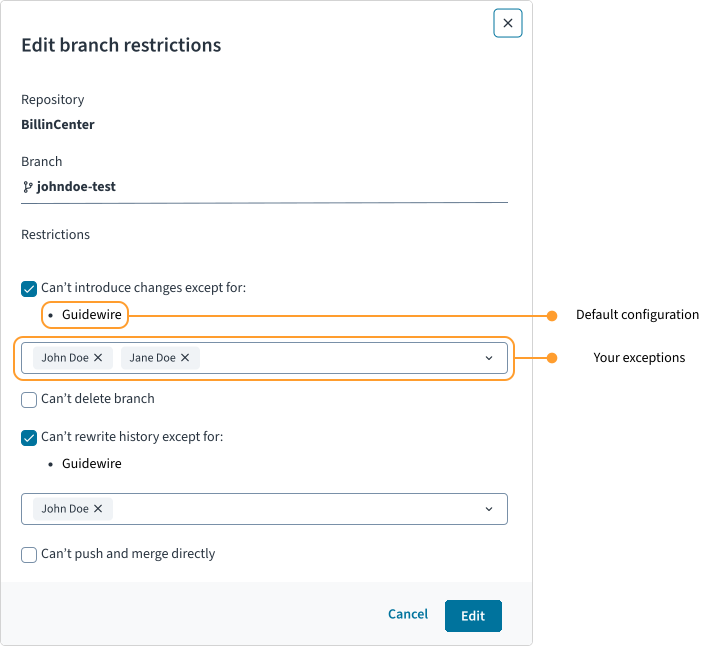
Priority of exceptions
If there are multiple restrictions that apply to the same branch, the exceptions to these restrictions have the highest priority.
You configure the following restrictions:
- Nobody can delete a branch named
user/john/new-feature. - Nobody can delete branches that match the
user/john/pattern, except for user John Doe. - Nobody can delete branches that match the
new-*pattern, except for a given user group.
As a result, John Doe and all users that belong to a given user group can delete the user/john/new-feature branch.
Inheritance of restrictions
Restrictions are inherited from Introduce changes by other activities. If there is a restriction on introducing changes, this restriction automatically applies to other activities, such as rewriting history or pushing and merging directly.
The default configuration for the hotfix/v2.3 branch contains the following restrictions:
- Only the Guidewire group can introduce changes.
- Nobody can delete the
hotfix/v2.3branch. - No further restrictions are set for rewriting history or pushing directly.
As a result, only members of the Guidewire group will be able to rewrite history or push directly to the hotfix/v2.3 branch because these permissions are inherited from the Introduce changes restriction.
Branch restrictions limit
Bitbucket limits the number of branch restrictions that you can configure for a repository. This limit applies to an individual restriction type, not to a branch or branch pattern row. If you select multiple restriction types for the same branch or branch pattern, each selected type counts separately toward the limit.
You can configure up to 100 branch restrictions for each repository. This limit includes only repository-level restrictions. Restrictions configured at a star system level (marked as set in Project) don't count toward the limit.
If you reach the limit of 100, you can't add further branch restrictions. To add further branch restrictions, remove or consolidate some of the existing ones. For example, you can combine several branch names into a single branch pattern to free up space for new restrictions.
You select all four restriction types for 25 different branches. These types include Introduce changes, Delete branch, Rewrite history, and Push and merge directly.
Each branch contributes up to four restrictions: 25 branches × 4 restriction types = 100 restrictions.
As a result, you reach the limit and can't add new branch restrictions for this repository. Remove or consolidate some of the existing restrictions.
Overlapping branch restrictions
When multiple branch restrictions rules apply to the same branch, such as a specific branch name and a branch pattern, these rules overlap. In such cases, all the exceptions to the overlapping branch restrictions are allowed.
Example 1:
- You prevent everyone from introducing changes to branches matching the pattern
release/*. - You allow only Alana to introduce changes to the branch named
release/v2.0.
Result: Only Alana can introduce changes to release/v2.0.
Example 2:
- You allow everyone to introduce changes to all the branches matching the pattern
hotfix/*. - You allow only Alana to introduce changes to the branch named
hotfix/v2.3.
Result: Only Alana can introduce changes to hotfix/v2.3.
Example 3:
- You allow only Alana to introduce changes to all the branches matching the pattern
release/*. - You allow only Harvey to introduce changes to the branch named
release/v2.0.
Result: Both Alana and Harvey can introduce changes to release/v2.0.
Example 4:
- You allow only Alana to introduce changes to all the branches matching the pattern
release/*. - You prevent everyone from introducing changes to the branch named
release/v2.0.
Result: Only Alana can introduce changes to release/v2.0.
Example 5:
- You allow only Alana to introduce changes to all the branches matching the pattern
release/*. - You allow everyone to introduce changes to the branch named
release/v2.0.
Result: Only Alana can introduce changes to release/v2.0.
Manage branch restrictions
To manage branch restrictions:
-
Select a star system.
-
From Apps
 , select Repository Settings or select it from your pinned apps.
 -
Select the Branch restrictions tab.
You can also manage branch restrictions with the Repository Settings API.
Add a restriction
To add a branch restriction:
-
In the Branch restrictions tab, select + Add restrictions.
You can also select + Add restrictions next to the repository whose settings you want to change. Then in the dropdown, you can see the pre-selected repository.
-
From the Repository dropdown, select a repository.
-
Specify the branch. You have the following options:
-
Branch name
Applies only to a branch with the specified name. The branch must be active.
-
Branch pattern Applies to every branch whose name matches the pattern. For details, see Branch patterns.
-
-
Select at least one branch restriction.
-
(Optional) Specify exceptions: users or user groups to whom the restriction doesn't apply.
Users must have a Bitbucket account and access rights to the star system that includes the selected repository.
-
Select Add.
Edit a restriction
To edit a branch restriction:
-
In the Branch restrictions tab, expand the configuration for a selected repository.
For Jutro apps and Integration apps, select a repository from a drop-down list.
-
Select Edit
 next to an element that you want to modify.
Delete a restriction
To delete a branch restriction:
-
In the Branch restrictions tab, expand the configuration for a selected repository.
For Jutro apps and Integration apps, select a repository from a drop-down list.
-
Select Delete
 next to an element that you want to delete.
The deleted element is now crossed out.
Troubleshooting
Here are the most common issues related to branch restrictions:
-
I get an error that the maximum number of allowed restrictions was reached. I can't add or edit a branch restriction.
You can configure up to 100 branch restrictions for a repository. To free up space for new restrictions, remove unused branch restrictions or consolidate multiple branch names into a single branch pattern. For details, see Branch restrictions limit.
-
A user doesn't show in the drop-down lists.
Verify if the user has a Bitbucket account and access rights to the star system. If they do and you still can't see them, it might be a propagation issue. To fix it, the user must first log in to Bitbucket.
-
The Edit button is disabled when editing branch restrictions and I can't save my changes.
Remove all the inactive and deleted users from your configuration.