For Users WITHOUT a Guidewire Cloud Account (Guest Users)
Follow these steps if you do not have Guidewire Cloud credentials, if you are an InsuranceNow customer, or if you've been specifically instructed to register as a guest.
Prerequisite: To complete the Guest registration, please use a web browser on a computer or laptop. Mobile devices are not recommended for this process, as you will need your mobile phone to scan a QR code to set up Okta Multi-Factor Authentication (MFA) at the end.
Secret Link Delivery For Guest Accounts
To receive your secret link via email, new accounts must first complete the one-time registration steps detailed below. The secret link is sent in a separate email only after your registration is fully completed. This two-step process ensures that sensitive information is only shared with verified, registered GPass guests.
A. How to register (one-time task, includes MFA setup)
This one-time registration links your email to GPass and sets up multi-factor authentication (MFA).
1. Open the invitation email
- Look for an email with a subject like "Action Required: Registration for Guidewire G-Pass" from
gpass-no-reply@guidewire.com. This email contains your initial registration link.
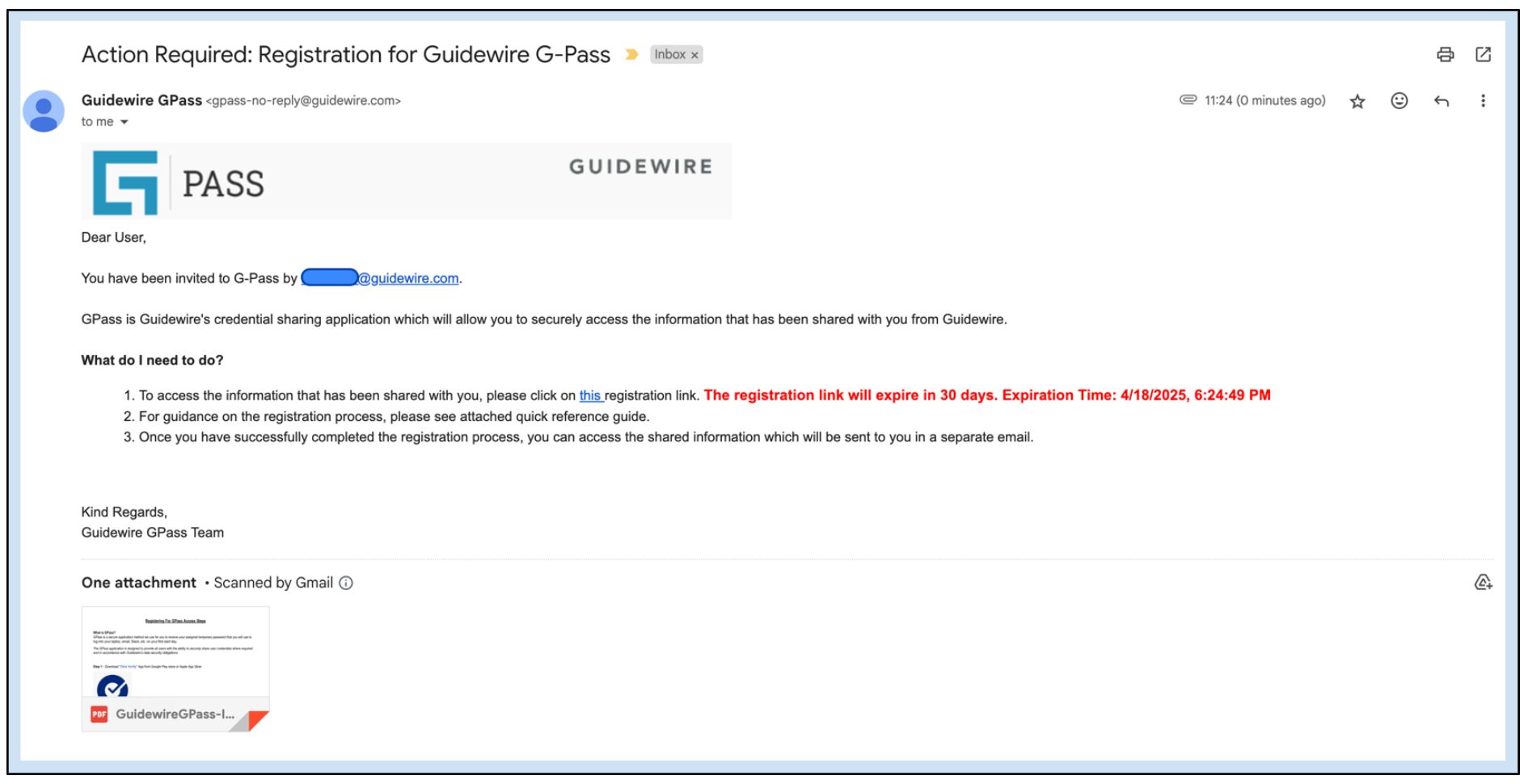
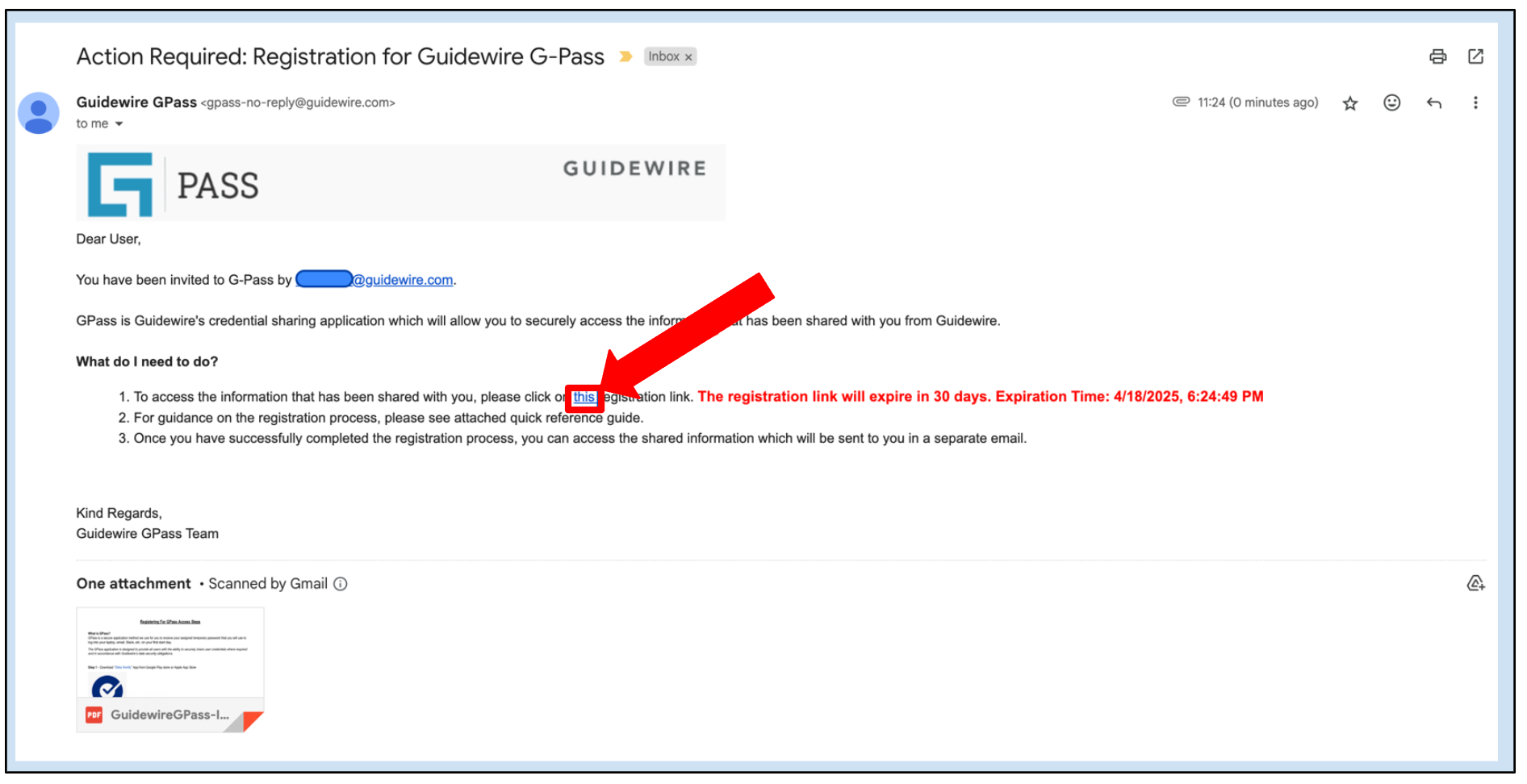
2. Open registration link in a private window
- Right-click on the registration link in the email and select "Open link in Incognito window" (Chrome) or "Open link in Private window" (Firefox/Safari/Edge). This prevents issues with existing browser sessions or cached credentials.
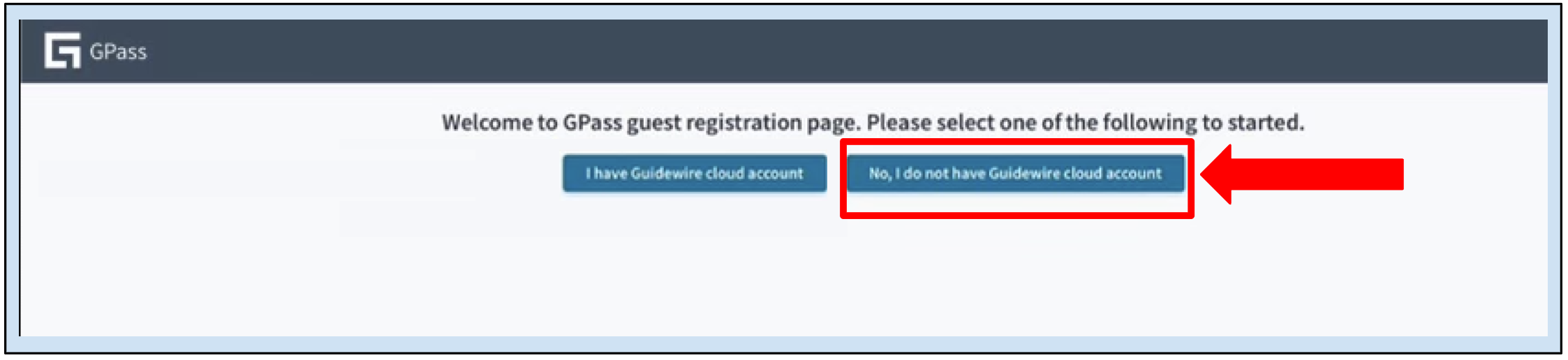
3. Confirm account type
- On the GPass registration page, select "No, I do not have a Guidewire cloud account".
4. Initial registration & MFA setup
You will be guided through a series of steps for verifying your email followed by setting up Okta Verify as your MFA method.
After you click “No, I do not have a Guidewire cloud account” button in Step 3, you will receive a registration code (a 6-digit code) via email from
gpass-no-reply@guidewire.com. Please note that this code will expire in 10 minutes.
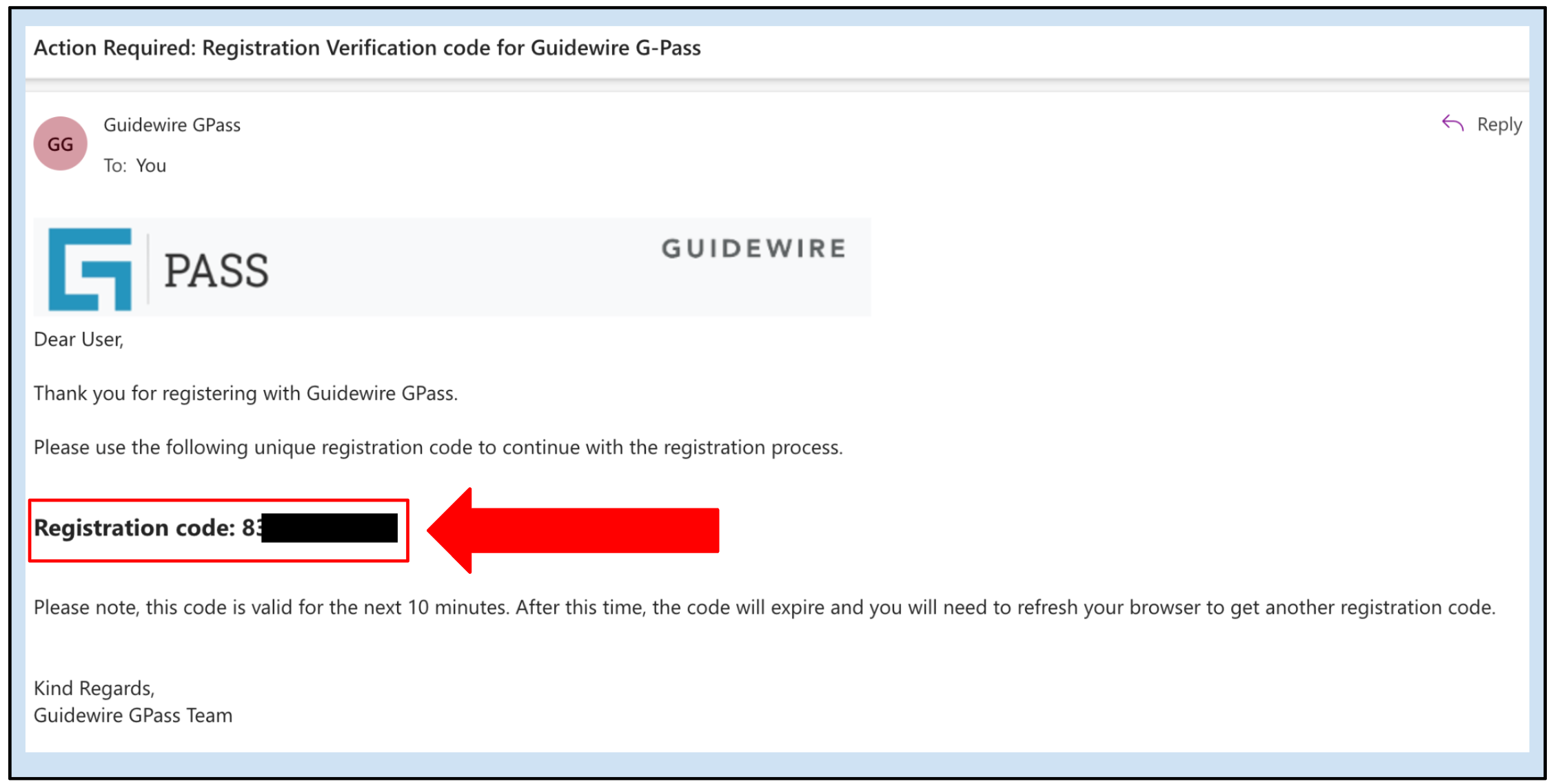
- Enter your full name, the one-time registration code, and click Submit to verify your email address.
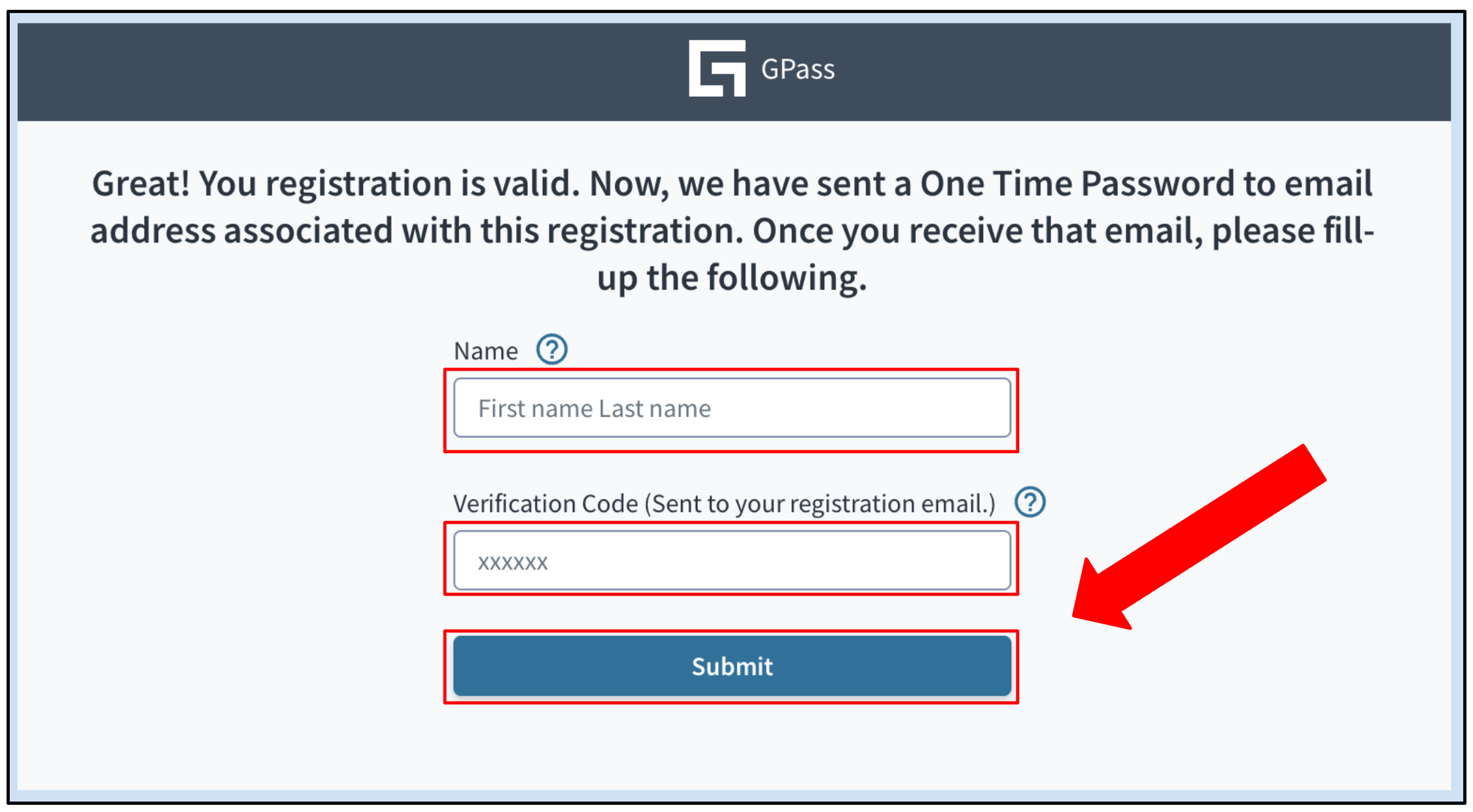
The next step is to set up the Okta Verify app on your phone, setup MFA for this GPass account and verify Okta enrollment to successfully complete the guest registration process.
Download and set up your account with Okta Verify. Follow these steps:
Download the Okta Verify app from the Google Play Store or the Apple App Store.
Open the Okta Verify app.
Tap the PLUS (+) icon to navigate to the Add Account page that shows Choose account type.
Select Organization - Work, school, company.
Skip: If you are prompted to Add Account from Another Device?, choose Skip.
In the next page that says Do You Have Your QR Code?, choose Yes, Ready to Scan.
Scan the QR code displayed on the registration screen.
- If you began this registration process on a mobile phone and are unable to scan the QR code, you must restart the process. Please close the current browser session and open the registration link on a computer or laptop web browser.
Upon successful QR code scan on your Okta Verify mobile app, you should see the confirmation “Account Added”. Click Done.
Open the Okta Verify app on your mobile device, locate the GPass-prod account, and enter the dynamic 6-digit OTP into the Enter 6-digit OTP field on the login page. Click Validate to proceed.
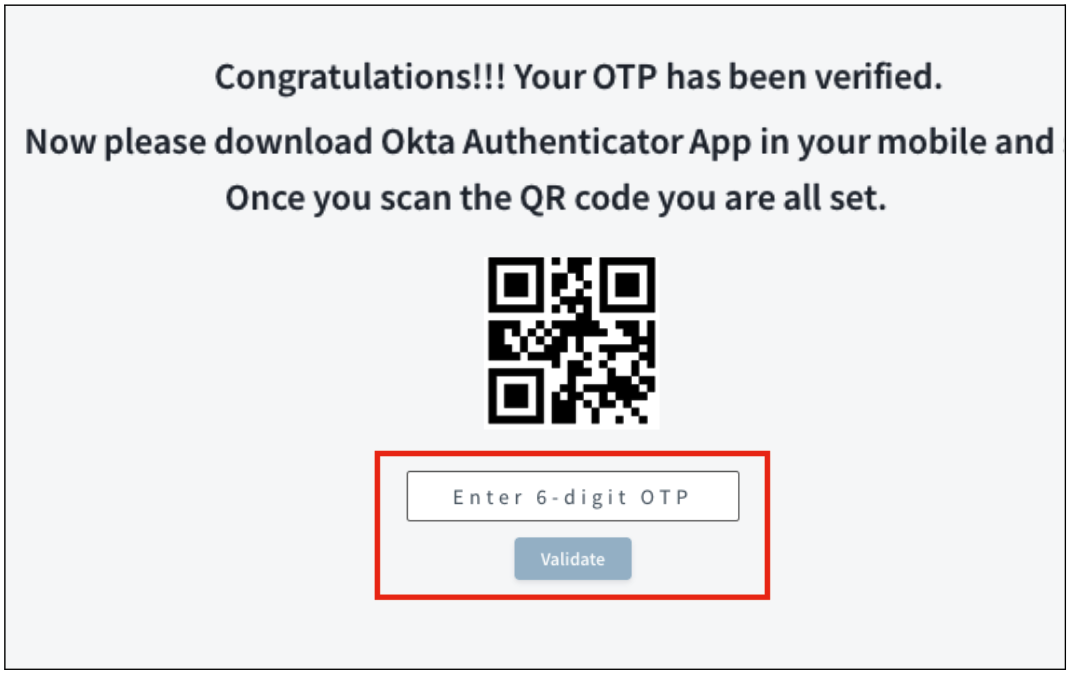
If the OTP is correct, you will receive a confirmation that you have successfully registered for GPass as shown below.
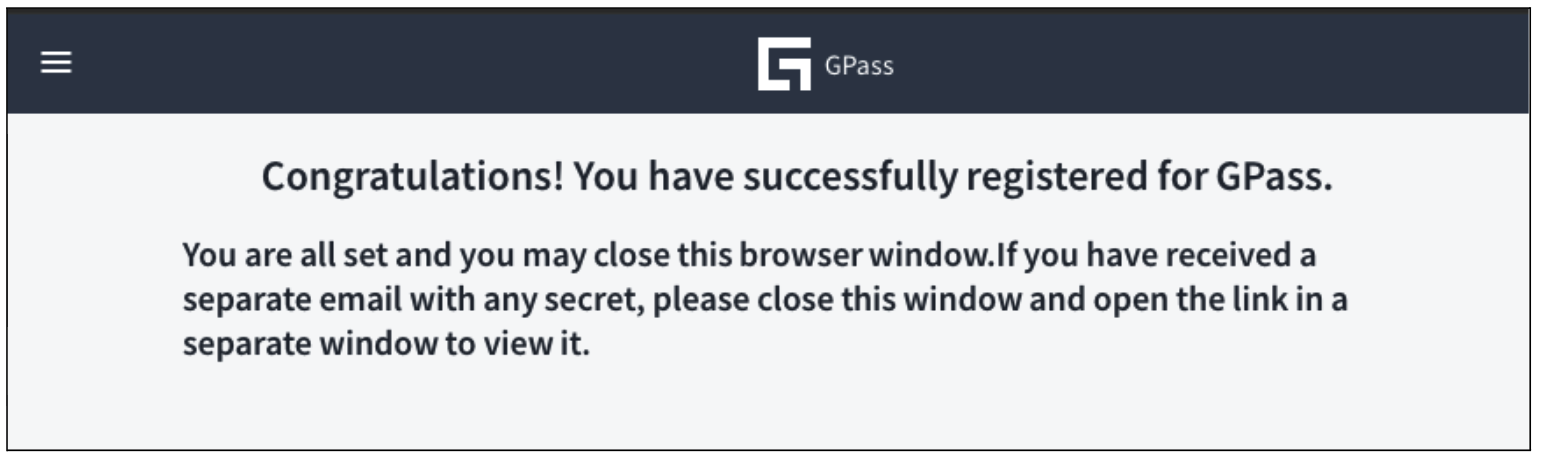
5. Registration complete
Once you have successfully verified your email through a one-time password, configured Okta Verify as your MFA and verified the OTP, your GPass guest registration is now complete.
B. How to retrieve a secret (after registration)
Once registered, follow these steps each time you receive a secret:
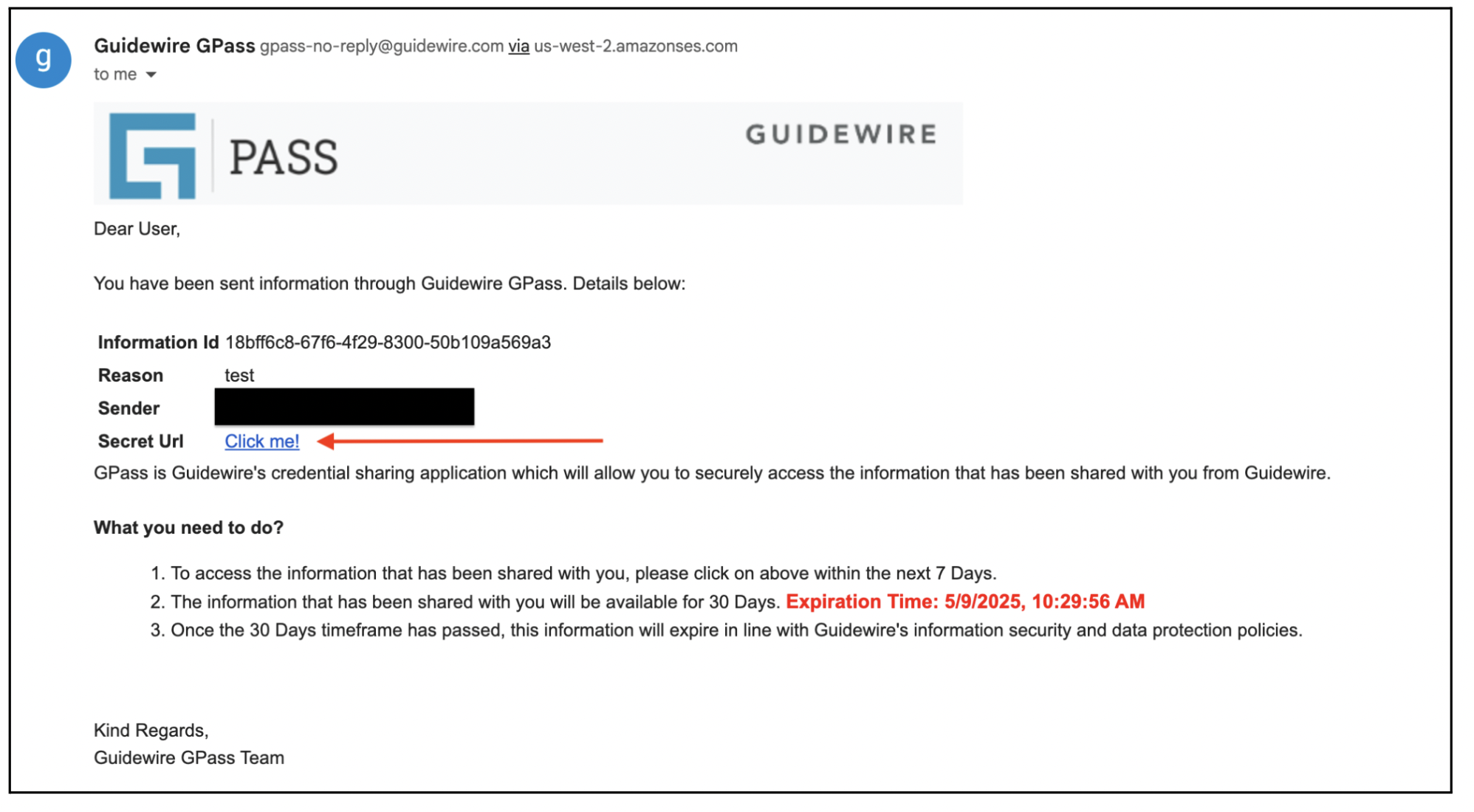
1. Look for the secret email
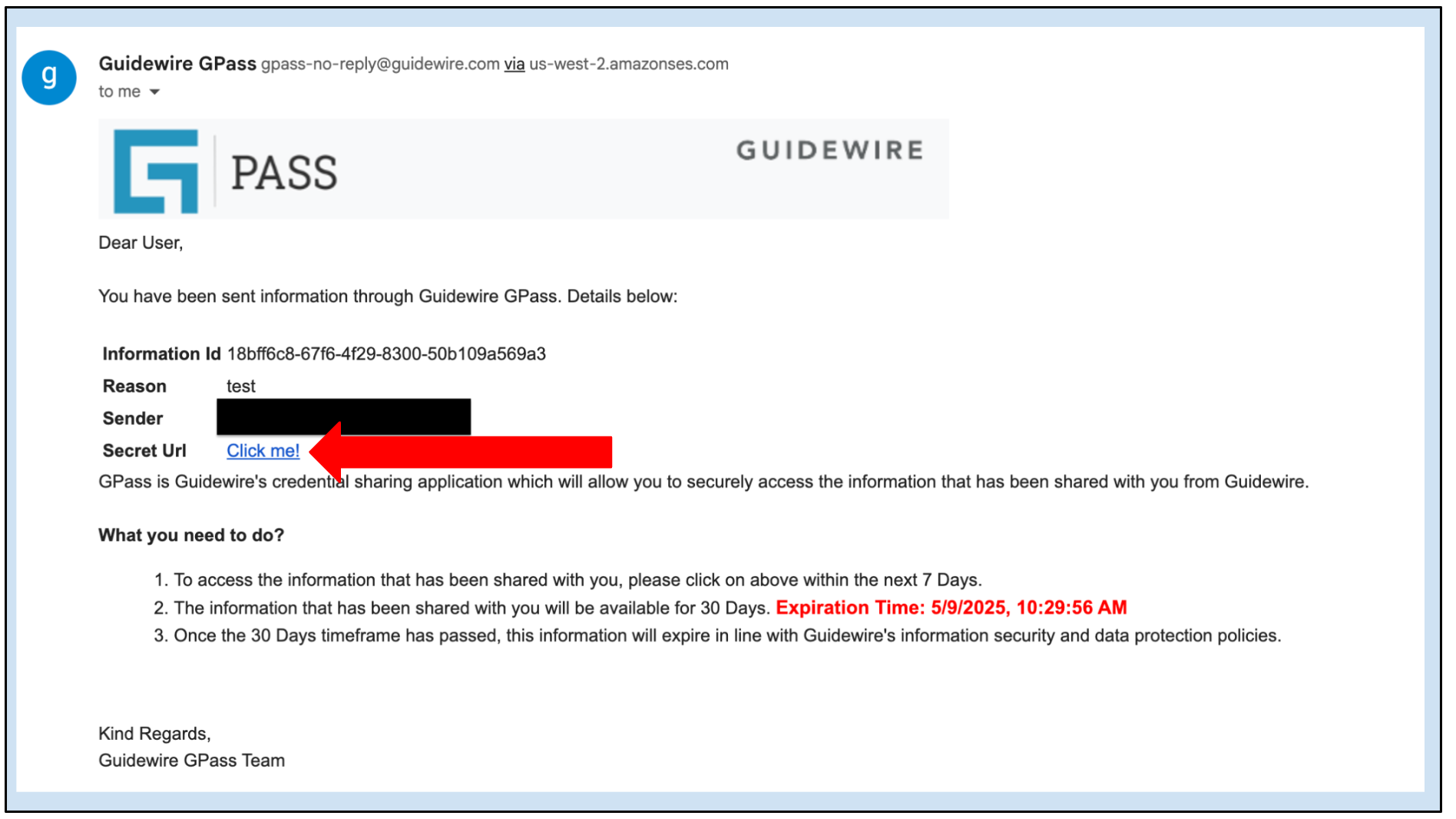
- You will receive an email from
gpass-no-reply@guidewire.comwith a subject line like "Action Required: You have received shared information from Guidewire G-Pass". This email will contain a "Secret Url".
2. Open secret URL
- It's recommended to open the Secret URL in a Private/Incognito browser window.
Using a private or incognito browser protects your Guidewire Cloud session by preventing reuse and reducing the risk of cached credentials. This is especially important for guest users who may have logged in with an Okta session, which can remain active longer than necessary. This approach enhances security and improves session management.
3. Guest login
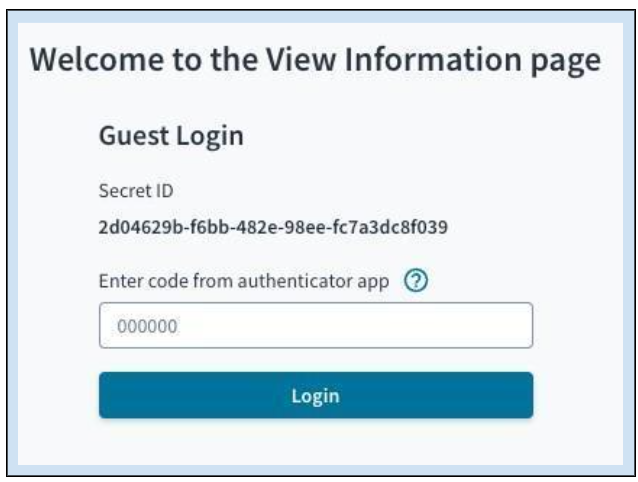
- You will be taken to the GPass "View Information page".
- Open the Okta Verify app on your registered mobile device.
- Enter the 6-digit code generated by the Okta Verify app into the "Enter code from authenticator app" field on the GPass page.
- Select "Login".
4. View the secret
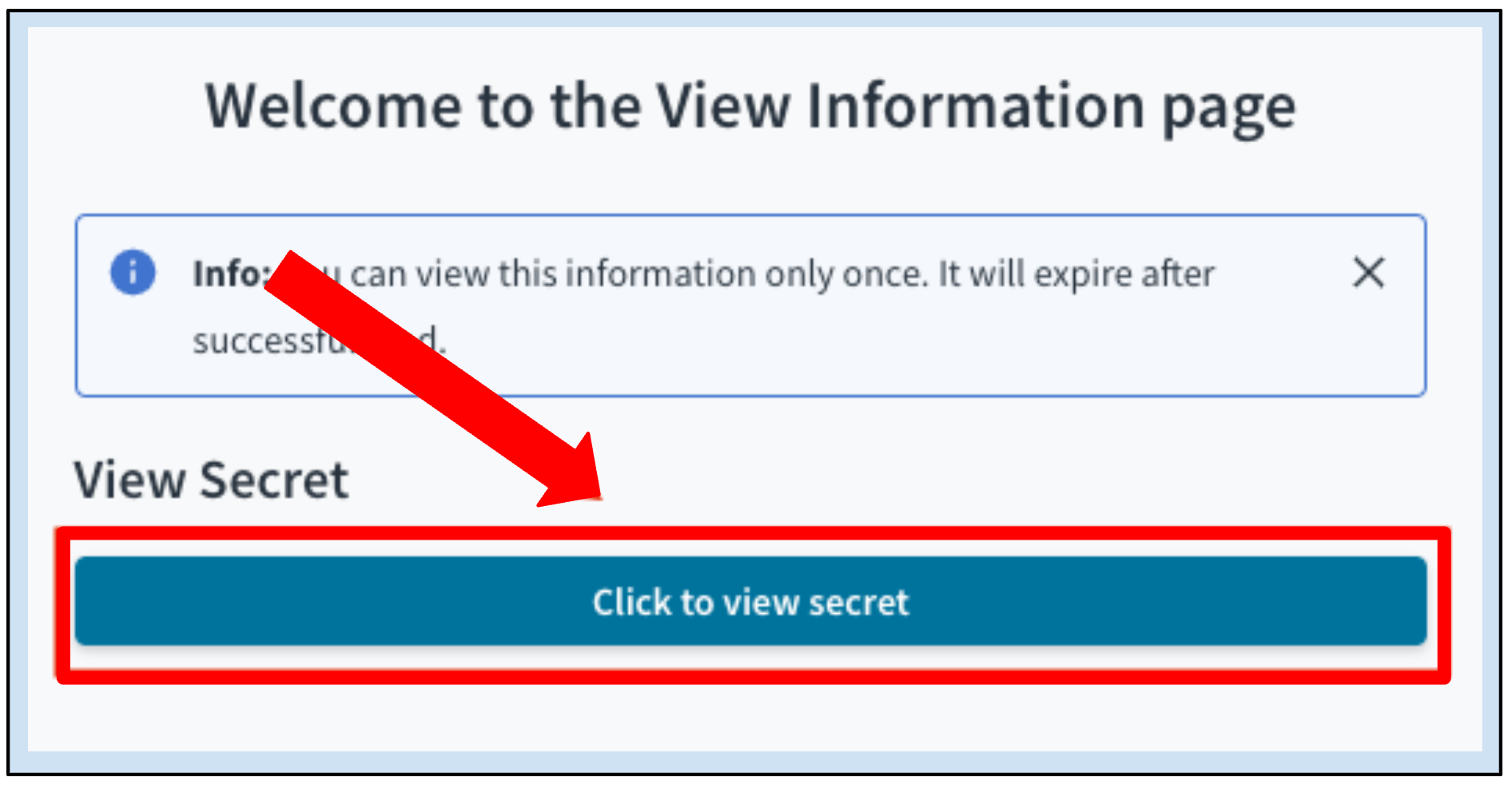
- Choose the "Click to view secret" button.
5. Access shared information
- The "Retrieved Secret" box will display the shared information.
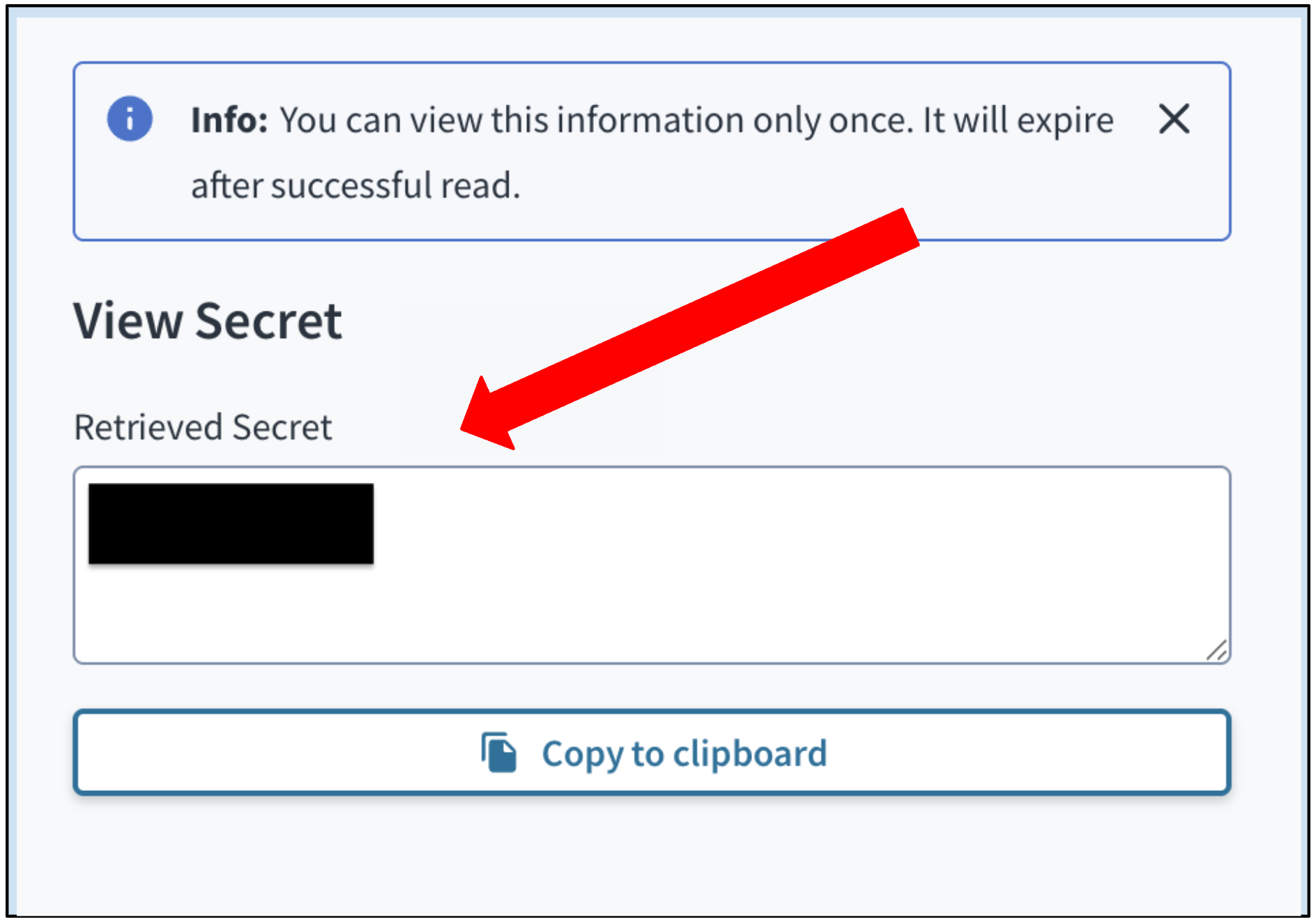
Secrets can only be accessed once and expire immediately after successful retrieval. Ensure you copy or store the information safely before closing the window.
C. Self-Service Registration For Guests Without Okta Access
If you have replaced your mobile device, lost access or deleted the GPass-prod account from Okta Verify app, you can now reset and re-register your GPass Guest account independently - no support ticket required.
✅ Eligibility: This self-service reset is only for previously registered Guests and have a recently sent secret link handy.
❌ New Users: If you haven't registered yet, you must use the original registration link from your GPass registration email. If that link has expired, please contact helpdesk@guidewire.com for a new one.
1. Look for the secret email
Look for an email with the subject starting with "Action Required: You have received shared information from Guidewire G-Pass". This email will contain a "Secret Url".
2. Open secret URL
It's recommended to open the Secret URL in a Private/Incognito browser window.
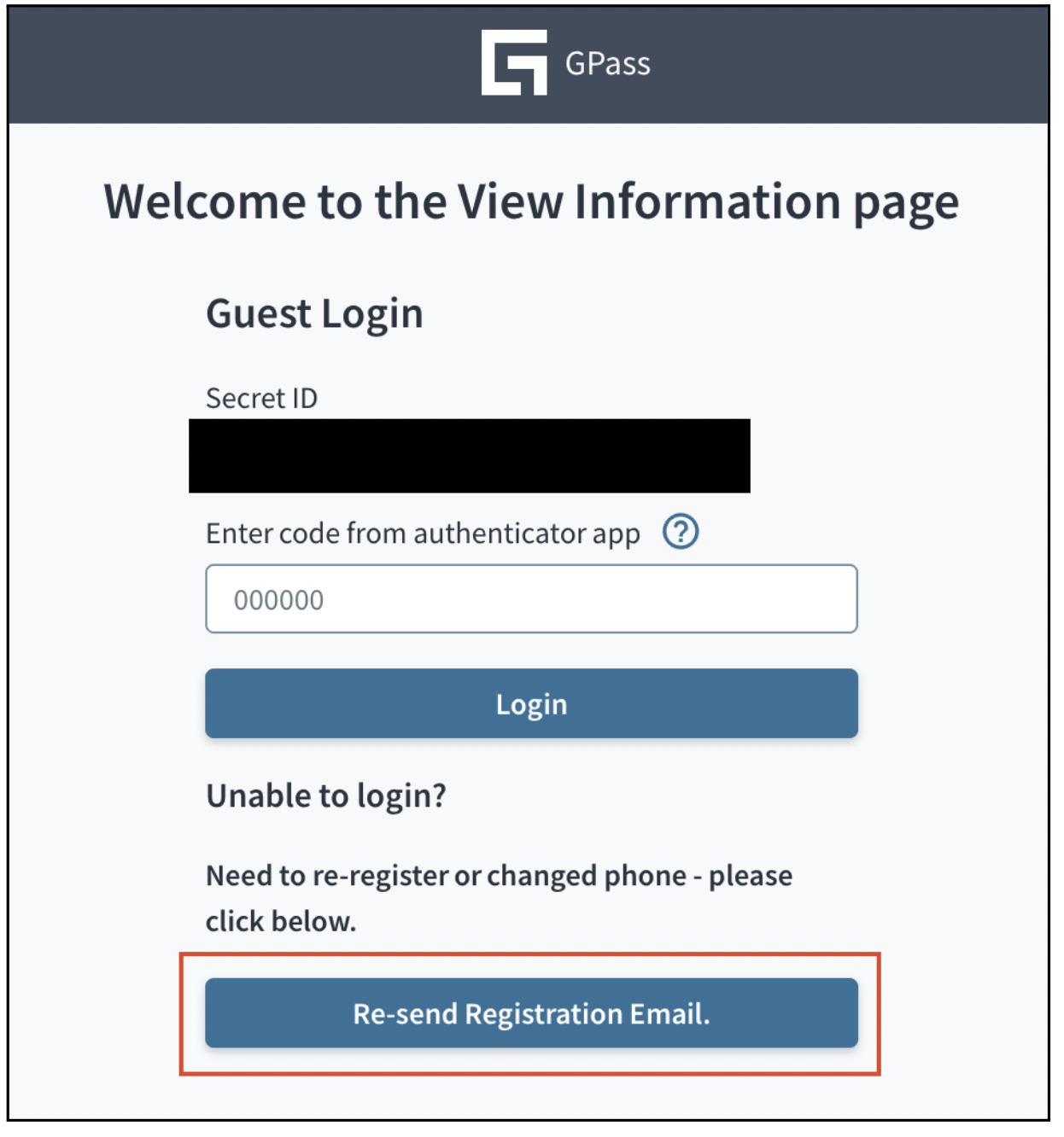
3. Re-send registration
You will be taken to the following View Information page. Click on the Re-send Registration Email button.
4. Account reset confirmation
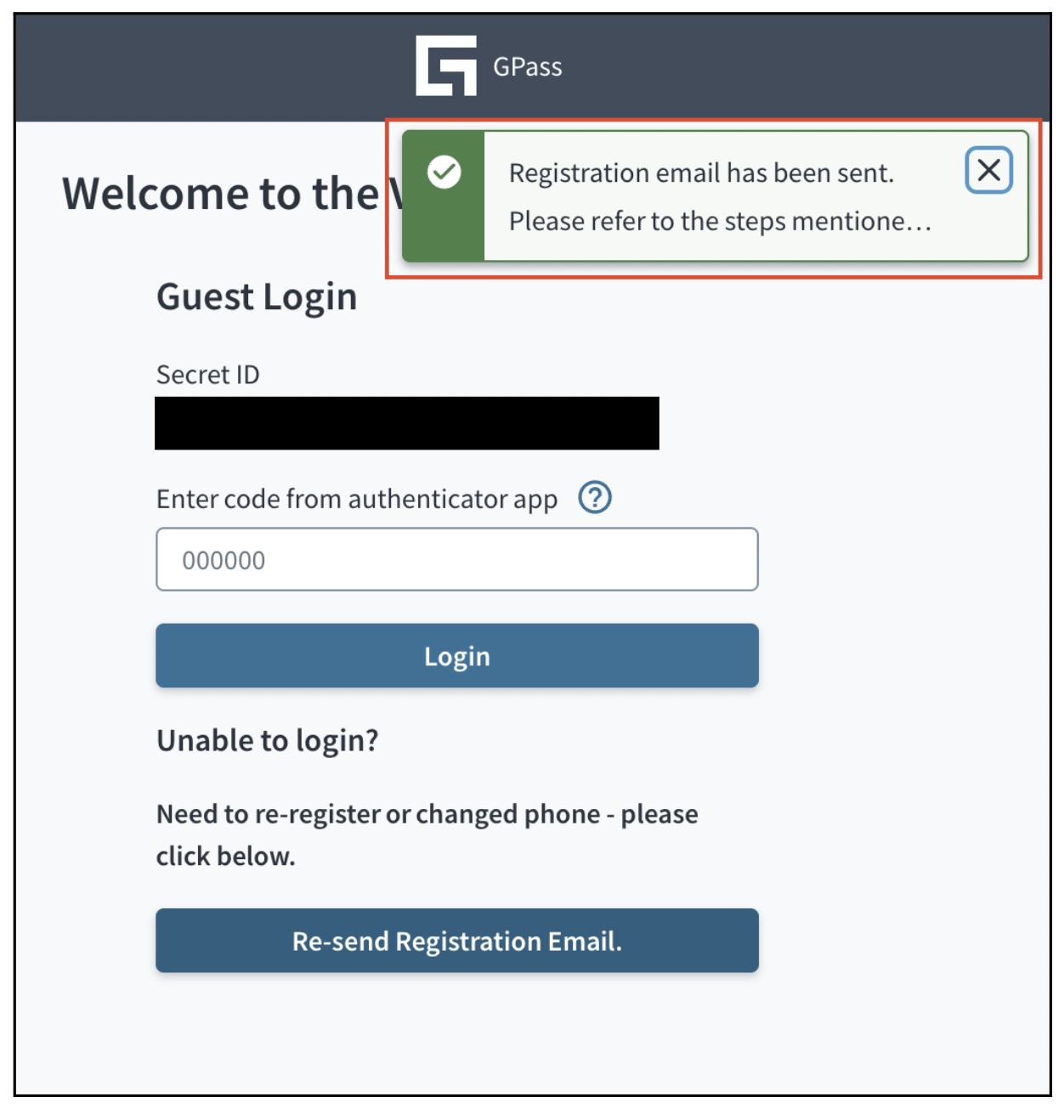
You will notice the confirmation of account reset, and a fresh registration link will be emailed to you (see below).
5. Complete registration
Follow the instructions in the email to complete the Guest registration and Okta Verify setup once again.
Refer to the instructions above for more details.
Revisit the secret link and enter the OTP generated on your Okta Verify app to authenticate yourself to view the secret.
Was this page helpful?