For Users WITH a Guidewire Cloud Account
Follow these steps if you have existing Guidewire Cloud credentials.
A. How to register (one-time task)
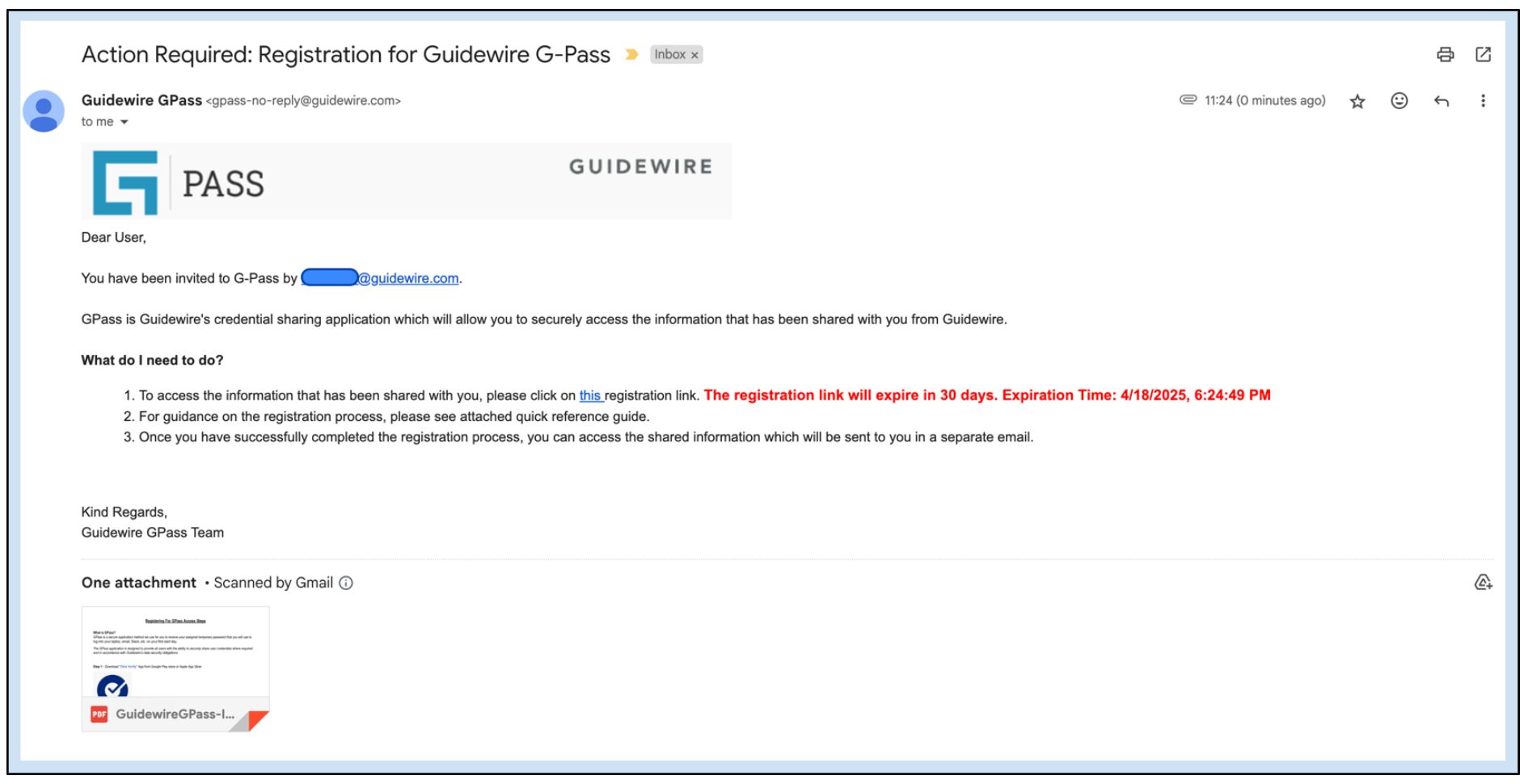
1. Open the invitation email
- Look for an email with a subject like "Action Required: Registration for Guidewire G-Pass" from
gpass-no-reply@guidewire.com.This email contains your initial registration.
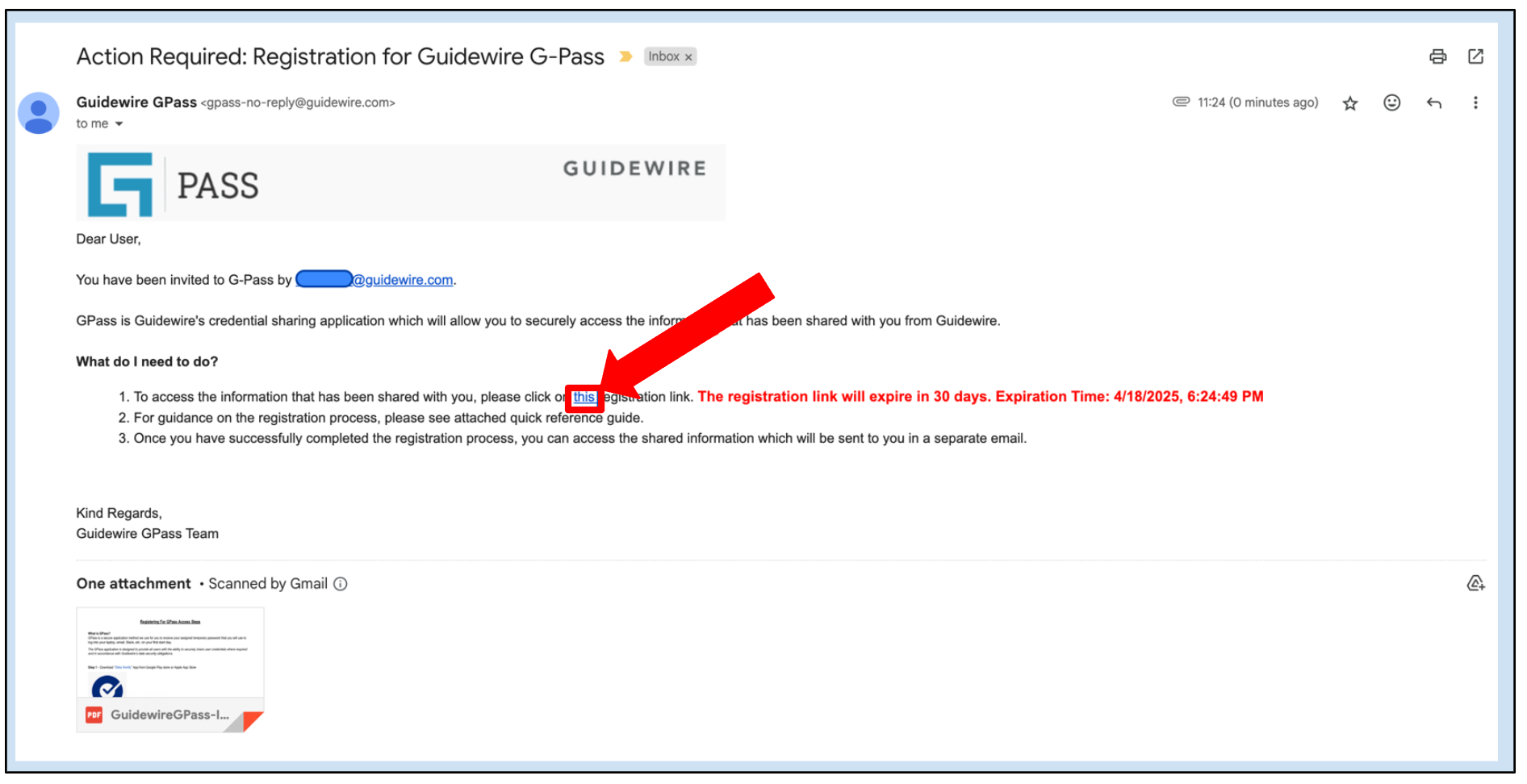
2. Open registration link in a private window
- Right-click on the registration link in the email and select "Open link in Incognito window" (Chrome) or "Open link in Private window" (Firefox/Safari/Edge). This prevents issues with existing browser sessions or cached credentials.
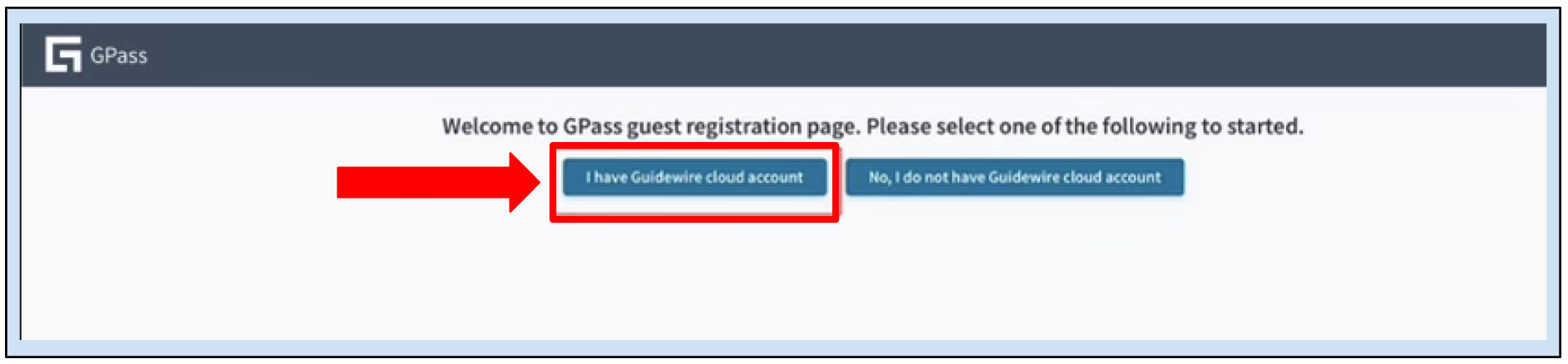
3. Confirm account type
- On the GPass registration page, select "I have a Guidewire Cloud account".
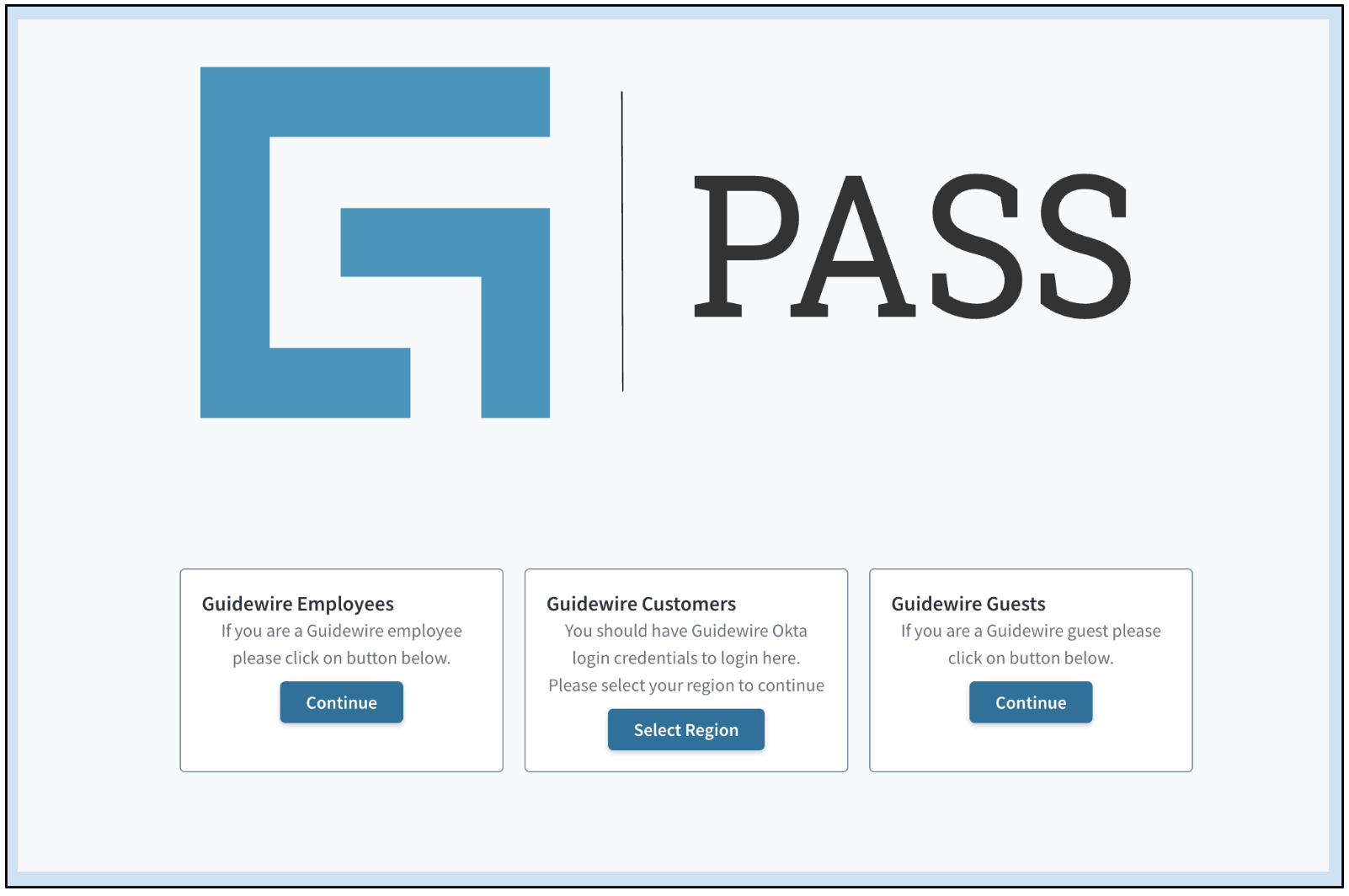
4. Select login type
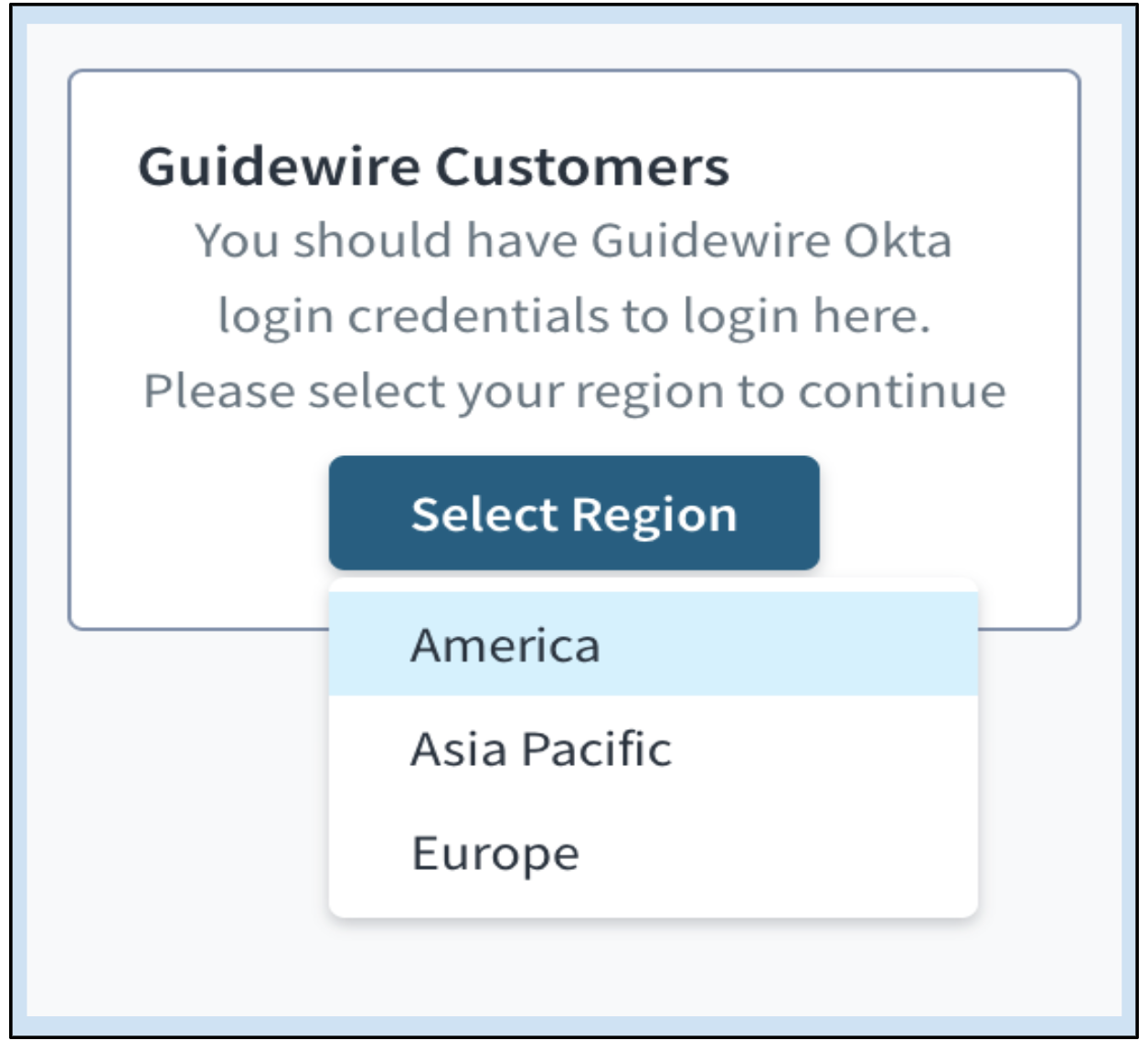
- You will be taken to the GPass login page. Choose "Guidewire Customers".
5. Choose your cloud region
- Select your appropriate Guidewire Cloud region (e.g. Americas, EMEA, APAC) and click "Continue".
6. Sign in
- You will be redirected to the Guidewire Okta sign-in page. Log in with your normal Guidewire Cloud username and password.
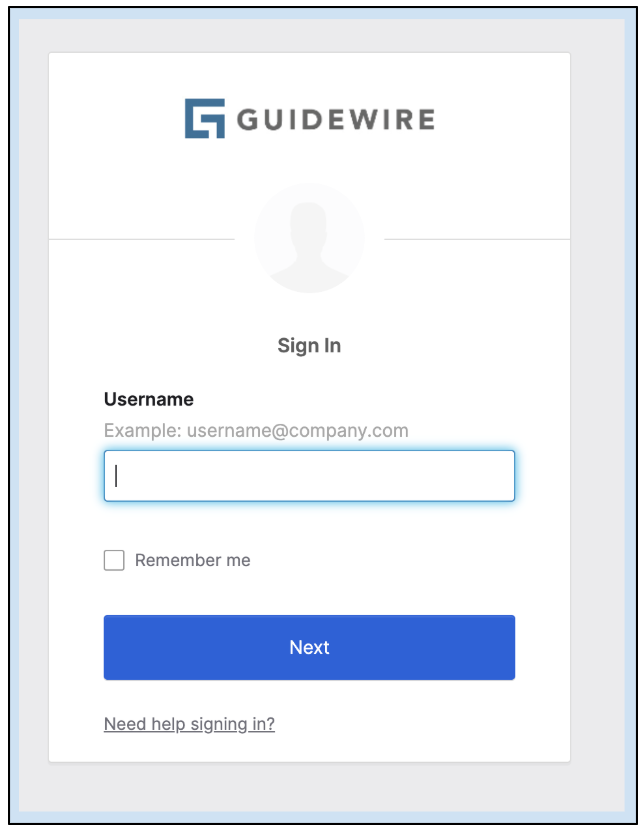
- A successful login will automatically register your account for GPass. You are now ready to receive secrets.
B. How to retrieve a secret (after registration)
Once registered, follow these steps each time you receive a secret:
1. Look for the secret email
- You will receive an email from
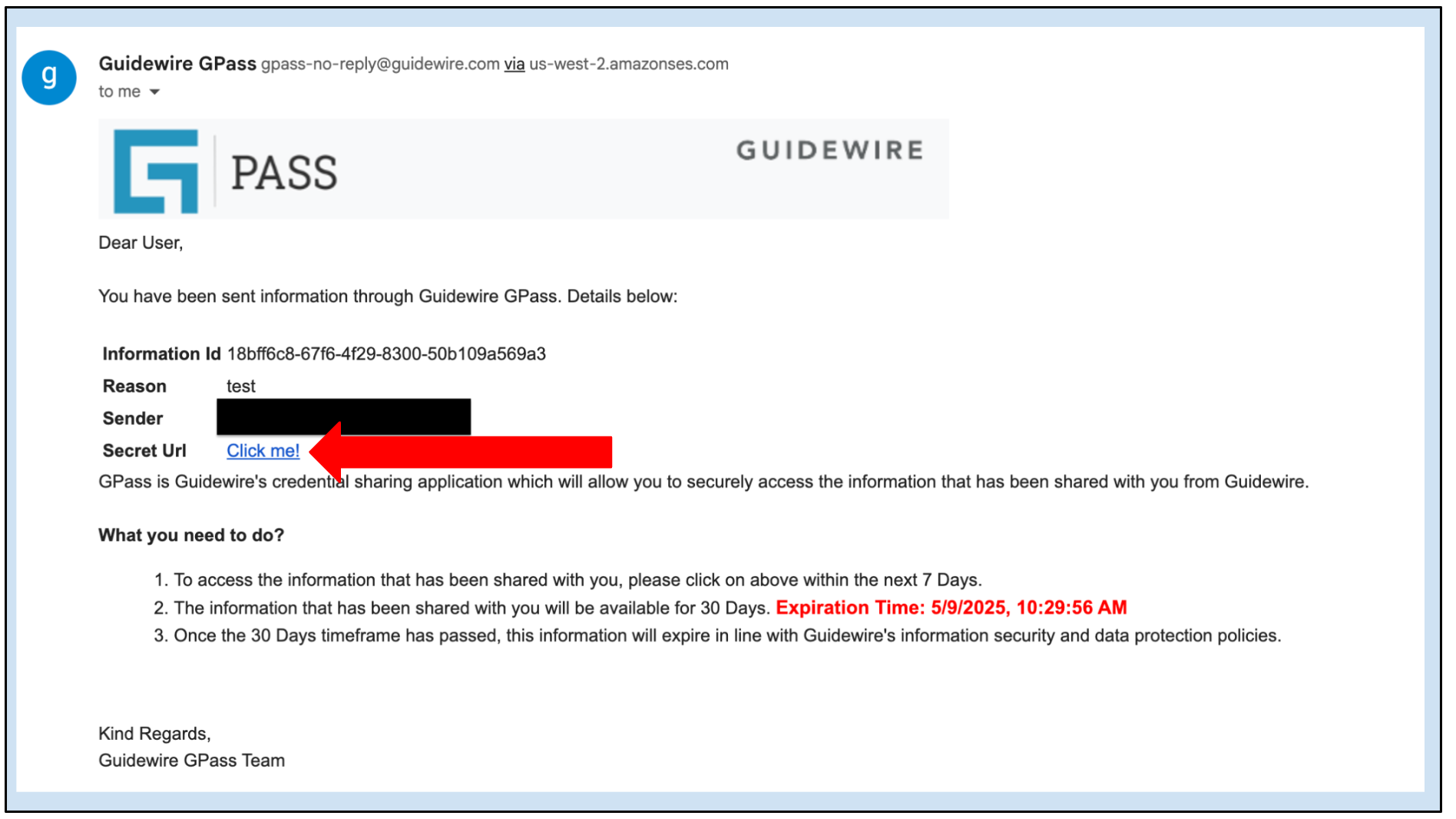
gpass-no-reply@guidewire.comwith a subject line like "Action Required: You have received shared information from Guidewire G-Pass". This email will contain a "Secret Url".
2. Open secret URL
- It's recommended to open the secret URL in a private/incognito browser window.
Using a private or incognito browser protects your Guidewire Cloud session by preventing reuse and reducing the risk of cached credentials. This is especially important for guest users who may have logged in with an Okta session, which can remain active longer than necessary. This approach enhances security and improves session management.
3. Authenticate
- If prompted, sign in with your Guidewire Cloud credentials via Okta (similar to step 6 above).
4. View the secret
- After authentication, the shared secret will be displayed.
Secrets can only be accessed once and expire immediately after successful retrieval. Ensure you copy or store the information safely before closing the window.
Was this page helpful?