Lookup
Usage
Overview
The LookupField component allows users to select a value from among the available values using keywords. It can be a primary source for discovering or filtering content.
If used as a search bar, the placement of the search bar determines the range of the search and its results.
- Search bars placed on a header will search across the entire application for results.
- Search bars placed within an element will only search within the element for results.
Anatomy
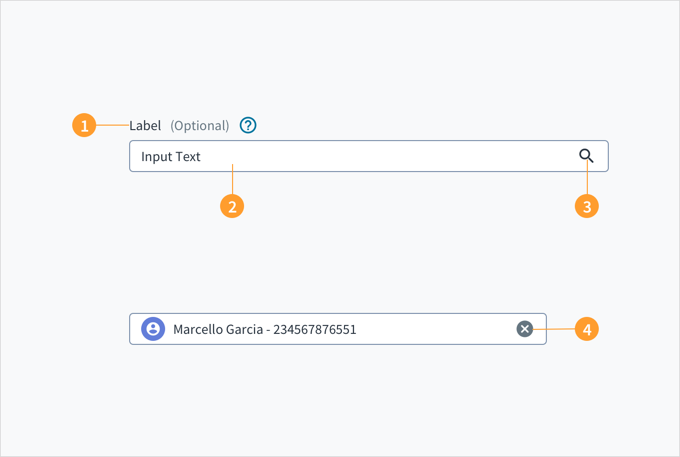
The LookupField component appears with a label, an input field, and an icon.
LookupField consists of:
- Label: establishes context for the user's search.
- Input field: allows users to input keywords, text, and specific words.
- (If used as search) Search icon: triggers the search when clicked.
- Clear icon: removes all content from the input field.
Best practices
- Use placeholder text to guide users about appropriate terms for the context.
- Include autosuggestion wherever possible.
- Clearly state the categories of the available values.
- Have a clear empty-state message that directs users to the next step and offers suggestions for moving forward. (See UX writing considerations below).
- Use look-ups and searches sparingly across your application. Not every element requires a look-up or search.
- Highlight the terms that the user entered in the results.
- Add descriptions to results to help users navigate and pick the accurate option.
- Display the number of results returned.
- Keep the original text after users execute the query.
- Use a processing icon if retrieving values takes more than 5 seconds.
- Users understand the purpose of a look-up field; therefore, only use a content-specific label (instead of a generic term like 'search').x
Behaviors
States
The LookupField component has an enabled, disabled, active, and focus state.
- Enabled: Communicates to the user that the element is enabled for interaction (default).
- Disabled: Communicates to the user that the element is not interactive.
- Focus: Provides feedback indicating that the element is highlighted by using a keyboard or mouse.
- Active: Provides feedback indicating that the user is clicking or tapping the element.
Interactions
Mouse
When the user clicks into the look-up field, the cursor 'blinks' until the user starts to type.
Users should be able to initiate the operation through both the icon and the Return key.
Keyboard
Pressing the Tab key moves keyboard focus to the input field. Pressing the Spacebar or the down arrow keys opens the popup menu with a list of values. The list is refined by typing the first few characters of the name you require.
Screen reader
The input field and label are associated through the aria-labelledby WAI-ARIA attribute. The field also includes the value of aria-autocomplete="list" to indicate that it contains a list popup with autocomplete function. As you type, the input field pre-populates a dropdown list of values that mostly closely matches what is entered in the field. The option that matches the information typed is automatically focused upon and is voiced by a screen reader.
Navigation
- When the user selects the icon or presses the return key, the results are shown below the search field.
- How the user navigates the results is on a per application basis.
Error conditions
If there are no results based on the criteria, a message appears and encourages next steps whenever possible.
UX writing considerations
Empty states
- When writing for empty states (for example, searches that return no results), avoid telling users what there isn't. Instead, use the opportunity to communicate what there is.
- Do NOT use terms like system, queries, or values. For example, "No results were found for the values entered," or "The query produced no results."
- Empty states for search results should direct users to the next step and keep them moving through the product flow.
- Explain the situation. Let users know that you haven't found what they were looking for. Your tone should be empathetic.
- Suggest alternative ways to progress forward that are relevant to your type of content, for example:
- There are usually multiple ways to search for the same thing. This includes searching by category, searching for a more general or specific term, trying to use synonyms, and checking spelling.
- Are there things that are similar to what the user searched for? You can suggest items or links that are as close as possible. For example:
- Items by the same manufacturer (for example, other Ford vehicles).
- Items with similar specifications from different manufacturers (for example, 2010 vehicles).
- Items that are of a similar type, style, or feature (for example, midsize sedans).
- Can your search engine find similar terms? If so, consider offering these results to users to save them the hassle of performing another search.
- It's critical to understand what users are trying to accomplish with their search. Offer users something that gets them closer to their goal.
- Aim for language that is friendly and conversational, for example, "We couldn't find any results. Did you mean [link to similar term]? Try searching for something else or broadening your search."
Placeholder text
- Use placeholder text to help scaffold the experience. For instance, you can reduce the range of choices by defining categories within the search field. This enables users to focus on the possibilities and guides them as they perform their search.
- Alternatively, consider asking users a direct question (preferably in the second person "you") in fields that are particularly important. This will motivate users to find answers and dive into the site.
Accessibility
This component has been validated to meet the WCAG 2.2 AA accessibility guidelines in its default, base configuration. This includes ensuring:
- The contrast ratio of textual elements against their background is above 4.5:1.
- Non-textual content that needs to convey meaning (like icons and focus indicators) has a contrast ratio of at least 3:1 with its adjacent colors.
- The item is operable using a keyboard, as well as using a mouse.
- Content is accessible using screen readers, such as JAWS and VoiceOver.
Accessibility conformance ultimately depends on how this component is implemented and customized. Changes made by the content author can affect accessibility. For details on our shared responsibility model, please review our full Jutro accessibility statement.