Check out the Usage section for details about how and when to use MultipleSelect and the specific tabs for details on the features provided by each component.
Note: Most of the features and properties of the four provided Dropdown components do not have usage differences. Some examples from other components might be relevant for MultipleSelect too.
You can disable completely any of the dropdown components by setting the disabled property to true. You can also disable only the specific options using the disabled property of the SelectOption and ComboboxOption components. In case that the whole component is disabled, the disabled property of the options does not have any effect.
This is a common behavior for all of the dropdown components: when the value property is set, the user cannot directly modify the component, it will be managed entirely by the developer implementation.
This example is applicable to all dropdown components:
exportfunctionMultiSelectControlled(){ const[updatedValue, setNewValue]=useState([]); constonChange=(e, newValue)=>{ setNewValue(newValue); }; const options =[ <SelectOption value={{ id:'1', label:'Option 1', }} />, <SelectOption value={{ id:'2', label:'Option 2', }} />, <SelectOption value={{ id:'3', label:'Option 3', }} />, <SelectOption value={{ id:'4', label:'Option 4', }} />, <SelectOption value={{ id:'5', label:'Option 5', }} />, ]; return( <div> <MultipleSelect label="Choose values" secondaryLabel="This value will be passed to the list of options below" onChange={onChange}> {options} </MultipleSelect> <br/> <MultipleSelect label="Changes with the above" value={updatedValue}> {options} </MultipleSelect> </div> ); }
Using the ref property and the imperative handlers provided ('focus', 'blur' and 'scrollIntoView') it is possible to perform different native actions. An example is to set the focus on the component.
The dropdown components do not handle the validation process, but you can handle the error status and the messages to be displayed using the stateMessages property.
The state messages logic works for all dropdown components, below is an example of MultipleSelect:
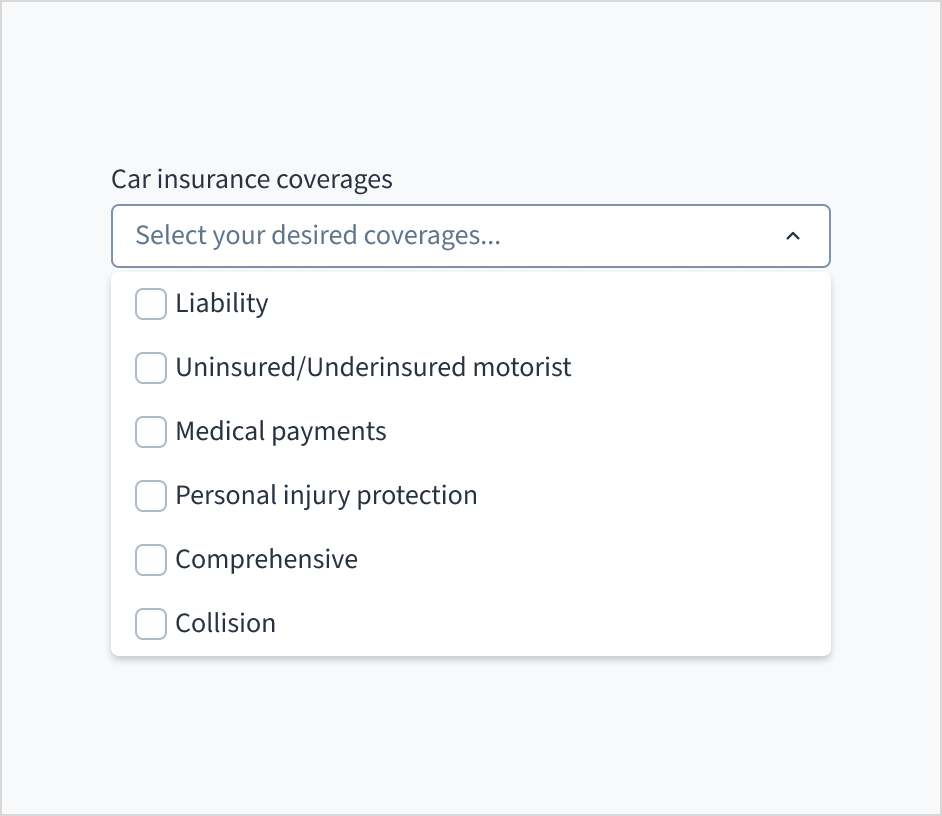
The dropdown component presents users with a set of options from which they select. Dropdowns progressively disclose options, preventing users from seeing too much information at one time. They can also be used to group information. Dropdowns are always supported by a field label or title that is positioned before the control.
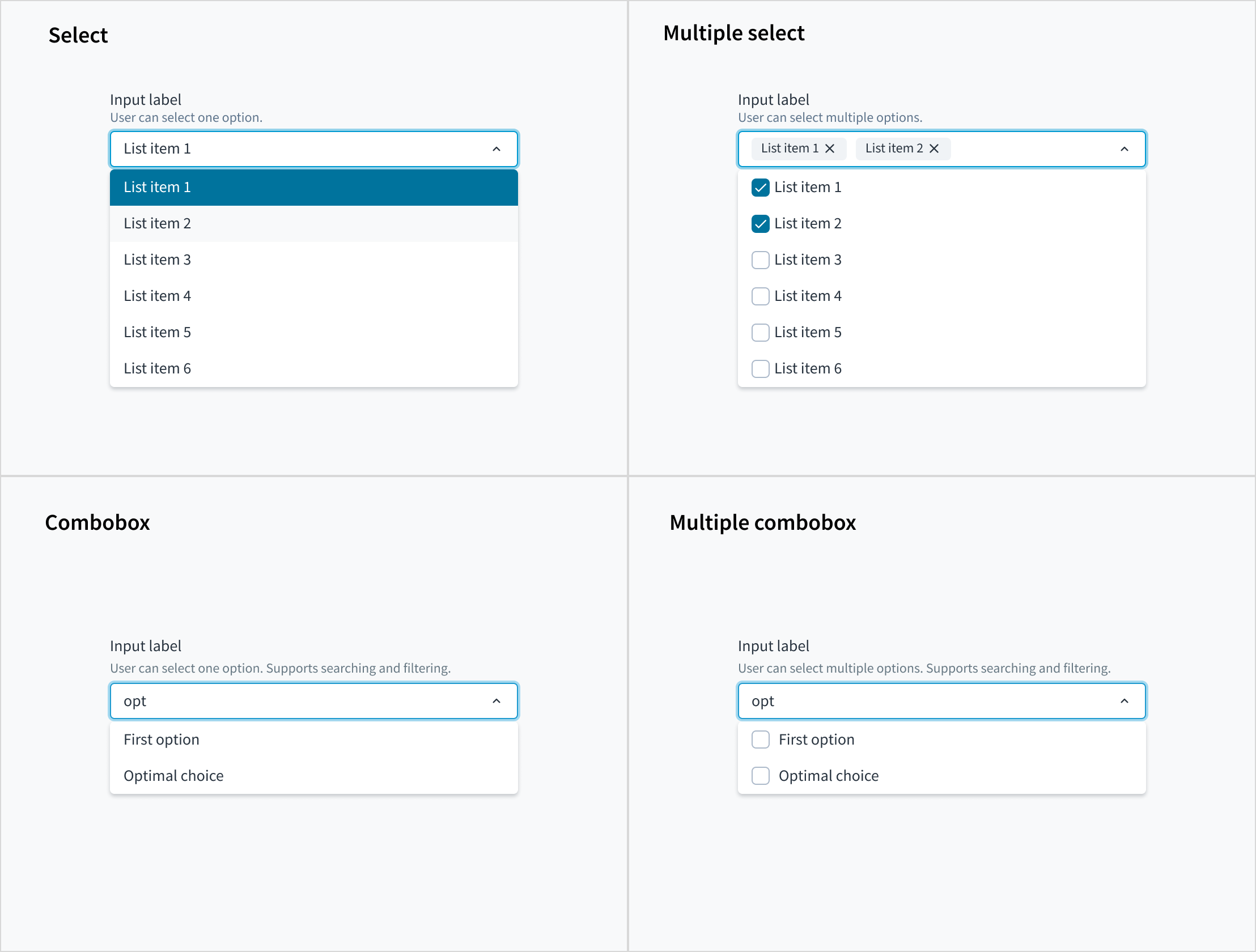
This component comes in four variants: select, multiple select, combobox, and multiple combobox.
The multiple select variant of the dropdown enables users to to select multiple options from a list.
When using the dropdown for sorting purposes, consider arranging options in order. For example:
From most common to least common option
From simplest to most complex operation
From least to most risky option
The first option would appear at the top of the list.
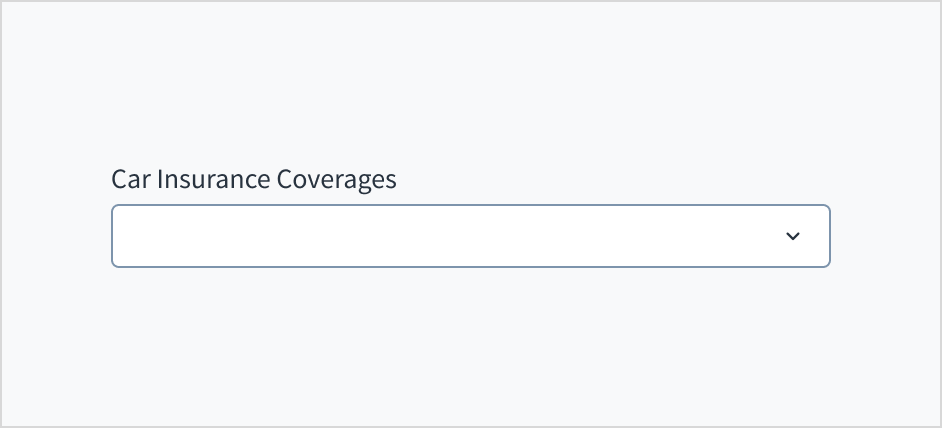
Avoid arranging the list of options alphabetically unless it makes sense for your use case. Lists of countries and other known-item problems are often fine to alphabetize. However, you do need to ensure that users will know unambiguously the name of their selection.
Limit each dropdown option to one line of text. If the text is too long for one line, you can add an ellipsis (...) for overflow content, and accompany with a browser-based tooltip to show the full string. However, it's recommended that you avoid truncation if at all possible.
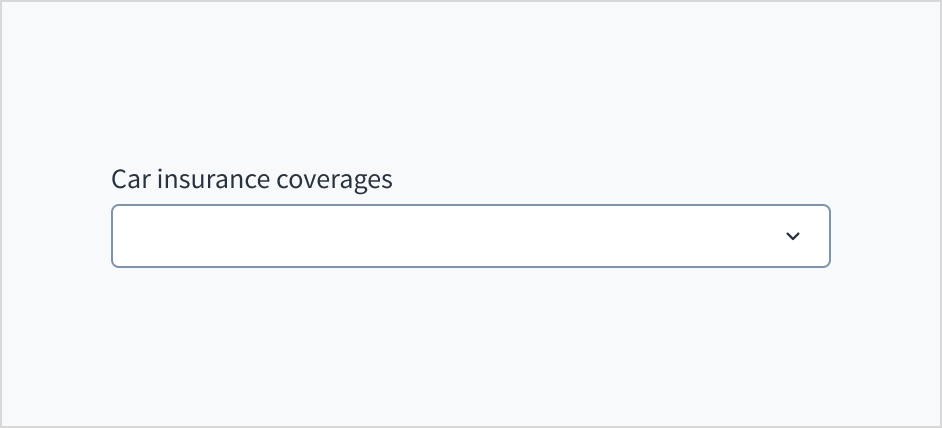
Do keep menu items concise.
Don't use long menu items that require truncation.
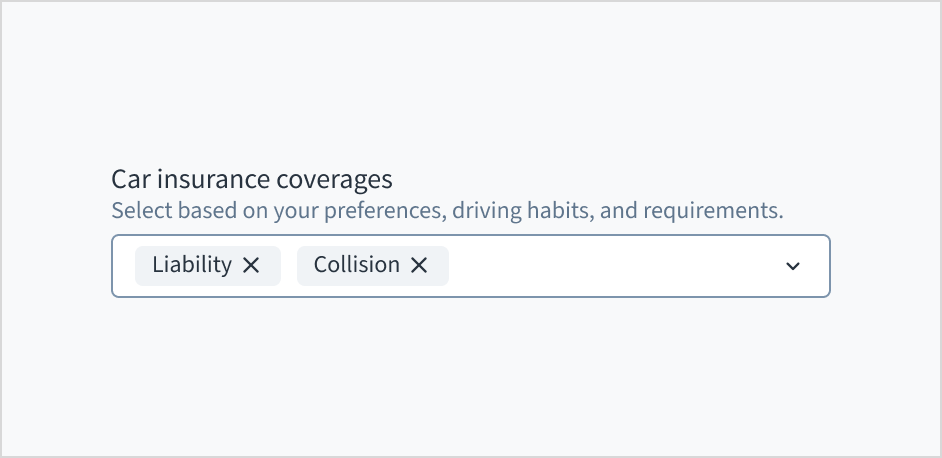
Use help text to show context and communicate what to select or how to select an option. Here are some examples of what you might include in help text:
An overall description of the dropdown options
Hints that assist the user in choosing the right selection
More context for why a user needs to make a selection
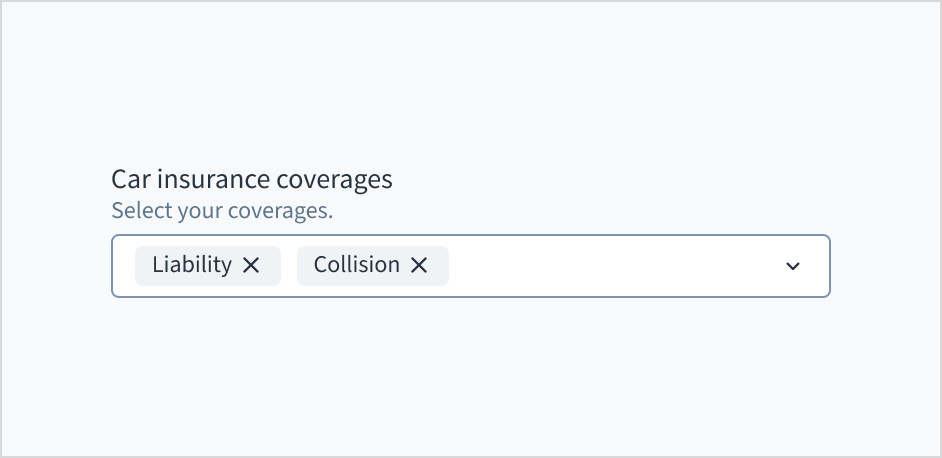
Only use help text for pertinent information. Avoid using help text that simply restates the same information that appears in the label.
Use sentence case for help text. Write 1-2 short, complete sentences that end with a period.
Do use help text to show context.
Don't use help text to simply restate the same information that appears in the label.
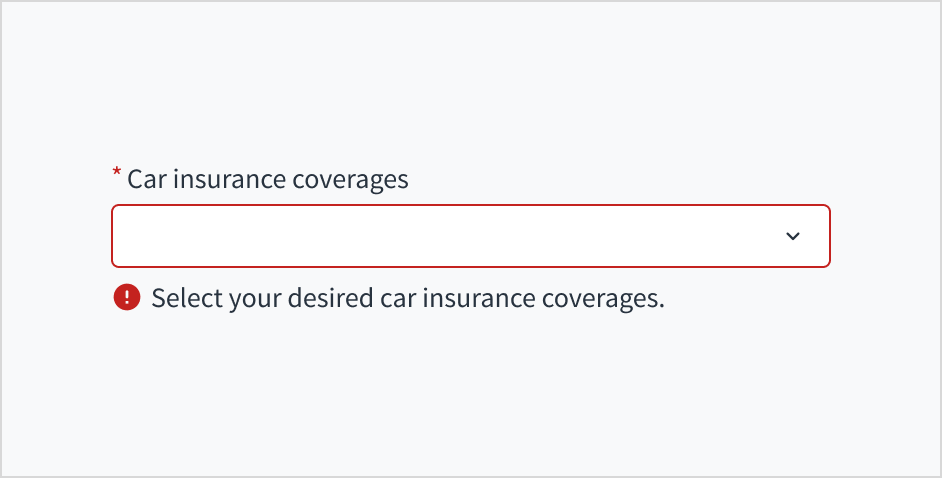
Error message text tells a user how to fix the error. In the case of the dropdown, errors are often related to something that must be fixed for in-line validation. For example, if someone doesn't select coverages and this is a required field, you can use error text to guide the user to a solution: “Select your desired car insurance coverages.”
Use sentence case for error text. Write 1-2 short, complete sentences that end with a period.
Do use error text to guide the user and show them a solution.
Don't write ambiguous error messages or leave users guessing as to how to resolve a problem.
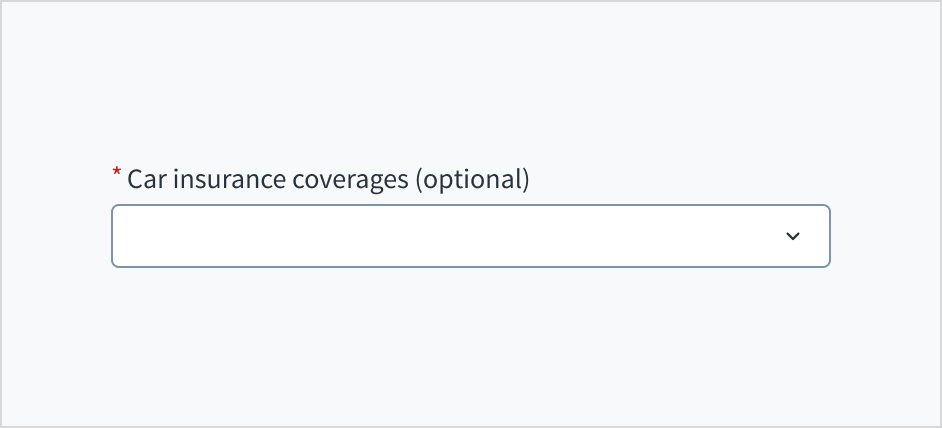
Use an asterisk (*) to indicate required fields. The asterisk precedes the field label. This helps users to easily locate which fields are required by scanning just the left-most character of the label.
In addition to marking required fields with an asterisk, it is recommended to include clear instructions at the top of the form, such as "All fields marked with an asterisk are mandatory," to ensure users understand the meaning of the asterisk.
Do use an asterisk to indicate that a field is required.
Don't use an asterisk to denote anything that is optional.
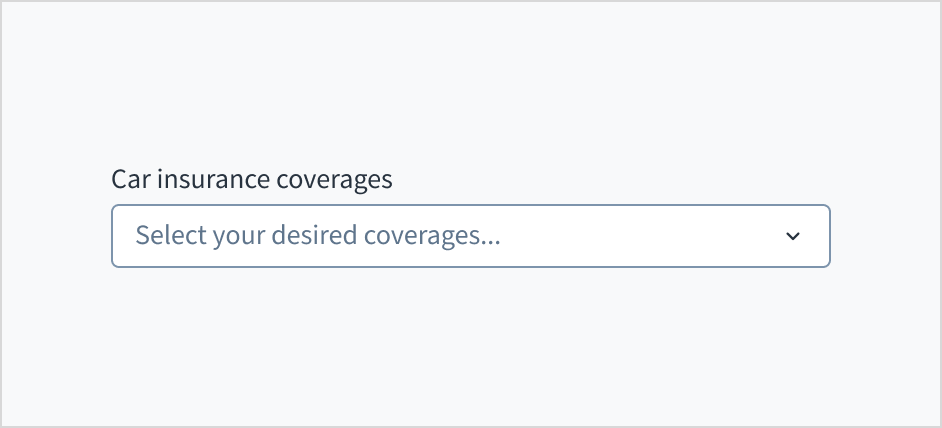
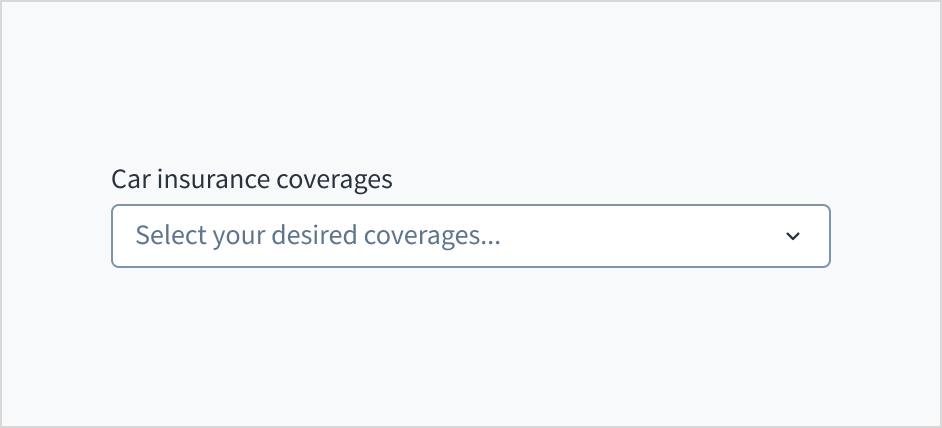
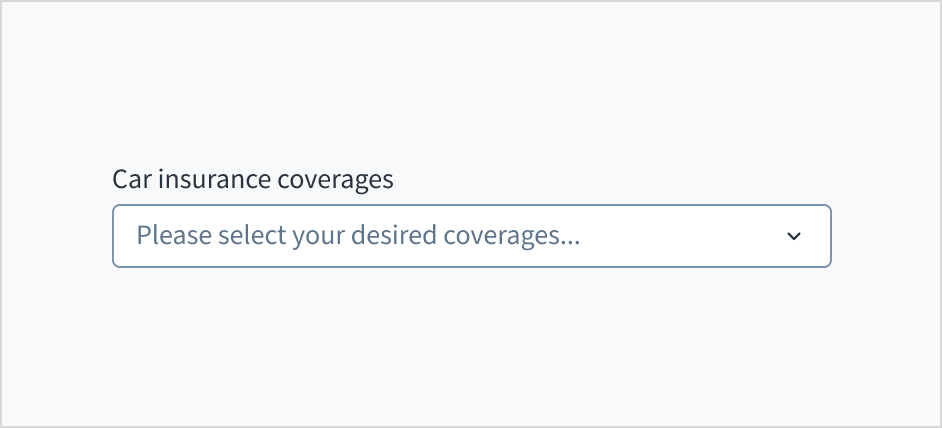
The multiple select variant appears with no value (default), placeholder text, or a filled input.
Visual
State
Description
No value (default)
Indicates to the user that no value has been selected and there is no placeholder.
Placeholder
Indicates to the user that no value has been selected. The placeholder is grayed out.
Filled input
Indicates to the user that the input is filled with data.
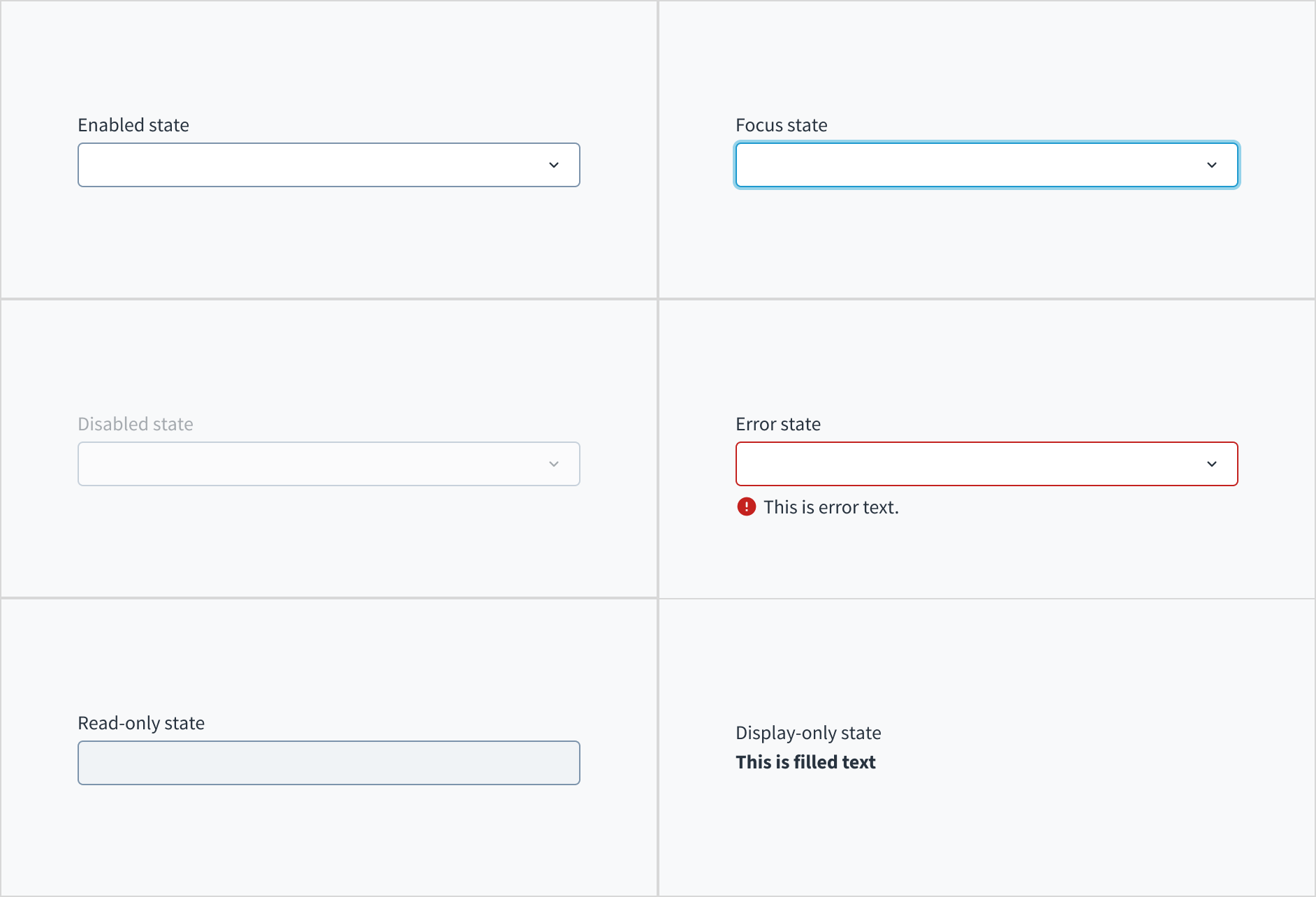
Multiple select also has interactive states for enabled, focus, disabled, error, read-only, and display-only.
State
Description
Enabled
Indicates to the user that the element is enabled for interaction.
Focus
Indicates to the user which UI element in the system is focused.
Disabled
Indicates to the user that the input value can't be changed because of local factors. For example, a checkbox above the input field must be checked to access this input field. The user can take action to enable it by interacting with the page.
Error
Indicates that the user has made a validation error. Error text provides corrective feedback to users.
Read-only
Indicates to the user that the input value can't be changed because of outside factors. For example, lack of write access. The user can take action to enable it by, for example, contacting an administrator.
Display-only
The display-only state is used for two cases:
A UI element is used in display mode.
A UI element is displayed in edit mode, but is never editable.
This state was called “read-only” before.
The following image illustrates multiple select interactive states.
The dropdown is expanded and collapsed using the Spacebar. Users navigate through the options using the arrow keys and select by means of the Spacebar or Enter key.
The aria-labelledby establishes a programmatic association between the input field and its label. The WAI-ARIA attribute of aria-autocomplete='list' communicates that a list of choices will appear from which the user can choose, but the edit box retains focus. Selecting the 'required' option in Storybook adds both the 'required' and 'aria-required="true"' attributes to the input field.
The contrast ratio of textual elements against their background is above 4.5:1 as per WCAG 2.1 AA requirements. Non-textual content that needs to convey meaning (such as icons and keyboard focus visibility) has a contrast ratio of at least 3:1 with its adjacent colors. All content is visible and functional up to and including 400% without requiring scrolling in two dimensions.
This component has been validated to meet the WCAG 2.1 AA accessibility guidelines. However, changes made by the content author can affect accessibility conformance.
When using this component within your application:
Assist users in understanding the content by avoiding very long option names.
Avoid using implicitly focusable elements such as buttons, checkboxes and links, or implicitly semantic content such as headings within your dropdown components.
Note: There are deprecated versions of this component. For documentation, see the Dropdown (deprecated) page.
Make sure to understand the Design System components API surface, and the implications and trade-offs. Learn more in our introduction to the component API.
Warning: Passing child options to the MultipleSelect component other than SelectOption is not supported. Although it might work, it might result in unexpected behaviors or be affected by changes introduced in future releases.
Value of the component. Takes precedence over initialValue. If this prop is passed, component works in controlled mode and its value will change only if this prop changes.
When the selected options do not fit in the component space, some of them will be collapsed into an initial tag that indicates the number of selected options not being displayed. By clicking in that tag, all the selected options will be displayed. Once expanded, the options will not be collapsed again.
All dropdown related components define the list of available options through the children property of ReactNode type. You can use only the following subcomponents as children:
SelectOption used by Select and MultipleSelect
ComboboxOption used by Combobox and MultipleCombobox
Warning:
SelectOption and ComboboxOption must only be used in the context of their respective 'parent' component. Although they might work in isolation, this is not a supported feature.
Select and MultipleSelect components are only intended to accept SelectOption components as children. Although they might be able to display or handle other types or HTML elements, this is not a supported feature.
Combobox and MultipleCombobox components are only intended to accept ComboboxOption components as children. Although they might be able to display or handle other types or HTML elements, that is not a supported feature.
Any usage of these components outside of their supported scope falls outside of the non-breaking changes commitment, as such usage is not considered a part of the components contract. These usages might result in unexpected behaviors or be affected by changes introduced in future releases.
Jutro inputs have implemented imperative handlers as a mechanism to provide access to some common native features that might be useful for you. The following features are available:
Set focus to allow you to set the user focus into a specific component
Blur to remove the focus from the component
Scroll to the component so that you can take the user to a specific area of the page.
These features are provided through the ref property, which exposes them as follows:
Although some Jutro components might provide complementary features or a helper function to facilitate the validation process, it is your responsibility as a developer to handle the validation of any user input (using or not using the complementary helpers) and to decide what error messages to show.
Jutro components behave based on the developer implementation.
When are error messages displayed?
Error messages are only displayed when you pass them to the component through the stateMessages property. This property receives an object with the following content:
The component displays every error message provided in the same order as in the array.
When does validation occur?
This is your decision as a developer. As components do not determine when the validation is performed or when the error must be displayed, you need to implement the logic to handle it according to the project requirements, for example while the user is editing the content, when the component loses focus, and on form submission.
New @jutro/components/MultipleSelect component introduced.
The previous DropdownSelectField component was deprecated and moved to the @jutro/legacy package. To view its documentation, switch to a version of the documentation older than 10.0.
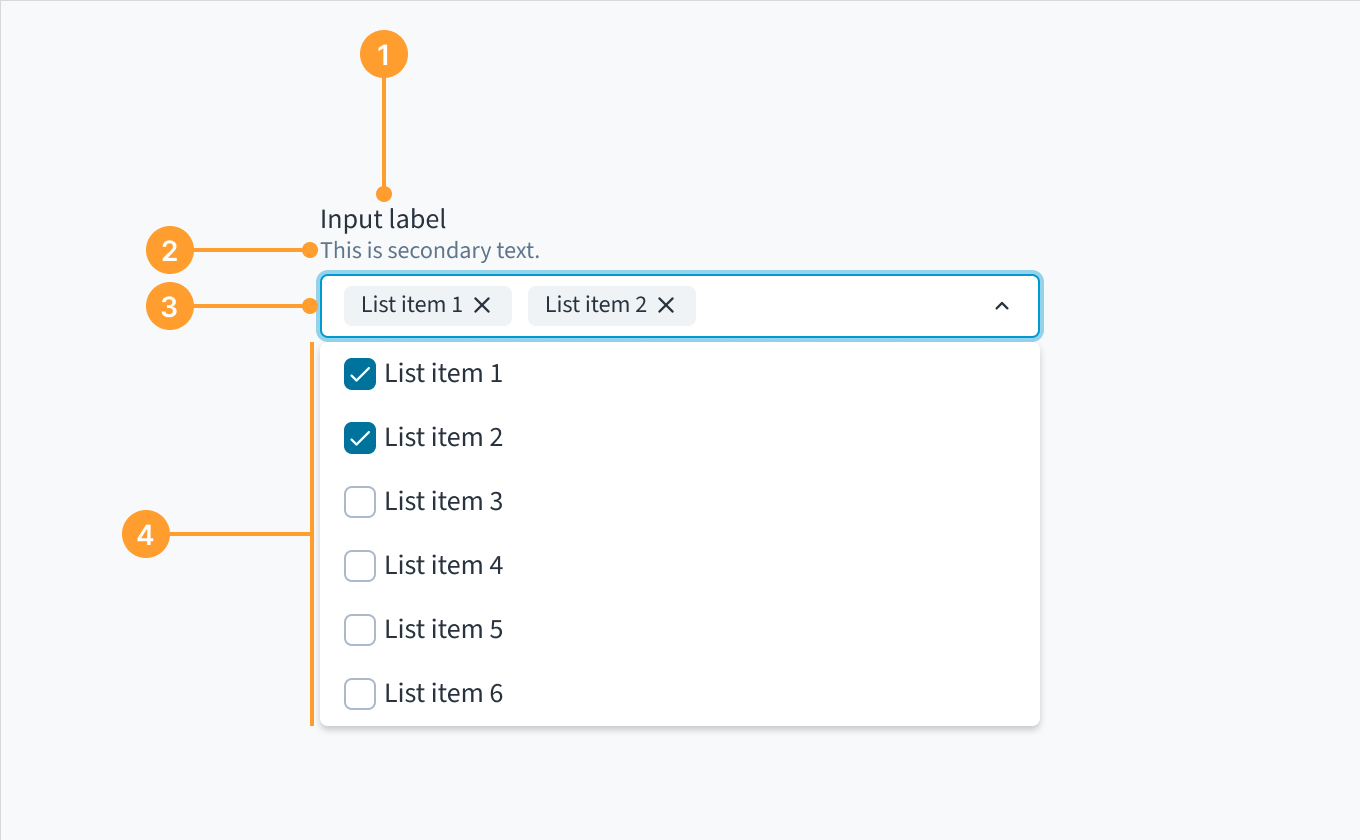 Anatomy of the dropdown component, multiple select variant.