Manage storage access to AWS S3 buckets
To manage storage access in Guidewire Home:
-
Select a star system.
-
From Apps
 , select Storage Access or select it from your pinned apps.
Here, you can configure, delete, edit, and see the details of all the existing access points for your star system.
Access to this application can be managed by:
-
Guidewire Hub
For details, see Access Cloud Platform apps and services.
-
Access Management
For details, see Guidewire Cloud Platform (GWCP) roles and permissions.
View storage access points
In Storage access, you can view all the access points created for InsuranceSuite or for Cloud Data Access (CDA). For each application, you can view its bucket name, bucket URLs, and a list of created access points. For each access point, you can view the following details:
-
Type of an access point
You can configure an access point with IAM user, IAM role, or bucket policy type. For details, see Access types.
-
Status of an access key for an IAM user
10 days before an access key expires, the Storage Access app displays a notification with the number of days left. To check the exact number of days before an access key expires, select View details.
An access key is valid for 350 days.
-
Amazon Resource Name (ARN)
Unique ID that identifies resources like buckets and IAM roles.
In the Storage Access app, use it to assign an existing role to an access point.
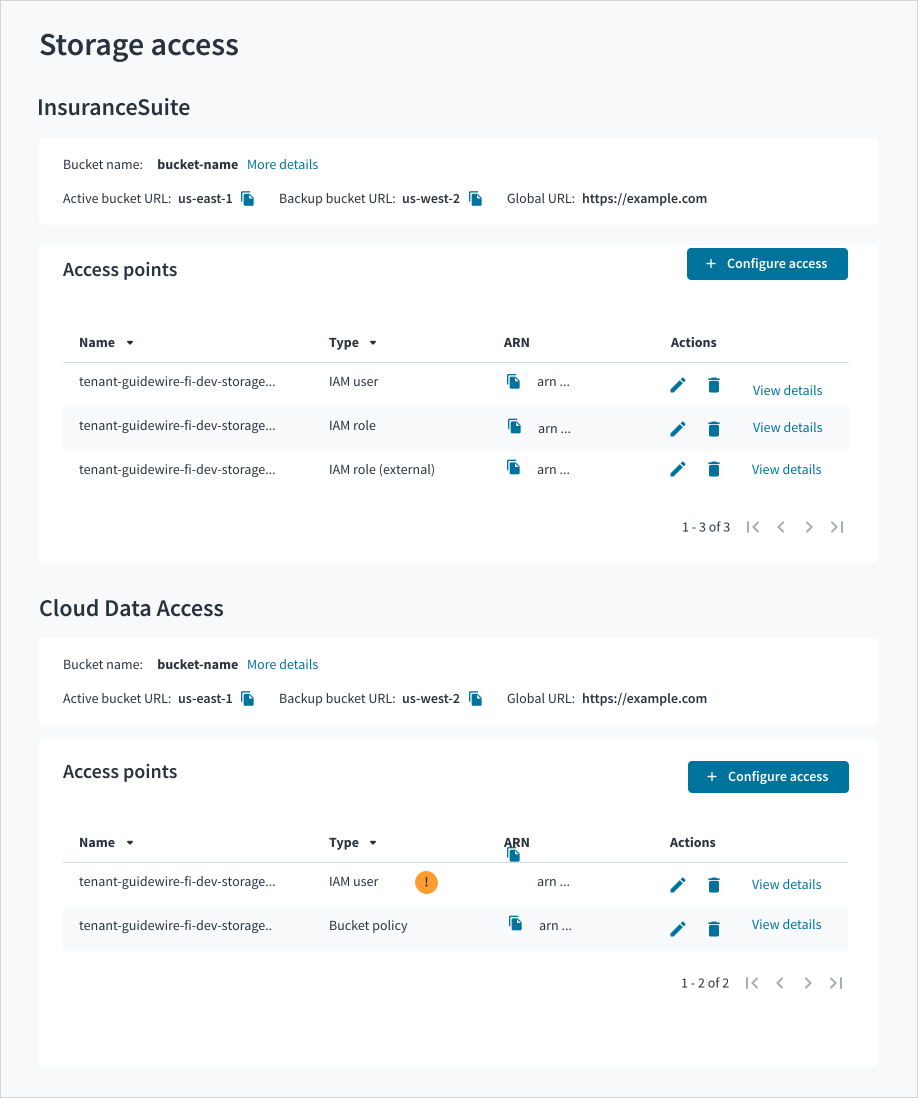
View bucket details
For each application, you can view its bucket name, global URL, and URLs for active and backup buckets. To see the full URL, select More details.
Access to the global and backup URL information is limited to users with DR tier basic or premium subscription.
View access point details
To view details of an access point, select View details. For each access point, you can check the following details:
-
Access point name
-
Account details
View AWS account ID.
-
Access point details
View access type and assigned permissions.
-
Access key details
For IAM users, you can manage access keys, check creation date and status of an access key.
Configure an access point
You can configure an access point to InsuranceSuite or to Cloud Data Access (CDA) with one of the following types:
For details, see Access types.
Configure IAM user
To configure an access point with the IAM user type:
-
Select + Configure access.
You can configure an access point to InsuranceSuite or to Cloud Data Access (CDA).
-
In Use own AWS account, select No.
An access point will be configured with Guidewire account.
-
In IAM user details, provide a description and contact e-mail for the user.
-
(Optional) In Security, add IP ranges and VPC endpoints.
Select to allow users to connect only from a specific IP range or VPC endpoint.
The IP addresses and ranges must be in the CIDR format.
By selecting IP ranges or VPC endpoints, you add the Condition section to the AWS permission statement. For details, see Security configuration.
Note that security settings are shared between IAM user and internal IAM role access points. This means that when you configure IP ranges and VPC endpoints for an IAM user, the same settings automatically apply to an internal IAM role.
For IAM users created with the Guidewire account, permissions are already set and can't be changed.
Configure IAM role
To configure an access point with the IAM role type:
-
Select + Configure access.
You can configure an access point to InsuranceSuite applications only. You can't configure IAM roles for CDA.
-
In Use own AWS account, select Yes.
-
In Create IAM role?, select Yes.
Provide AWS account ID.
Provide external ID to indicate who can assume the role and to prevent the confused deputy problem.
You can create only one internal IAM role. You can add more than one external ID. -
From Role details, select one of the following roles:
Internal that has inbound and outbound permissions assigned. Users can access integration folders and FileSystem. Recommended for internal teams in your organization.
External that is recommended for external vendors and third-party integrations. To create it, you need to provide an integration name.
-
For the External role, select permissions and provide Integration name.
You can limit the number of actions that a user can do. For details, see external role permissions.
Note:For the internal IAM role, permissions are already set and can't be changed.
-
(Optional) In Security, add IP ranges and VPC endpoints.
This setting allows users to connect only from a specific IP range or VPC endpoint.
The IP addresses and ranges must be in the CIDR format.
By selecting IP ranges or VPC endpoints, you add the Condition section to the AWS permission statement. For details, see Security configuration.
Note that security settings are shared between IAM user and internal IAM role access points. This means that when you configure IP ranges and VPC endpoints for an internal IAM role, the same settings automatically apply to an IAM user.
In your AWS account, configure your IAM user or IAM role with the required permissions to access Guidewire resources. For details, see IAM role statement.
Configure bucket policy
To configure an access point:
-
Select + Configure access.
You can configure an access point to InsuranceSuite or to Cloud Data Access (CDA).
-
In Use own AWS account, select Yes.
Provide internal AWS account ID.
-
In Create IAM role?, select No.
-
In Role details, provide an ARN to identify your IAM user or IAM role.
Note:For bucket policies, permissions are already set and can't be changed.
-
(Optional) In Security, add IP ranges and VPC endpoints.
This setting allows users to connect only from a specific IP range or VPC endpoint.
The IP addresses and ranges must be in the CIDR format.
By selecting IP ranges or VPC endpoints, you add the Condition section to the AWS permission statement. For details, see Security configuration.
In your AWS account, configure an IAM user or IAM role with the required permissions to access Guidewire resources. For details, see IAM role for bucket policy.
Edit an access point
To modify settings of an access point:
-
In the table, find the access point that you want to edit.
-
Select Edit
 .
.Edit the settings for an access point as needed.
-
Select Save.
Delete an access point
Delete access points that you no longer need. To delete an access point from a bucket:
-
In the table, find the access point that you want to delete.
-
Select Delete
 .
. -
Select Delete.
Manage access keys
You can create and delete access keys for IAM users. For details, see Access keys.
Add an access key
To add an access key:
-
In the table, find the IAM user to which you want to add an access key.
-
Select View details.
-
Select + Add key.
An access key is valid for 350 days.
To increase security, the generated secrets aren't stored in the Storage Access app. The secret access key shows only once. Copy and save the secret access key on your device as you won't be able to access it again.
Delete an access key
You must have at least one access key for each IAM user. To delete an access key that you no longer need, add a new access key first.
To delete an access key:
-
In the table, find the IAM user whose access key you want to delete.
-
Select View details.
-
Select Delete next to the key that you want to delete.
Configure PrivateLink for VPC endpoints in Storage Access
You can route the traffic from a VPC endpoint through a PrivateLink connection. For details, see AWS PrivateLink for Amazon S3 in AWS documentation.
To set up PrivateLink for VPC endpoints:
- Set up PrivateLink in your AWS account.
- Configure an access point in the Storage Access app.
- Test the connection.
Set up PrivateLink in your AWS account
In your AWS account, set up PrivateLink in the following way:
-
Create a VPC and subnet.
-
In your VPC settings, enable
DNS resolutionandDNS hostnames.Don’t add any more routes to the subnet route table. Adding more routes would allow the subnet to access the public Internet.
-
In the subnet, create a VPC (interface) endpoint with the following information:
-
Select
AWS Servicesas the type. -
Choose the service with the name as follows:
For IAM user and bucket policy:
com.amazonaws.<region>.s3, type:Interface
For IAM role, create two separate VPC endpoints, each with one of the following services:
com.amazonaws.<region>.s3, type:Interfacecom.amazonaws.<region>.sts, type:Interface
-
Select
Enable private DNS name.
-
-
Configure the endpoint security group with the following inbound rule:
- Type: HTTPS
- Protocol: TCP
- Port range: 443
- Source: The security group ID or IP of your EC2 instance
Configure an access point in the Storage Access app
-
In Guidewire Home, go to the Storage Access app.
-
In Security, provide the VPC endpoint that you created in your AWS account.
For IAM role, provide only the
com.amazonaws.<region>.s3endpoint.
For testing, Guidewire recommends using an IAM user access type. If you want to use an IAM user, create an access key to authenticate to the user.
Test the PrivateLink connection
After you created the PrivateLink connection and the VPC endpoints, you can test if your PrivateLink connection is secure.
To test the PrivateLink connection:
-
In your subnet, start an EC2 instance and connect to its CLI.
-
Configure your EC2 instance security group to allow outbound HTTPS (443) traffic.
-
Set up AWS CLI authentication:
For IAM user: run
aws configureand enter the access key and secret key that you created in the Storage Access app.For bucket policy, use your own IAM user.
For IAM role, use your own user and assume the role by running the following command:
aws sts assume_role -
(Optional) Check if the traffic doesn't go through the public Internet:
Run the following command:
nslookup s3.<region>.amazonaws.com.You should see only local addresses.
-
Test the S3 connection.
For example, run the following command:
aws s3 ls s3://<bucket-name> --endpoint-url <VPC S3 Interface endpoint DNS name>The command succeeds or fails based on the access point permissions.
Troubleshooting
Here are the most common issues related to Storage Access:
-
You can't create or delete a bucket policy access point.
Check if you provided the correct AWS account ID or external ID.
Check the provided statement for invalid principals and try again. If the error persists, contact Guidewire for support.