Promote InsuranceSuite builds between star systems
Use the Build Promotion app to promote your InsuranceSuite application builds from non-production to pre-production and production star systems.
You can also promote your InsuranceSuite builds using the Build Promoter API.
Access to this application can be managed by:
-
Guidewire Hub
For details, see Access Cloud Platform apps and services.
-
Access Management
For details, see Guidewire Cloud Platform (GWCP) roles and permissions.
Promote a build to pre-production
By promoting a build, you make it available for deployment in pre-production star systems.
Make sure that you have access permission to a pre-production star system.
To promote a build to a pre-production star system:
-
Select a star system.
-
From Apps
 , select Build Promotion or select it from your pinned apps.
 -
Use Filters to find the build that you want to promote.
In the table, you can see where your build is already available.
-
Select Promote.
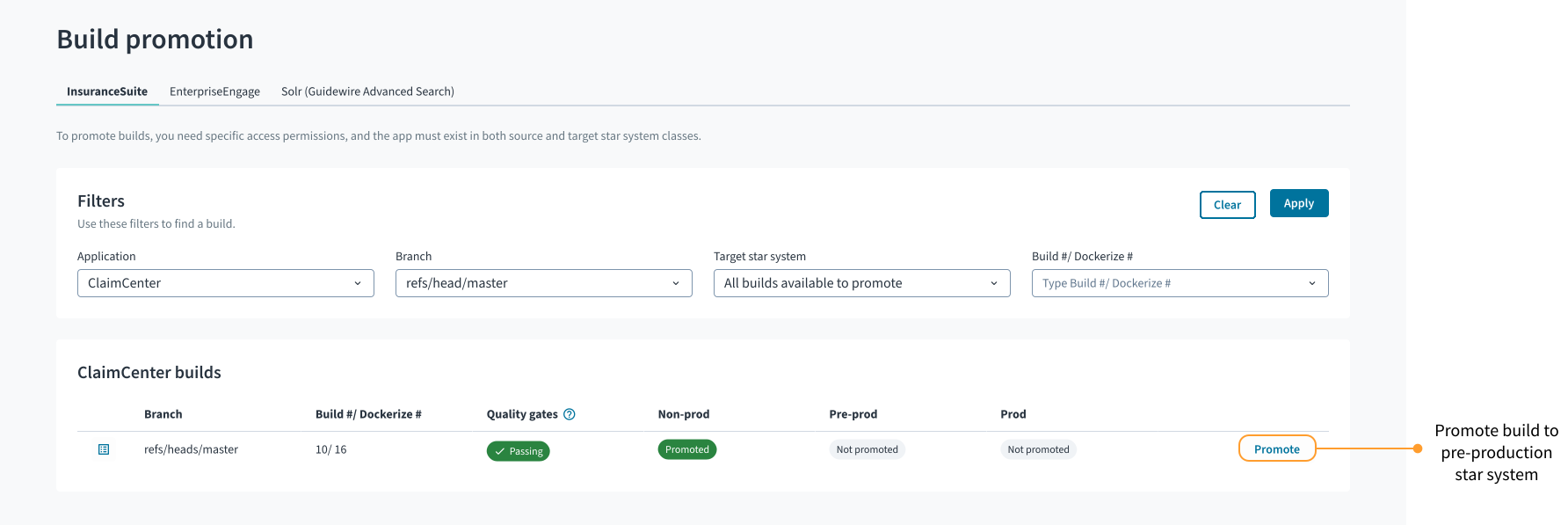
When the promotion process is completed, the build status under Pre-prod changes to Promoted. You can now deploy your build to a pre-production planet in a pre-production star system. For details, see Deploy to production.
Promote a build to production
When a build is available in a pre-production star system, you can promote it to a production star system.
Make sure that you have access permission to a production star system.
To promote a build to a production star system:
-
Select a star system.
-
From Apps
, select Build Promotion or select it from your pinned apps. -
Use Filters to find the build that you want to promote.
-
Select Promote.
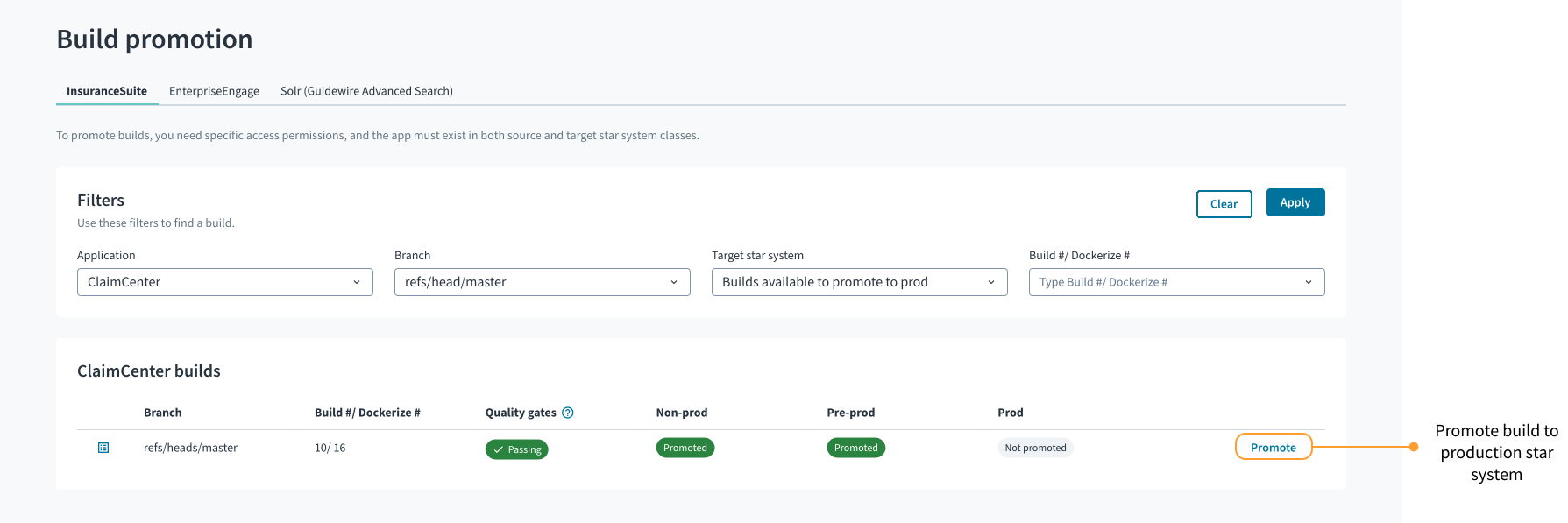
When the promotion process is completed, the build status under Prod changes to Promoted. You can now deploy your build to a production planet in a production star system. For details, see Deploy to production.
Promote a build with a quality gate
You can create quality gates for builds in non-production and pre-production star systems.
If a build that you want to promote has a quality gate, its status needs to be Passing. If the quality gate status is Failing or Pending, you won't be able to promote the build.
With the Insurer Admin credentials, you can promote a build regardless of the quality gate status using API. For details, see Promote a build regardless of the quality gate status in the Build Promoter API.
Quality gate status in the Build Promotion app is a combined status of all the verification statuses from the followings checks:
- Default gates, such as deployment checks or manual sign-offs.
- Custom gates.
These checks can be required or optional. If a given check is marked as required, it must have a Successful or Successful [overridden] verification status for a build to be promoted.
For details, see Quality gates.
Pre-promotion quality gates status
Quality gates don't apply to a build promoted to a production star system.
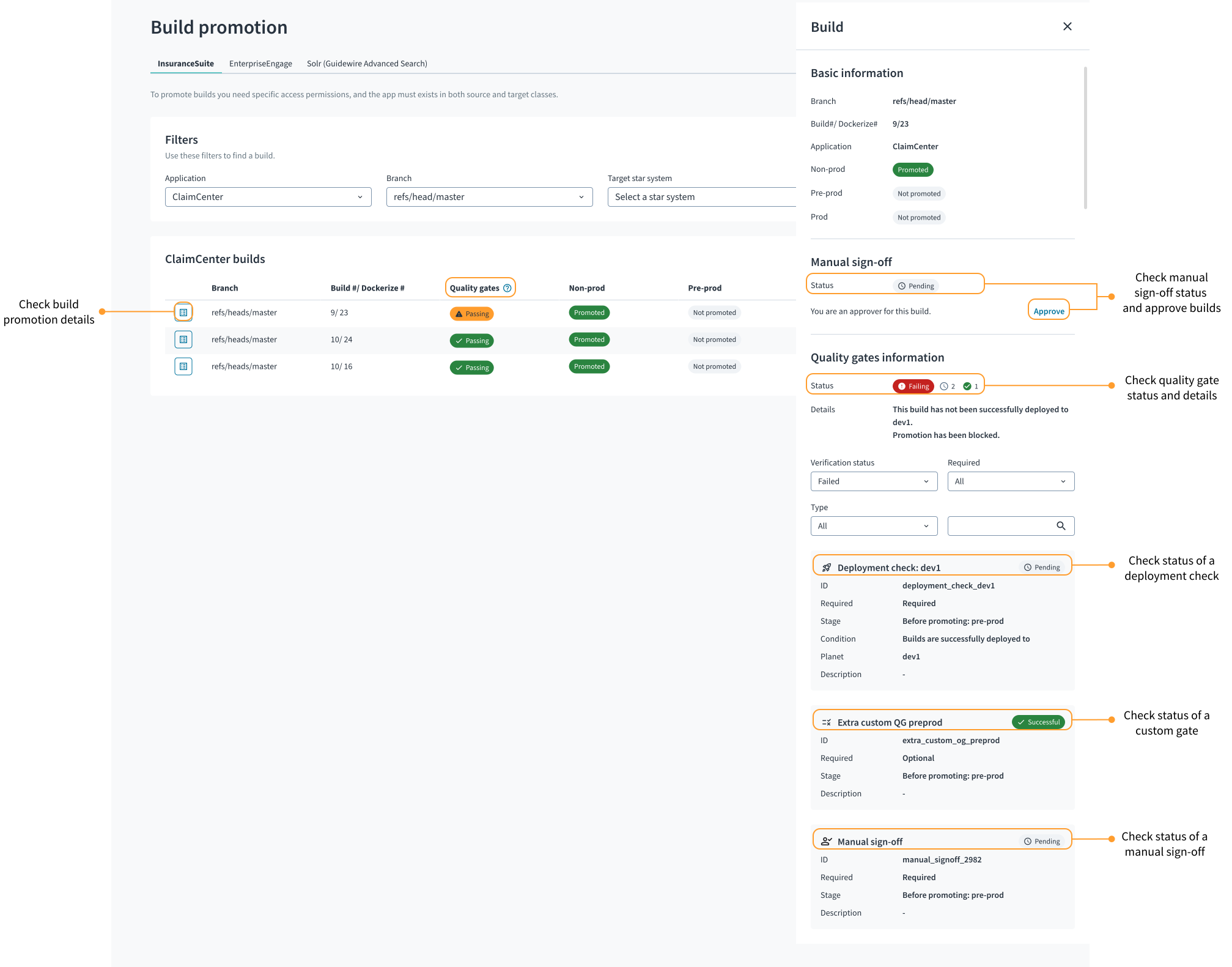
You can check the pre-promotion quality gates statuses in the Build Promotion app, by checking build details. You can find relevant information under the following sections:
-
Manual sign-off
In this section, you can check the sign-off status of a given build and approve, reapprove, or unapprove the build. For details, see Sign off builds.
-
Quality gates information
In this section, you can find details of the default and custom quality gates.
Sign off builds
You can sign off builds only in the Build Promotion app.
Manual sign-offs are default quality gates that require a designated approver to manually check and sign off InsuranceSuite builds before they can be promoted to pre-production or production star systems. The manual sign-offs can be required or optional. For details, see Manual sign-offs.
See an example procedure for approving builds:
To have access to the Sign off builds view in the Build Promotion app, you need to:
-
Be in the right access group in Guidewire Hub or have the right role and permissions in Access Management to access the Build Promotion app and to sign off builds.
-
Be assigned as an approver in at least one manual sign-off quality gate in the context of the star.
To sign off builds:
-
Select a star system.
-
From Apps
, select Build Promotion or select it from your pinned apps. -
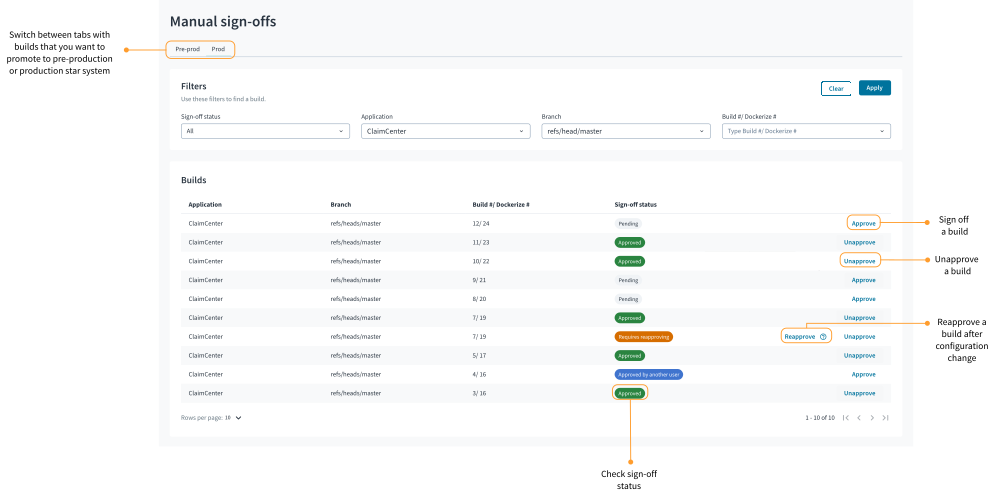
Select Sign off builds.

As an approver, you can check builds and take one of the following actions:
-
Approve a build.
-
Reapprove a build in case you already approved the build, but the quality gate configuration changed.
-
Unapprove a build that you already approved.
If you unapprove the build, but the build is approved by another approver, the build can still be promoted.
You can also sign off a build while checking the build details. In the Build Promotion app, select Show details  next to the build that you want to check. In the Manual sign-off section, you can do the following actions:
- Check the manual sign-off status of a given build.
- Approve the build.
- Reapprove the build, for which the quality gate configuration changed.
- Unapprove the build.
Sign-off status
Builds that require signing off can have one of the following statuses:
-
PendingThe
Pendingstatus means that a build needs to be checked and approved. -
ApprovedThe
Approvedstatus means that you already approved a build. -
Approved by another userThe
Approved by another userstatus means that a build was approved by another approver. You can still check and approve this build. -
Requires reapprovingThe
Requires reapprovingstatus means that you already approved a build, but the quality gate configuration changed. You need to reapprove this build to promote it.
Troubleshooting
Here are the most common issues related to build promotion:
-
The Promote button is inactive.
Build can't be promoted because you don't have access rights, a given star system doesn't exist, the app is missing from the target star system, or the quality gate status blocks the promotion.
-
The build can't be promoted due to unavailable service, incorrect data, or another promotion process.
The Promote button is inactive
To check why you can't promote a build, hover over Promote next to the build that you're trying to promote.
The Promote button becomes inactive in the following situations:
| Issue | Solution |
|---|---|
| You don't have access permissions to a star system or you're trying to promote a build to a star system that doesn't exist. | Get appropriate access rights and check the star system name. |
| The application is missing from the target star system. | Make sure the application exists in the target star system. |
| Quality gate status is loading. | Wait for quality gate status to load. |
| At least one required quality gate for this build failed or is pending verification. | Ensure that the required quality gate verification is successful. If the quality gate verification is either in progress or failing, you can't promote a build. If it's failing, fix your build and try again. |
| Build status is loading. | Build promotion might be in progress. Wait for the build status to load. |
Build promotion fails
The promotion process can fail in the following cases:
| Issue | Solution |
|---|---|
| Service is unavailable. | As communication issues are temporary, try to promote your build again. If repeating the action doesn't fix the problem or if the process takes more than a few minutes to complete, contact Guidewire for support. |
| Either the build is already promoted to this star system or a promotion is in progress. | Check the build status. If a promotion is in progress, wait for the build status to load. |