Stars and star systems
As a tenant, you have access to all your star systems through stars. All your planets are grouped into star systems. Each star system has its own database backups, secrets, and S3 bucket containers. In this way, the resources are separated for each star system.
You can manage access to stars and star systems through Guidewire Hub. For details, see Access Cloud Platform apps and services.
There are the following differences between stars and star systems:
| Stars | Star systems |
|---|---|
| Stars reflect different business units and provide you with the resources necessary for developing the InsuranceSuite applications. For every star, there is a TeamCity project and a Bitbucket project with repositories for products that are covered in your contract with Guidewire. | Star systems keep the data from non-production and production planets separate. |
| Each star contains up to three star systems. | Each star system contains planets on particular orbits. |
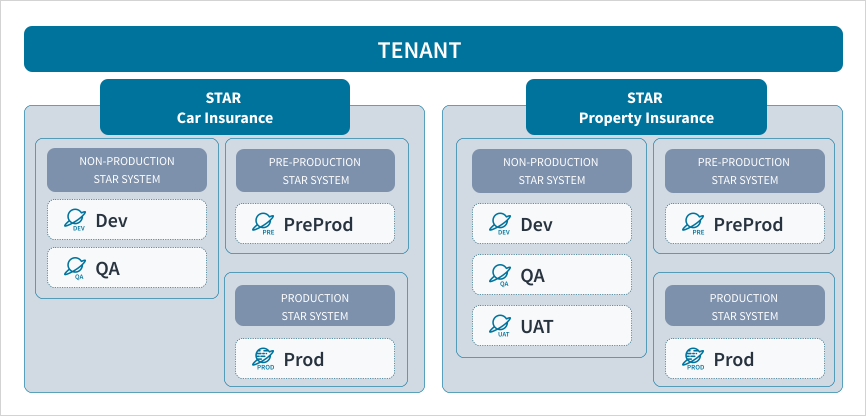
A tenant has two stars:
- Car Insurance with three star systems, to build applications for car insurance only.
- Property Insurance with three star systems, to build applications for property insurance only.
The two stars are entirely independent entities, with resources that are accessible from each star system separately.
Star system types
A type defines what planets can be created within a star system. There are the following types:
-
dev
A non-production star system for planets on the Dev, QA, and UAT orbit.
You can access Build management (TeamCity) and Source code (Bitbucket) only from dev star systems.
-
preprod
A pre-production star system for planets on the Preprod orbit.
-
prod
A production star system for planets on the Prod orbit only.
For details on planet orbits, see Check an orbit.
All the planets within a star system come with the same set of default InsuranceSuite apps that you can't change. For details, see Set of default InsuranceSuite apps.
Select a star system
In Guidewire Home, you can switch to a different star and star system.
To change your working context:
- Select Edit
 .
. - Select Switch context.
- Choose a star and star system and select Apply.
For details about the working context in Guidewire Home, see View and change working context.
Check a star system ID
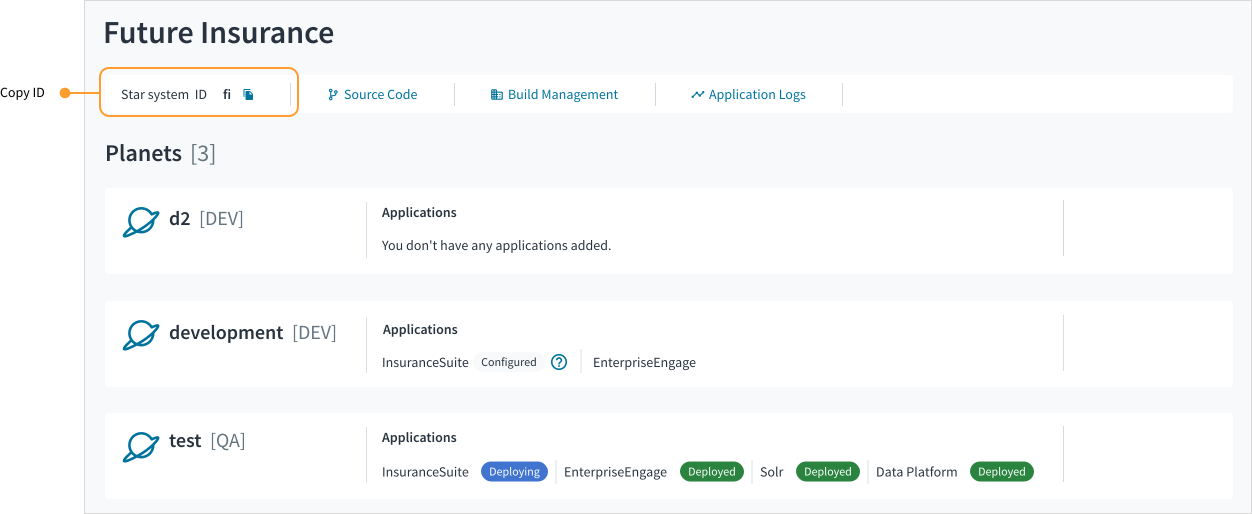
You can check the star system ID in Guidewire Home:
-
From Apps
 , select the Planets app.
 -
To copy the ID, select Copy
 .
.