InsuranceSuite deployment overview
You can deploy the InsuranceSuite apps to development (non-production), pre-production, and production planets.
You can also use API to deploy the InsuranceSuite apps. For details, see the InsuranceSuite Deployments API.
Access to this application can be managed by:
-
Guidewire Hub
For details, see Access Cloud Platform apps and services.
-
Access Management
For details, see Access Management.
Deployment types
There are three types of deployment of the InsuranceSuite apps:
| All-IS deployment | Selective deployment | Blue/green deployment | |
|---|---|---|---|
| Affected apps | All the InsuranceSuite apps at once. | Selected InsuranceSuite apps with Up status. | Selected InsuranceSuite apps with Up status. |
| Planet status | Empty Deployed Stopped Failed | Deployed | Deployed |
| Supported clusters | Single server Clustered-server | Single server Clustered-server | Clustered-server |
| Database drop | Optional | Not available | Not available |
| Types of changes in code and database | All types of changes to both the InsuranceSuite apps and the database. | All types of changes to both the InsuranceSuite apps and the database. | Most types of changes to the InsuranceSuite apps and many types of changes to the database. |
| Downtime | Depends on the number of apps and settings such as database drop or number of nodes. | Depends on what changes you introduce to the apps and the database, and the size of the database. | Zero downtime for read-only SOAP/REST API requests. |
Builds availability
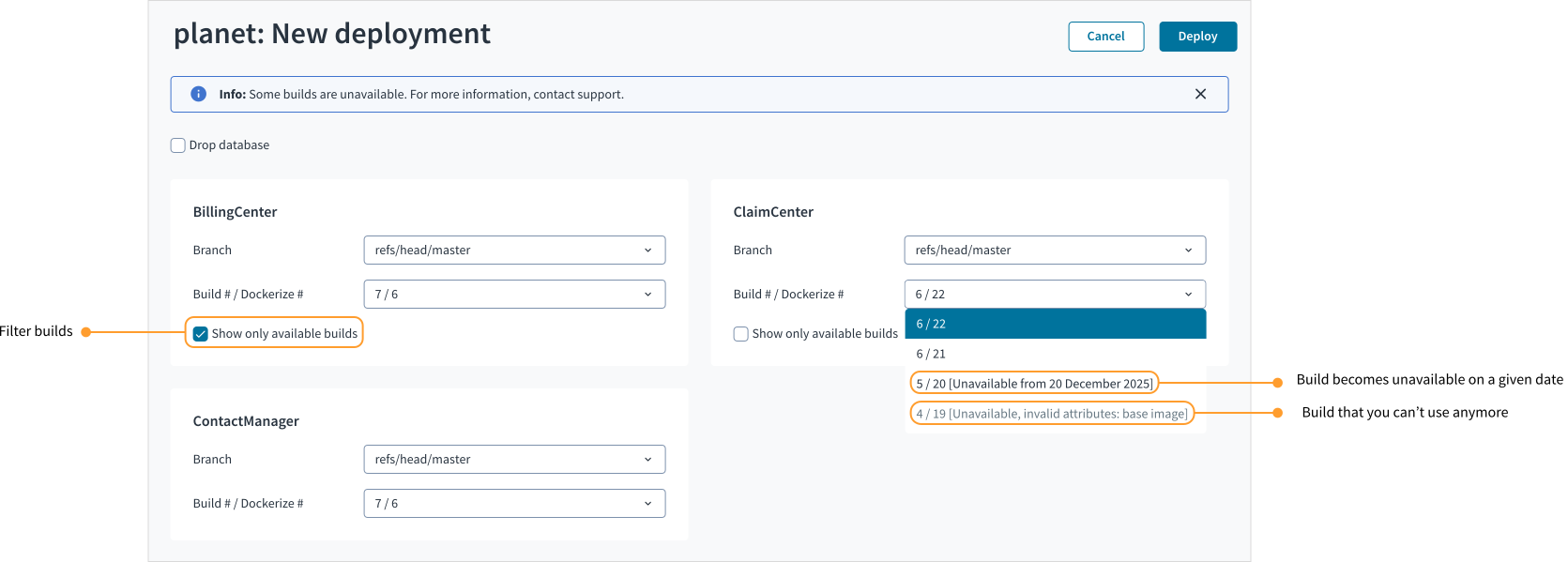
Guidewire might block older builds from being deployed due to security issues or provisions in your contract. When selecting builds for deployment, you can see the following statuses next to the builds:
-
Unavailable, invalid attributes: [attribute] for builds that you can't use anymore because Guidewire marked one of its attributes as invalid.
The attributes are usually combined with the application attribute which stands for one of the InsuranceSuite apps.
For example: The Unavailable, invalid attributes: application, base image status next to a ClaimCenter build means that for this particular InsuranceSuite app, the Docker image needs updating.For each invalid attribute, you can take the following actions:
Attribute Action platform version
The platform version for your InsuranceSuite app is too old.Upgrade the source code to a newer ski release and rebuild. project version
The application project version is outdated.Upgrade the source code to a newer ski release and rebuild. base image
A Docker image used to build the final application image is outdated.Run the Dockerize job again. branch
A branch from which the Docker image was built isn't supported.Build the source code from a different branch. -
Unavailable from [date] for builds that will become unavailable soon.
You can filter out the builds that aren't available anymore by selecting the Show only available builds check box. This check box isn't present for apps that have only available builds.
For details on why some of your builds are unavailable, contact your Customer Account Manager.
App and deployment statuses
The InsuranceSuite apps have the two following statuses:
- App status
- Deployment status
App status
App status indicates the current, real-time status of an app. There are the following possible app statuses:
| App status | Description |
|---|---|
| Up | The app is up and running. |
| Failed | The app isn't operating. |
| Inactive | The app is shut down or hibernated. |
| Starting | The app is starting. |
| Pending | The app is waiting. |
| Upgrading | The app is being upgraded. |
| Shutting Down | The app is being shut down. |
| Empty | The app isn't deployed. |
| Scaling Up | App nodes are being added. |
Deployment status
Deployment status indicates what is happening with the deployment of an app. There are the following possible statuses:
| Deployment status | Description |
|---|---|
| Pending | Waiting for the deployment to begin. |
| Deploying | The deployment is in progress. |
| Deployed | The deployment has finished. |
| Restoring Database Backup | The database is being restored. |
| Database Backup Restored | The database is restored. |
| Failed | The deployment isn't finished due to an error. |
| Undeploying | The app is being undeployed. |
| Deleting | The planet is being deleted. |
| Environment deleted | The planet is deleted. |
| Empty | No app is deployed to this planet. |
| Stopping | The deployment is being stopped. |
| Stopped | The deployment stopped. |
| Error | Can't retrieve the status. |
| Rollback in progress | The deployment is being rolled back. |
| Database rolled back | The database is rolled back. |
| Starting | The deployment is starting. |
| Scaling Up | App nodes are being added. |
| Shutdown | The app has been shut down. |
| Upgrading | The app is being upgraded. |
The app and deployment statuses can be displayed in different combinations.
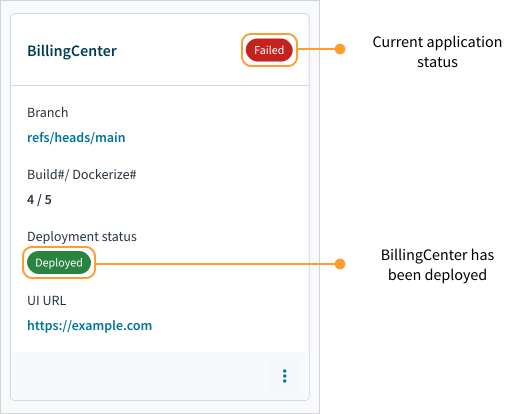
BillingCenter has been deployed but there was an error in app configuration and it crashed once it started. Its deployment status is Deployed but its App status is Failed.
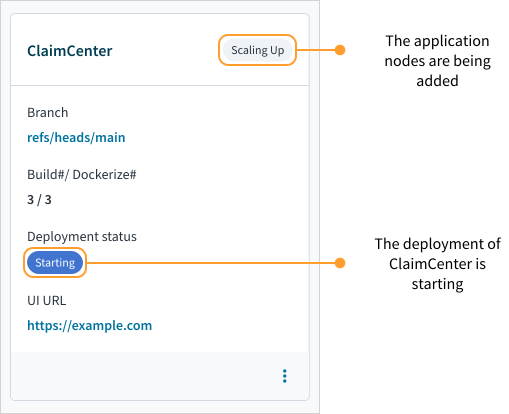
The Deployment status of ClaimCenter indicates Starting and its App status indicates Scaling up. This means that this app is being deployed with more app nodes.
Check the app and deployment statuses
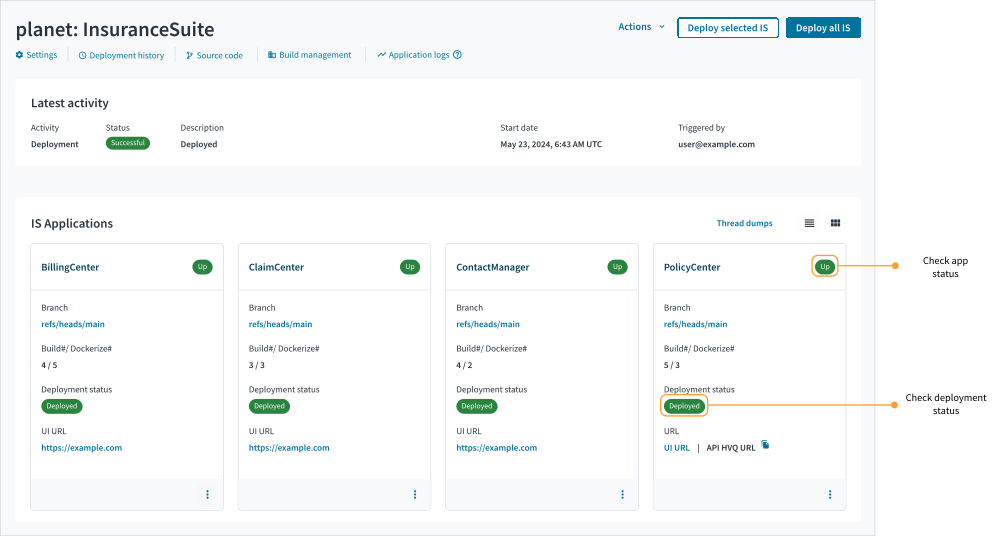
To check the App Status and Deployment status:
-
In Guidewire Home, select a star system.
-
From Apps
 , select Planets or select it from your pinned apps.
 -
Select a planet.
-
From Applications and add-ons, select InsuranceSuite.
-
In Applications, find the app whose statuses you want to check.
Access deployed apps
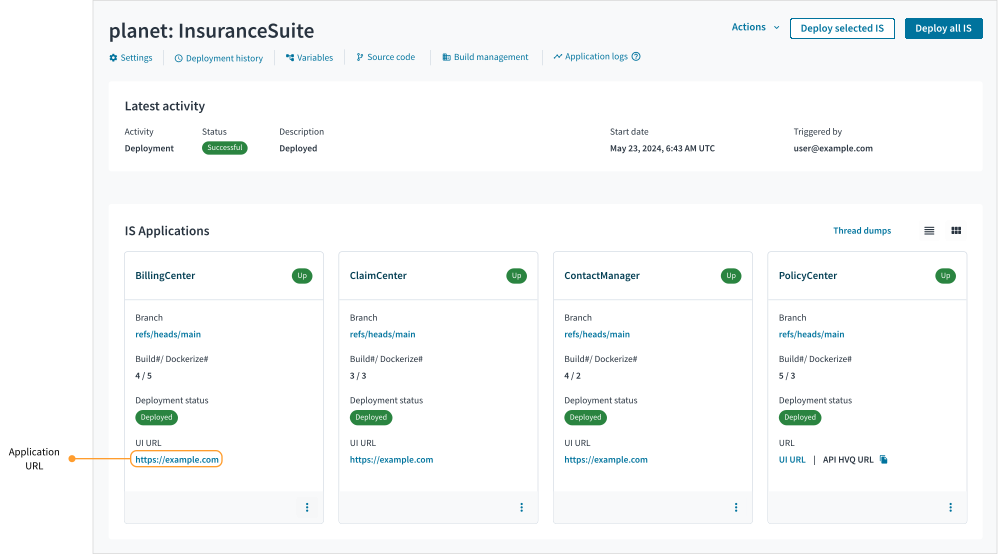
Once you deploy the InsuranceSuite apps, you can access them directly from Guidewire Home. Make sure that you have the required access permissions to the InsuranceSuite apps.
To access the deployed apps:
-
In Guidewire Home, select a star system.
-
From Apps
, select Planets or select it from your pinned apps. -
Select a planet.
-
From Applications and add-ons, select InsuranceSuite.
-
In Applications, in an app tile, select the link under Deployment status.
View deployment history, application logs, and activity journal
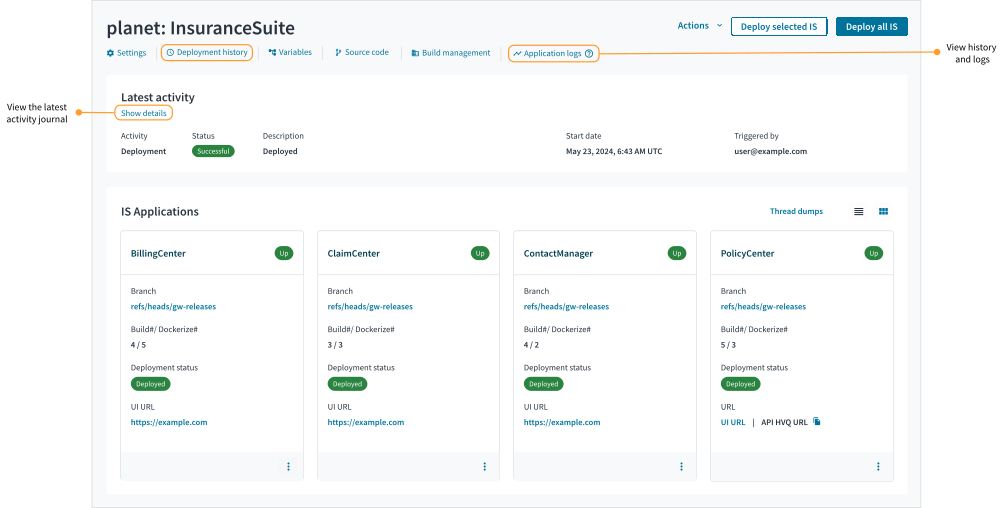
You can access deployment history, application logs, and activity journal from the planet summary page:
-
In Guidewire Home, select a star system.
-
From Apps
, select Planets or select it from your pinned apps. -
Select a planet.
-
From Applications and add-ons, select InsuranceSuite.
-
Go to Deployment history or Application logs, or check the Latest activity journal in Show details.
For details, see: