UI text style guide (English)
The purpose of this style guide is to help writers, designers, developers, UXers, product managers, or anyone who contributes to in-product content for Guidewire. It focuses on the rules and mechanics of writing app UI text, such as grammar, punctuation, and syntax.
Table of contents
Chicago style
We use the Chicago Manual of Style for in-product writing at Guidewire. If you have a style or usage question that isn't covered in this document, you can consult the Chicago Manual of Style here.
Active and passive voice
Voice is either active or passive. Use the active voice in most situations.
-
In active voice, the subject of the sentence performs the action.
-
In passive voice, the subject +-is the recipient of the action.
Active voice
Using the active voice keeps your writing simple, clear, concise, and conversational. It empowers users with copy that calls them to action and is easier to read. Active voice also eliminates ambiguity by making it clear who is doing the action.
Active voice follows a subject-verb-object order.
Select a repair facility
You can edit this document
A repair facility selection is required.
This document can be edited by you.
Passive voice
Passive voice is problematic because it obscures who is responsible for performing the action.
There are, however, certain situations in which you might want to put the focus on an object. For example, in errors or notifications, you can use the passive voice to avoid condescending text or assigning blame.
Your claim has been denied.
We denied your claim.
Contractions
To create the experience of a service-oriented and authentic conversation, write using the same everyday words you use when you talk to people. This includes commonly understood contractions, which can lend your copy a more friendly and informal tone.
Here are some common contractions:
- Aren't
- Can't
- Didn't
- Doesn't
- Don't
- Isn't
- It's
- That's
- They're
- We're
- What's
- You'll
- You're
- You've
This document isn't available to check out.
This document is not available to check out.
Considerations for using contractions
- Never form a contraction from a noun and a verb, such as Guidewire's developing a new P&C insurance app.
- Don't use colloquial contractions (for example, ain't, y'all, somethin').
- Don't use uncommon or old-fashioned contractions (for example, it'd, would've, e'er).
- Don't mix contractions and their spelled-out equivalents in UI text. For example, don't use aren't and are not in the same UI.
- Avoid using contractions when handling sensitive information, such as dealing with legal concerns, payment processing, and account security. In these situations, a more formal tone is appropriate.
There are 17 exposure signals that need investigation.
Your account has been disabled.
There's 17 exposure signals that need investigation.
Y'alls account has been disabled.
Verb tense
Write in the present tense
The present tense is the best choice for most content. It's often easier to read and understand than the past and future tense.
Your coverage ends at 11:59 p.m.
Your coverage will end at 11:59 p.m.
If you need to write in the past or future tenses (for example, to make a sequence of actions easier to understand), use simple verb tenses.
Simple verb tenses
English has three simple verb tenses: past, present, and future.
Simple verb tenses describe actions without stating whether they're continuous (progressive tenses) or completed (perfect tenses).
Why we use simple verb tenses
Simple verb tenses are direct, clear, and concise. They make it easier to scan and understand UI text. Fewer words and simpler phrases also improve readability scores.
Message sent
Message has been sent
What's not a simple tense verb
If any of the following appear before a verb in a sentence, that verb isn't simple:
- Is, isn't, are, aren't, was, wasn't, were, weren't, be (progressive)
- Has, hasn't, had, hadn't, have, haven't (completed)
- Any verb that ends in “-ing”
Some exceptions when using a continuous or progressive verb is acceptable: waiting or loading states (for example, “Your application is being provisioned”).
Capitalization
Use sentence case for all aspects of designing Guidewire product experiences, including titles and headings, labels, and all UI elements (for example, menu items and buttons). Sentence-style capitalization is predominantly lowercase. Capitalize only the following words:
- The first letter of the first word in a sentence or phrase
- Proper nouns, such as the names of brands, products, and services
Bundle home and auto insurance to save.
Orchestrate and model workflows with Workflow Designer.
Data Masking is a subscription service that helps keep your sensitive data secure.
Bundle Home and Auto Insurance to Save.
Orchestrate and model workflows with workflow designer.
Data masking is a subscription service that helps keep your sensitive data secure.
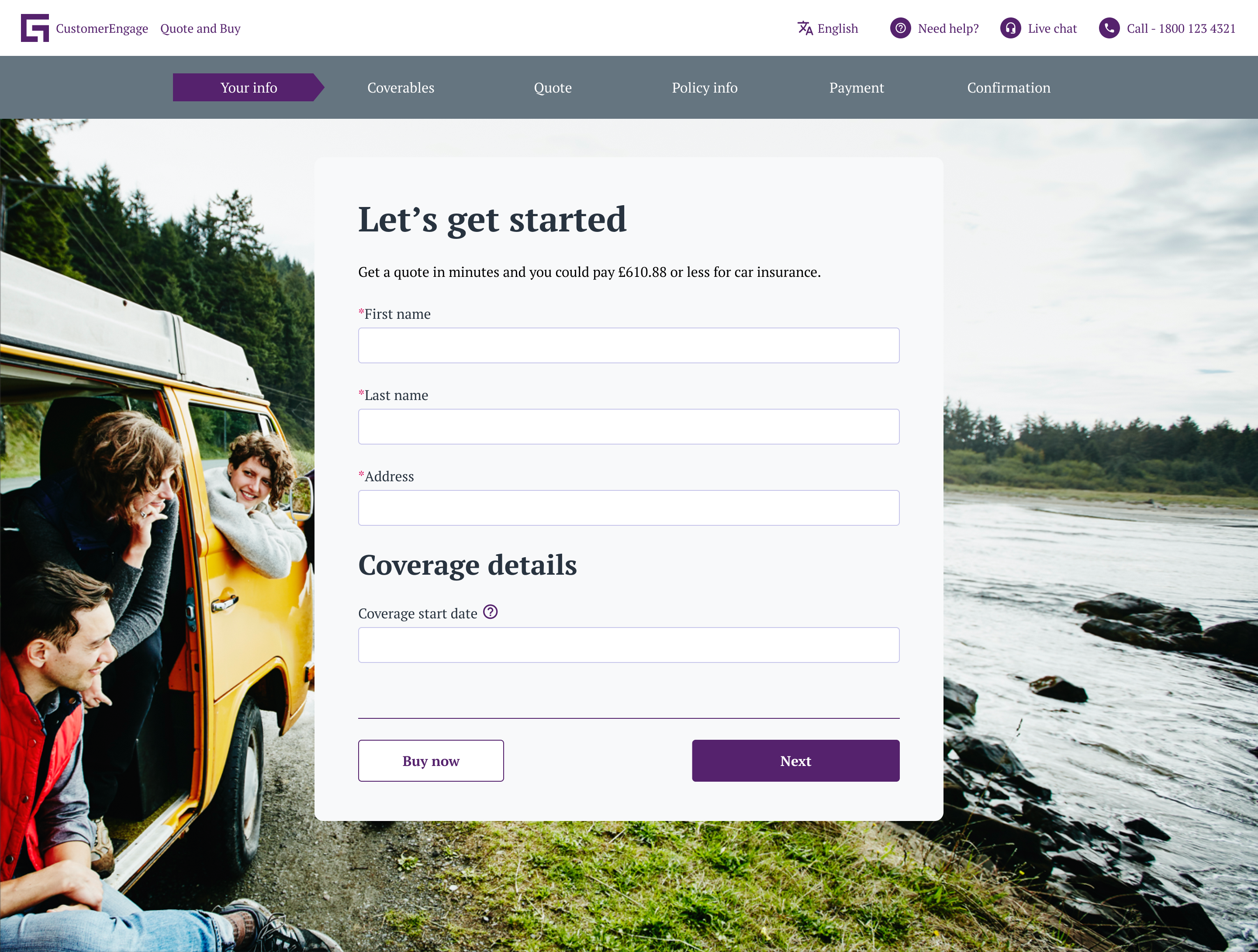
The following image shows a page using sentence-style capitalization:
Why we use sentence case
- Clarity. Sentence case is easier for users to read and comprehend.
- Voice. Sentence case supports a friendly and conversational style and makes it easier to spot proper nouns.
- Consistency. Sentence case is easier to explain to designers and developers.
- Localization. Sentence case is easier to translate for non-U.S. markets and products.
Sentence case rules
- Capitalize only the first letter of the first word in a sentence, heading, title, UI label, or standalone phrase.
- Capitalize proper nouns, such as the names of brands, products, and services.
- Capitalize acronyms (for example, ZIP code).
- Don't capitalize the names of features unless they're trademarked.
Building details
Number of accidents
Submit claim
Edit coverage
Building Details
Number of Accidents
Submit Claim
Edit Coverage
Pronouns
How we address users, whether we write in the first, second, or third person, greatly affects the tone of our copy. Follow these guidelines to create an experience that pulls users in and motivates them to act.
Second person
Use the second-person (you, your) in most situations. The second person represents the reader's point of view. It supports a conversational and natural tone, making it feel like the product is speaking directly to the user.
Check if you have admin rights.
Change your settings
Check if I have admin rights.
Change my settings
First person
In some rare cases, you may need to use the first person (I, me, my) to emphasize the user's ownership of content or actions. Specifically:
- When asking the user for their consent
- When the user responds to the interface or answers a question they've been asked directly
- When you need to distinguish a user's content from other content that may be presented in the same visual space (for example, “My apps”)
I agree to the terms of service
You agree to the terms of service
In general, avoid first-person plural (we, us). First person plural can feel needlessly corporate. It may also give users the impression that Guidewire is spying on them or reviewing details about their data. Instead, keep the focus on the user and what they can do with your app.
Some exceptions when using the first-person plural can create a more natural tone:
- When the user needs to put in an extraordinary effort (for example, “Help us improve this feature.”)
- When Guidewire has inconvenienced the user in some way (for example, “We're sorry. The site is temporarily unavailable.”)
Singular they
When you refer to users, avoid using third-person pronouns that are gender specific. We shouldn't assume that a user identifies as a man or as a woman. Gendered pronouns such as “he/she” or even “s(he)” are clunky and they exclude users who are non-binary. Instead, use they, them, or their.
This form will be sent to a claims representative. They'll be in touch within one business day.
This form will be sent to a claims representative. (S)He will be in touch within one business day.
Punctuation
Ampersand
Don't use ampersands (&) in UI text. Instead, spell out the word “and.”
Why we avoid using ampersands
- Non-fluent English speakers are more familiar with the word “and.”
- Spelled-out words require less mental effort to read.
- Ampersands attract attention to the least important part of the sentence.
- The ampersand symbol (&) can be distracting because it's taller than most letters and is an unusual shape.
Date and time
Review your policy and understand what's excluded from coverage.
Date & time
Review your policy & understand what's excluded from coverage.
Apostrophe
Use apostrophes to form possessives:
- Singular nouns: add an apostrophe and an s, even if the noun ends in s, x, or z (for example, bus's, box's)
- Plural nouns that don't end in s: add an apostrophe and an s (for example, women's, men's)
- Plural nouns that end in s: add an apostrophe (for example, users', customers')
For joint possession, only the second element takes an apostrophe (for example, Tom and Mary's car).
Don't use the possessive form of trademarks and product, service, or feature names (for example, PolicyCenter's database).
Use apostrophes to indicate a missing letter in a contraction. Beispiel:
- Can't
- Don't
- It's
Workers' compensation
Enter the vehicle's make and model
Guidewire products
Workers compensation
Enter the vehicles make and model
Guidewire's products
Asterisk
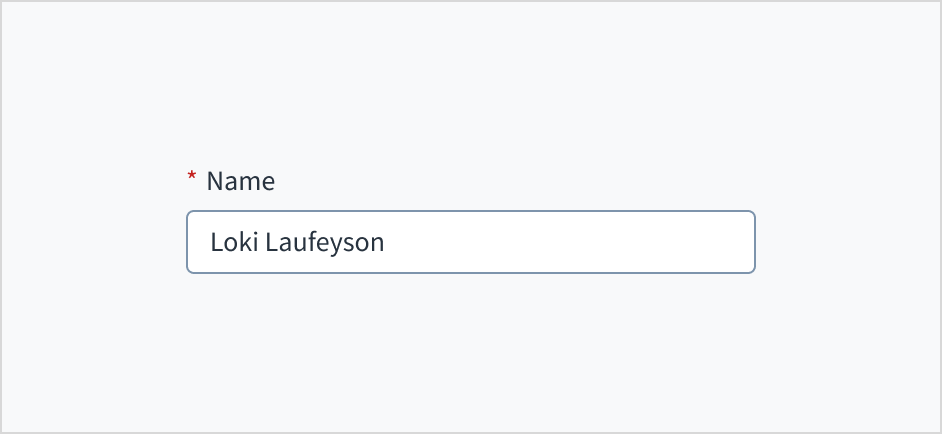
Use an asterisk to mark required fields. The asterisk should precede the field label. Benutzer können so leicht herausfinden, welche Felder erforderlich sind, indem sie nur das Zeichen ganz links in der Beschriftung prüfen.
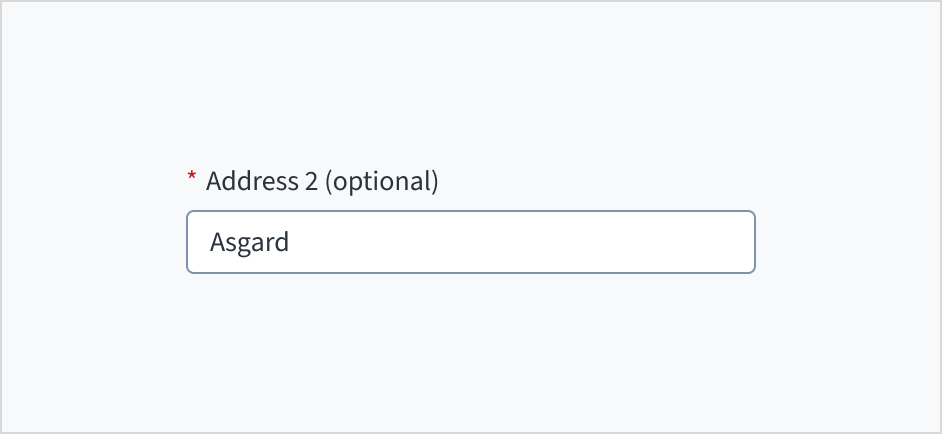
Don't use asterisks to denote anything that is optional.
Source: Nielsen Norman Group
Colon
Preceding lists
Use a colon to introduce a list of items or steps in a workflow. Each item or step should appear on a new line.
To rename a query, follow these steps:
Select the Actions menu
Select Rename
To rename a query, follow these steps
Select the Actions menu
Select Rename
Within sentences
Try to simplify a complex sentence into multiple sentences. Most of the time, two sentences are more readable. When this isn't possible, you can use a colon to join two independent clauses and signal a connection between them.
In instances like this, the colon indicates that the second clause expands on the first. It alerts the user to read on for an explanation or expansion of the first clause.
Field labels
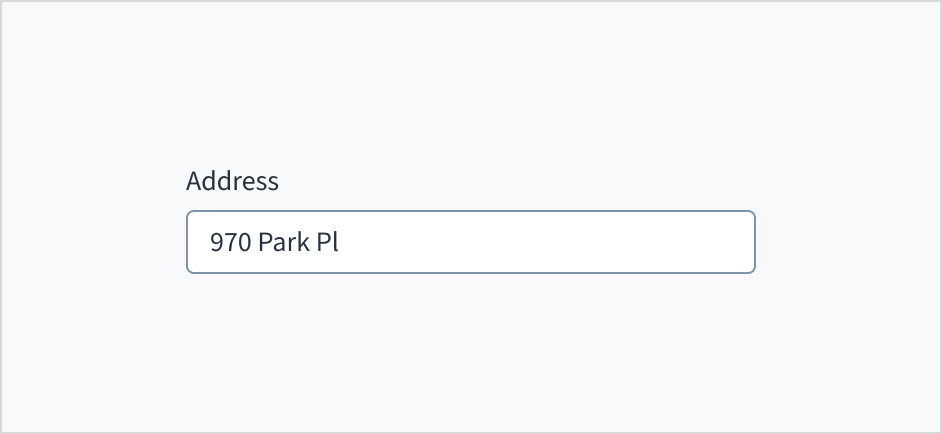
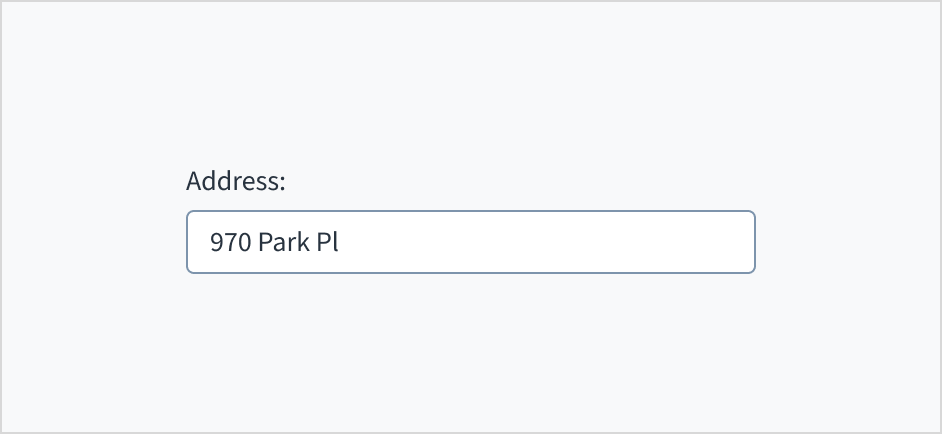
Don't use colons after labels or when introducing things like a list of radio buttons or checkboxes. The component should communicate the relationship between the label and the input.
Comma
Use a serial (or Oxford) comma for lists of three or more items. This means adding a comma before the final conjunction to prevent ambiguity.
If you find yourself having to use a lot of commas in a sentence, consider whether you can split the sentence up with periods.
APD is a business tool that helps design, simulate, and deploy insurance products.
APD is a business tool that helps design, simulate and deploy insurance products.
Dash and hyphen
Em dash
Use an em dash (—) to set off parenthetical information. Don't use spaces on either side of the em dash.
Mac keyboard shortcut: option+shift+hyphen
PC or Windows shortcut: Ctrl+Alt+hyphen
En dash
Use an en dash (–) to express a range of values. Don't use spaces on either side of the en dash.
Mac keyboard shortcut: option+hyphen
PC or Windows shortcut: Alt+0150
Hyphen
Use a hyphen (-) for a compound adjective that comes before the noun it modifies. Don't use spaces on either side of the hyphen.
To estimate your premium, you need a projection—an educated guess—of yearly mileage.
$500–$800
Up-to-date information
To estimate your premium, you need a projection of yearly mileage; an educated guess.
$500-$800
Up to date information
Ellipses
Use ellipses in the following situations:
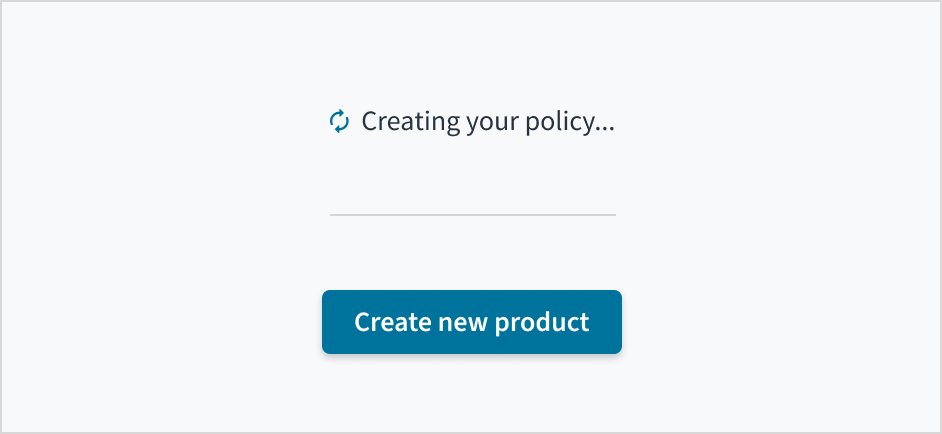
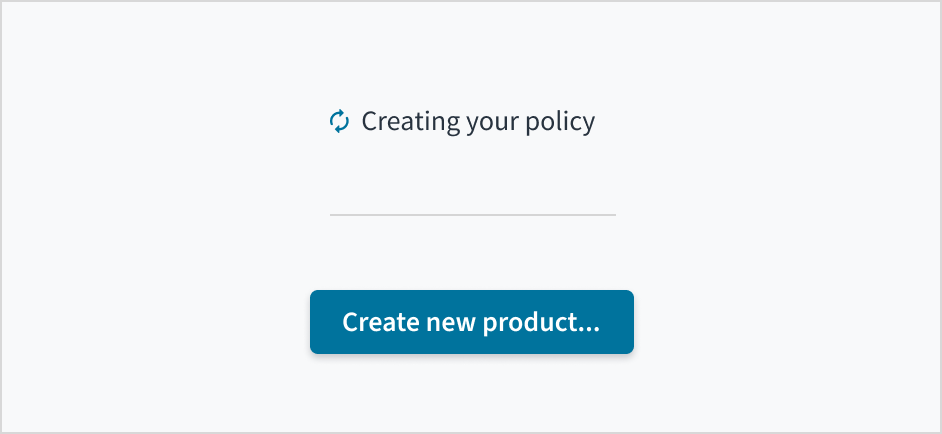
- To indicate that a task is in progress (for example, “Loading products...”)
- When truncating text in small spaces (for example, the contents of a data cell)
- To indicate a pause in conversational UI
- In placeholder text to indicate that users can take action (for example, “Select contact method...”)
Make sure there's no space before the ellipsis.
If you need to refer to a UI element that ends with an ellipsis (for example, “Search...”), drop the ellipsis: “Use Search to locate a dataset or data table.”
Omit ellipses from menu items or buttons that open a dialog or start a process.
Emoji and emoticons
Don't use emoji or emoticons in your UI. They convey tones that might be inappropriate in certain situations.
They're also difficult to localize and have a negative impact on the readability and accessibility of UI text.
Welcome to Guidewire Cloud Home
Guidewire Cloud Home is your starting point for working with your Guidewire apps.
Welcome to Guidewire Cloud Home 👋
Guidewire Cloud Home is your starting point 🎬 for working with your Guidewire apps! 🎉
Equals sign
Don't use the equals sign (=) as shorthand for “means” or “is.”
A dataset is a collection of data elements and metadata visible within DataStudio.
Data elements + metadata = dataset
Exclamation point
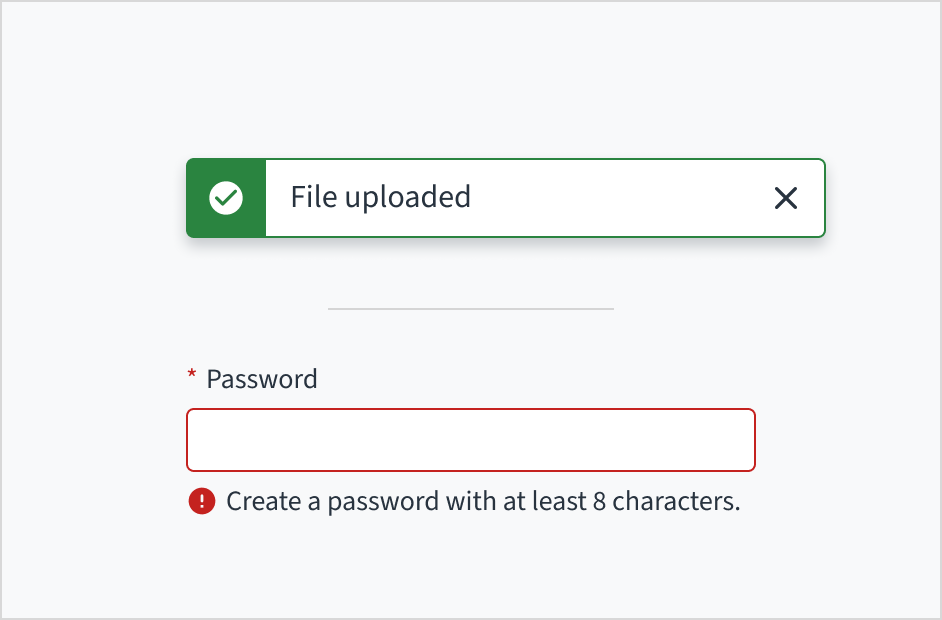
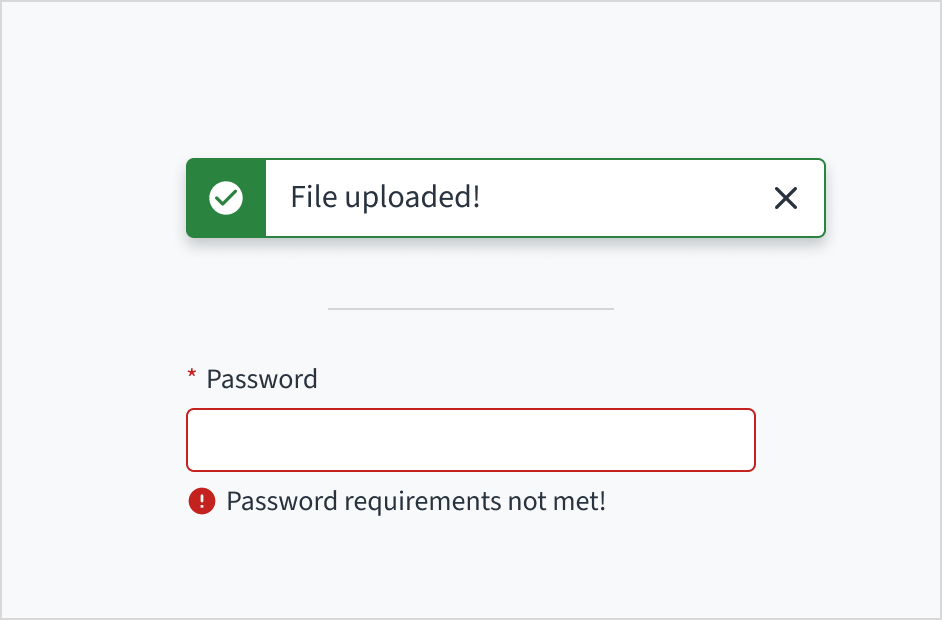
Avoid using exclamation points (!) in your copy. Exclamation points look chaotic and loud. They're also easy to overuse and difficult to localize.
Source: Nielsen Norman Group
Parentheses
Use parentheses to provide examples and supplementary context or to introduce an abbreviation.
Parentheses enclose only non-essential information. That means, when you read your sentence out loud without the parenthetical text, it should still make sense.
Don't use parentheses to indicate a possible plural of something. If the user can select one thing or multiple things, use the plural.
Don't use brackets in place of parentheses.
Covered drivers
Provide the vehicle identification number (VIN), license plate number, and the vehicle's make and model.
Covered driver(s)
Provide the VIN, license plate number, and the vehicle's make and model.
Period
In general, if your text is a complete sentence, use a period (full stop) at the end. If it's a fragment, don't add a period.
When to use periods:
- Complete sentences
- Helper text under text boxes (form fields)
- Body text and descriptions
- Sentence fragments
- Headlines, headings, subheadings, titles
- Buttons
- Placeholder copy
- Navigation menu items
- Radio button and checkbox text
- Simple lists (three or fewer words per item)
In the majority of cases, don't add periods or any other punctuation to the end of bulleted or numbered list items. If one or more list items are complete sentences, use a period at the end of every item.
Please contact us by using any of the following methods:
- Online contact form
- Chat
- Telephone
- In person
Please contact us by using any of the following methods:
- Online contact form.
- Chat.
- Telephone.
- In person.
Question mark
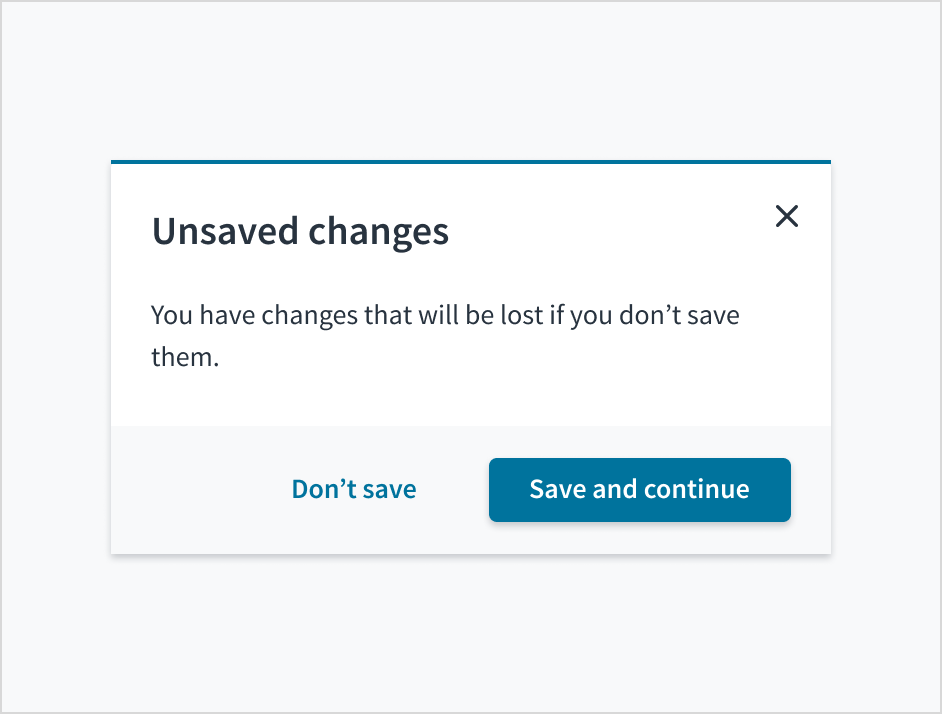
Use question marks sparingly. Try to reword into affirmative statements wherever possible.
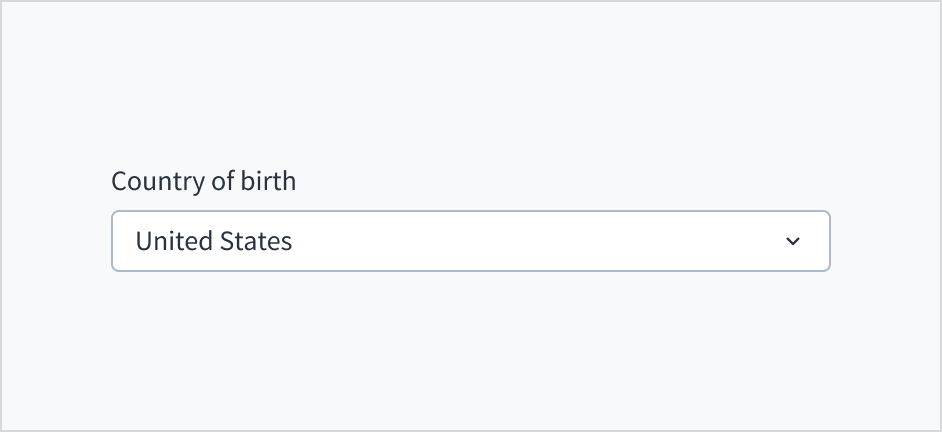
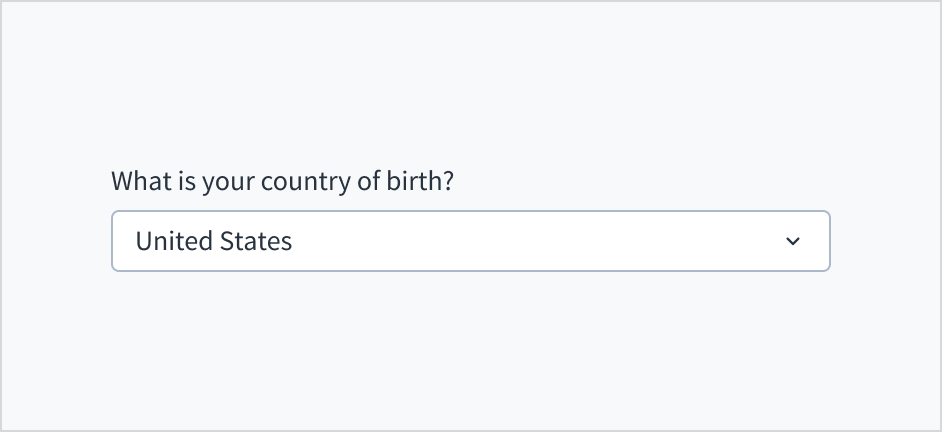
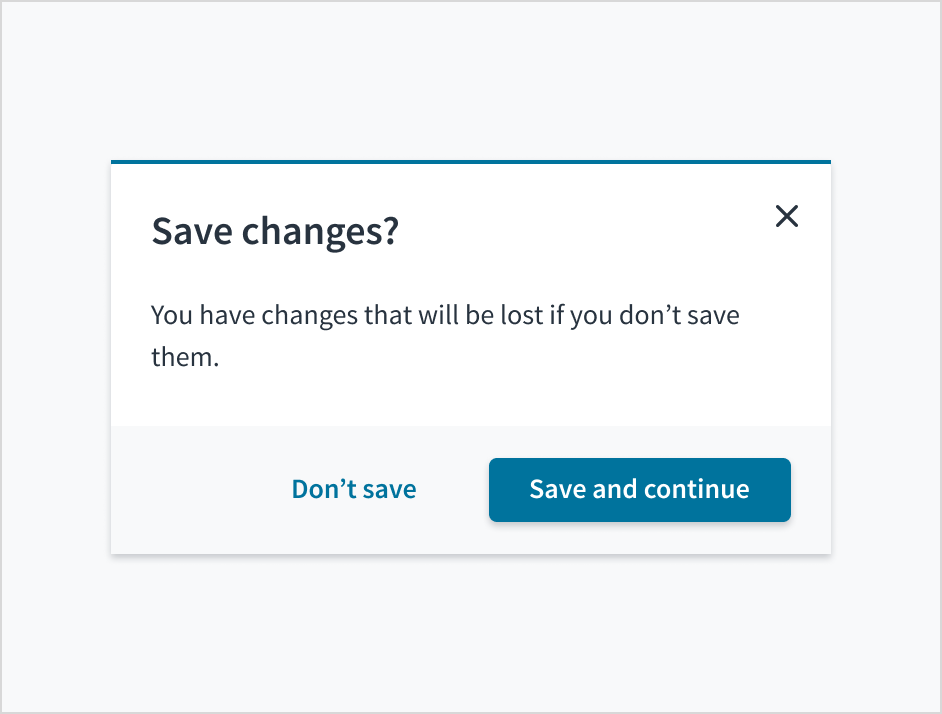
When a user needs to make a decision (for example, in the context of a decision dialog), a question is appropriate.
Quotation mark
Use quotation marks to:
- Quote someone's words.
- Refer to a file or asset name.
- Highlight a value selected or entered by the user.
- Enclose a dynamic text variable for a customer text, such as a product name.
Don't use quotation marks to:
- Refer to interface elements. Instead, use bold to refer to the names of interface elements in running text.
“Commercial Auto.xml” failed to upload
To rename a query, select Rename in the Actions drop-down list.
Commercial Auto.xml failed to upload
To rename a query, select “Rename” in the “Actions” drop-down list.
Additional considerations:
- Always use smart (curly) quotation marks, except when showing code. It's easy to mistake straight quotes for primes, which are used for measurements.
- Place commas and periods inside closing quotation marks. Other punctuation (colons, semicolons, question marks, exclamation points) goes outside closing quotation marks, unless it's part of the quoted material.
- When working with typed commands and user inputs, place punctuation outside the quotation marks.
- In most content, use double quotation marks, not single quotation marks.
Mac shortcut keys
Opening quotation marks: Option+[
Closing quotation marks: Option+Shift+[
PC or Windows shortcut keys
Opening quotation marks: Alt+0147
Closing quotation marks: Alt+0148
We call it a “screen,” not a “page.”
To delete this item, type “delete”.
There was an error with the file “commercial_auto.xml”.
We call it a “screen”, not a “page”.
To delete this item, type “delete.”
There was an error with the file “commercial_auto.xml.”
Semicolon
Avoid using semicolons if possible. While semicolons are useful for joining independent clauses, they add a formal and academic tone to your writing. They also negatively affect user comprehension.
Instead of using a semicolon, try to simplify the sentence by breaking it into multiple sentences or a list.
Let's say you're creating a query. Go to New query.
Let's say you're creating a query; go to New query.
Slash
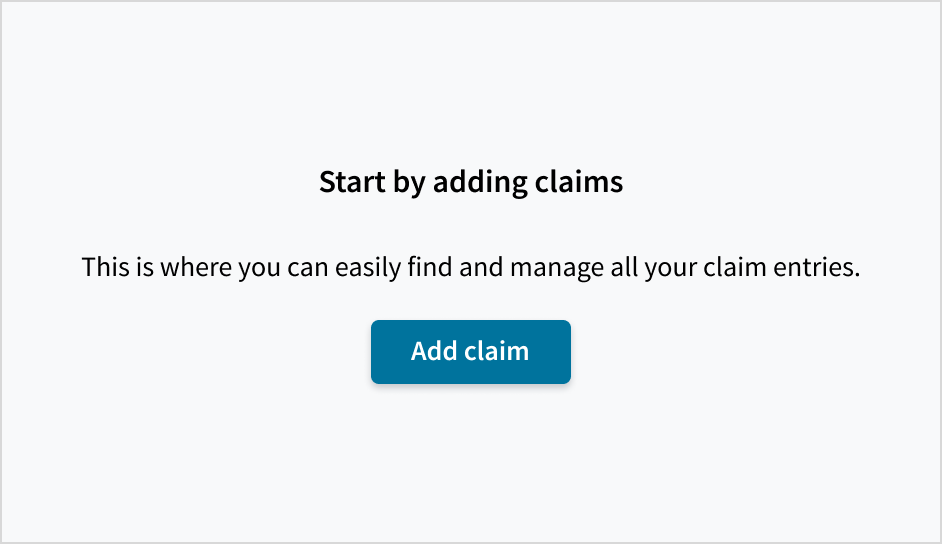
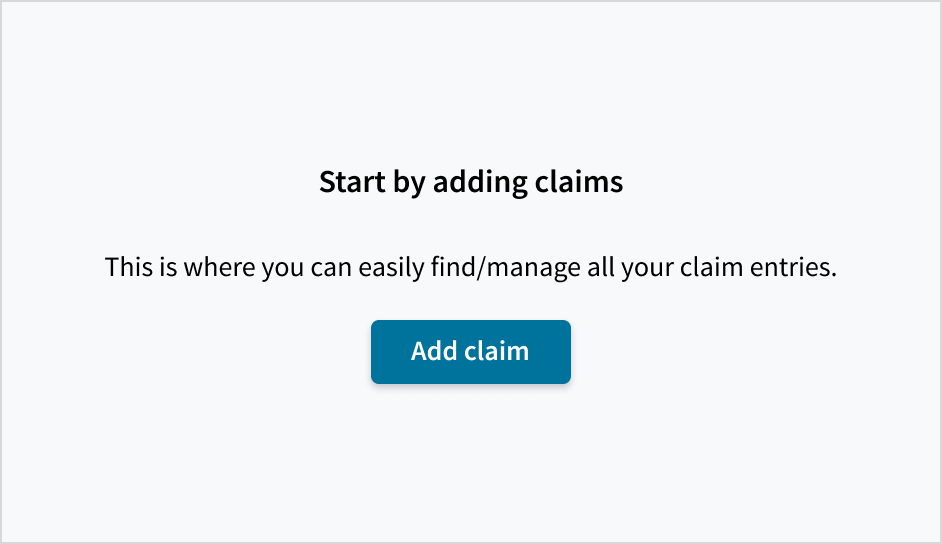
Don't use a forward slash (/) to combine words or ideas. This comes across as noncommittal and impacts comprehension and clarity. Instead, use the conjunctions “and” or “or.”
Don't use “and/or” unless it helps you avoid lengthy, complex wording. Most of the time, “or” can stand on its own.
Abbreviations and acronyms
Limit the use of abbreviations and acronyms as much as possible to avoid confusion.
If it's necessary to abbreviate, observe the following best practices:
- Use standard abbreviations and acronyms.
- The first time you use an acronym, spell out the term for clarity and include the acronym in parentheses. Well-known acronyms, such as ZIP code, are exceptions to this guideline.
For example, that is, and more
Date of birth
Guidewire
e.g., i.e., etc.
DOB
GW
Numbers
Numerals vs. words
In general, use numerals in place of words for numbers. This enhances the scannability of UI content.
Exceptions to this rule:
- When mixing uses of numbers, such as “Enter two 3s.”
- If the number is below 10 and not integral to the sentence, spell it out in full.
7
100
1
You have 3 tasks to complete.
Compare two files to see the changes.
seven
one hundred
one
You have three tasks to complete.
Dates and time
Dates
In the UIs that we own (as opposed to UIs customers create with our platform), avoid short formats such as 4/5/2021. Short numeric formats are ambiguous. Depending on whether you live in Europe or the United States, you might interpret that to mean the 4th of May, or the 5th of April.
If there are space constraints, use 3-letter abbreviations for the month.
Wednesday, August 7, 2022
Wed, Aug 7, 2022
August 7, 2022
Aug 7, 2022
Wed, August 7, 2022
Wednesday, Aug 7, 2022
August 7, '22
08/07/22
Time
When expressing time using numbers, use a colon between the hours and minutes with no spaces on either side.
If it's an exact hour, no “:00” is required.
Use to in a range of times. For example, 8 a.m. to 5 p.m.
Use a.m. and p.m. (with a space before). For example: 5:22 a.m.
Never use the capital-letter, non-period, or single-letter versions such as PM, A.M., or p unless they're strictly necessary for some special case.
When translating to the 24-hour system, don't include a.m. and p.m.
Posted at 3:30 p.m.
Schedule for 2 p.m.
5:30 a.m. to 8:30 a.m.
Seen at 15:18
Posted at 330 p.m.
Schedule for 2:00 p.m.
5:30 a.m. – 8:30 a.m.
Seen at 15:18 p.m.
Lists
Bulleted
Use bulleted lists to reveal the relationship of items, breakdown complex ideas, and support scanning.
Bulleted lists are “unordered.” This means that the items within the list are related but sequence or priority doesn't matter.
When using bulleted lists, follow these guidelines and best practices:
- Write list items to have approximately similar line lengths.
- Use parallel sentence construction for list items.
- Avoid repeating the same words at the beginning of each list item.
- Introduce a list with a clear, descriptive sentence or phrase.
- Keep formatting consistent.
- Choose what you want to emphasize wisely.
Source: Nielsen Norman Group
InsuranceSuite products include:
- PolicyCenter
- BillingCenter
- ClaimCenter
InsuranceSuite products include:
- PolicyCenter,
- BillingCenter,
- and ClaimCenter, too.
Numbered
Use numbered (ordered) lists only when the sequence or count of items are important, such as step-by-step instructions.
To add a new category to Guidewire Cloud Home, follow these steps:
On the Profile, select Personalization.
In Add category, enter a name for the category, and then select Save.
To add a new category to Guidewire Cloud Home, follow these steps:
On the Profile, select Personalization .
In Add category, enter a name for the category, and then select Save.
Capitalization
Begin each item in a list with a capital letter and use sentence case.
Car insurance coverage options:
- Auto liability coverage
- Uninsured and underinsured motorist coverage
- Comprehensive coverage
- Collision coverage
- Medical payments coverage
- Personal injury protection
Car insurance coverage options:
- Auto Liability Coverage
- Uninsured and Underinsured Motorist Coverage
- Comprehensive Coverage
- Collision Coverage
- Medical Payments Coverage
- Personal Injury Protection
Punctuation
- Introduce bulleted lists with a colon or a heading.
- If you introduce a list with a heading, don't use a colon or period after the heading.
- In the majority of cases, don't add periods or any other punctuation to the end of bulleted or numbered list items.
- If one or more list items are complete sentences, use a period at the end of every item.
Common exclusions include:
- Earthquake
- Mold
- Flood
Common exclusions include:
- Earthquake;
- Mold;
- Flood.